Asset Table View
Updated:
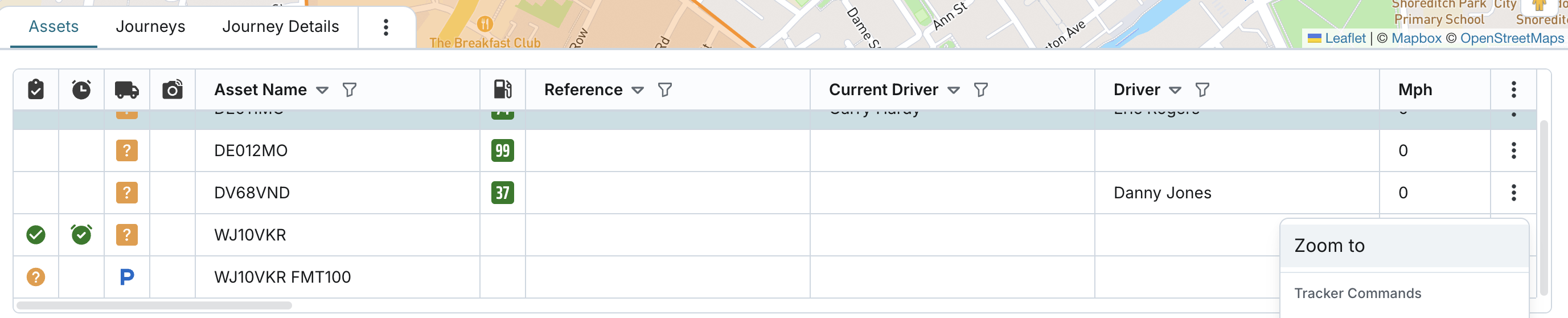
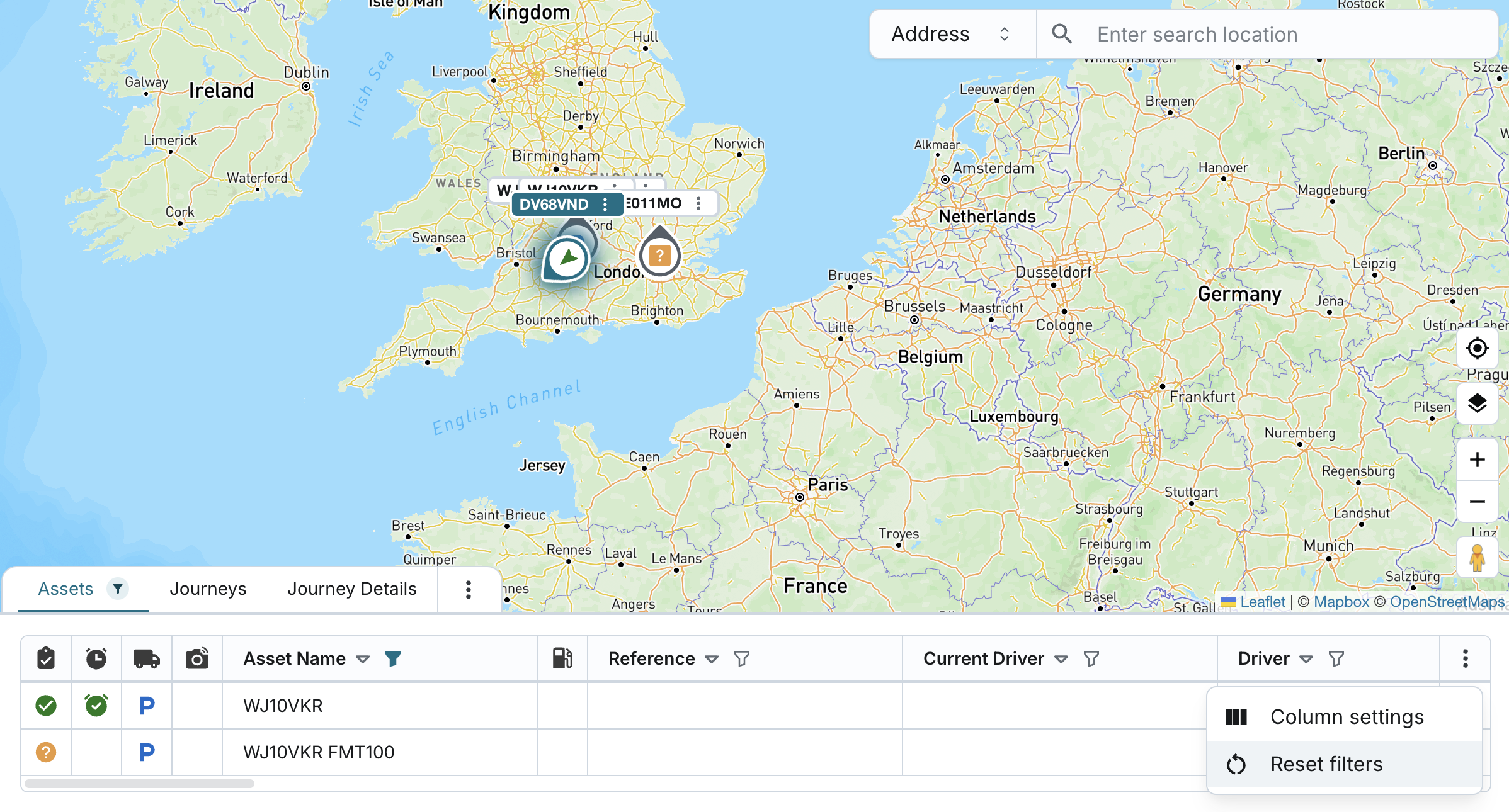
You can view asset data in a structured horizontal table known as the Asset Table View. This table is updated dynamically in real-time by the system.
<
- The table includes ACTIVE assets: those that have at least a tracker or camera paired to them.
- It also displays DEACTIVE (VISIBLE) assets: those that may not have any tracker or camera, but are marked as visible for the user. These appear highlighted in yellow to distinguish them from active assets.
- You’ll only see assets based on your assigned display groups or visible asset configurations.
By default, assets are sorted by Asset Name.
You can see a wide range of live information for each asset:
- Checklist Info
- Reported Status of Last Asset Checklist: Status of the last completed "Checklist - Vehicle" type.
- Last Checklist Due Status: Shows if the last checklist was completed on time or is overdue, based on the frequency set at the asset group level.
- Movement Status
- Parked: Ignition is OFF.
- Moving: Ignition ON and vehicle is moving.
- Stationary: Ignition ON, vehicle speed is 0, RPM is greater than 0 (if RPM is provided by tracker, else this parameter is ignored), idle time within threshold.
- Idle: Same conditions as stationary, but idle time has exceeded the set limit.
- Excessive Idle: Same as Idle, but has exceeded the 'Excessive idle time' setting.
- Speeding: Vehicle speed exceeds the road speed limit.
- Unknown: Last update is older than the update frequency defined at asset group level.
- Core Details
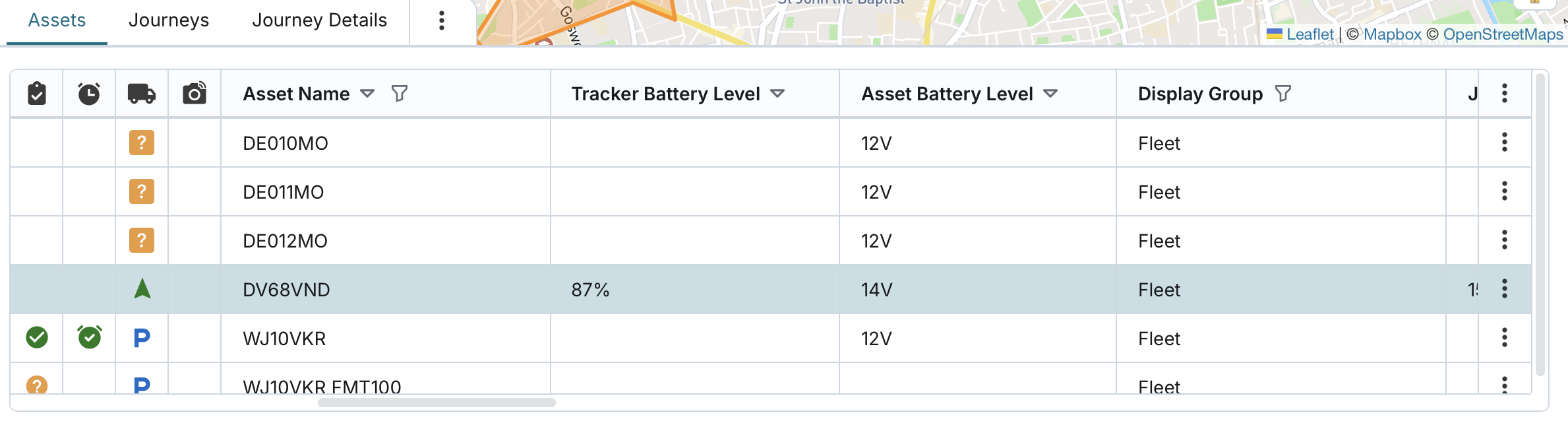
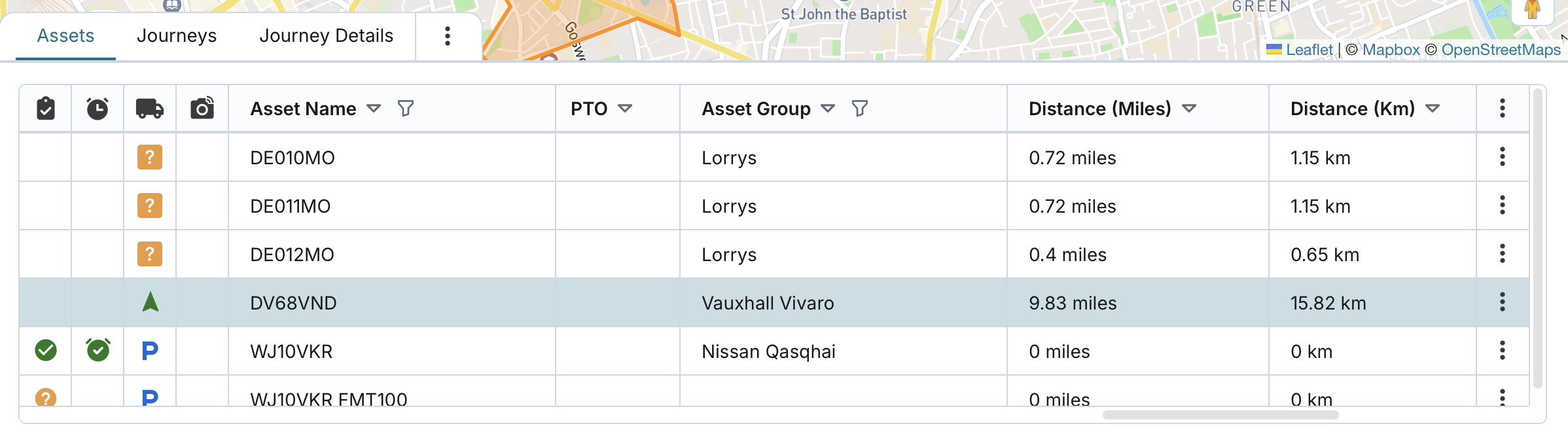
- Asset Name, Reference, Asset Group, Display Group
- Tracker Battery Level, Asset Battery Level
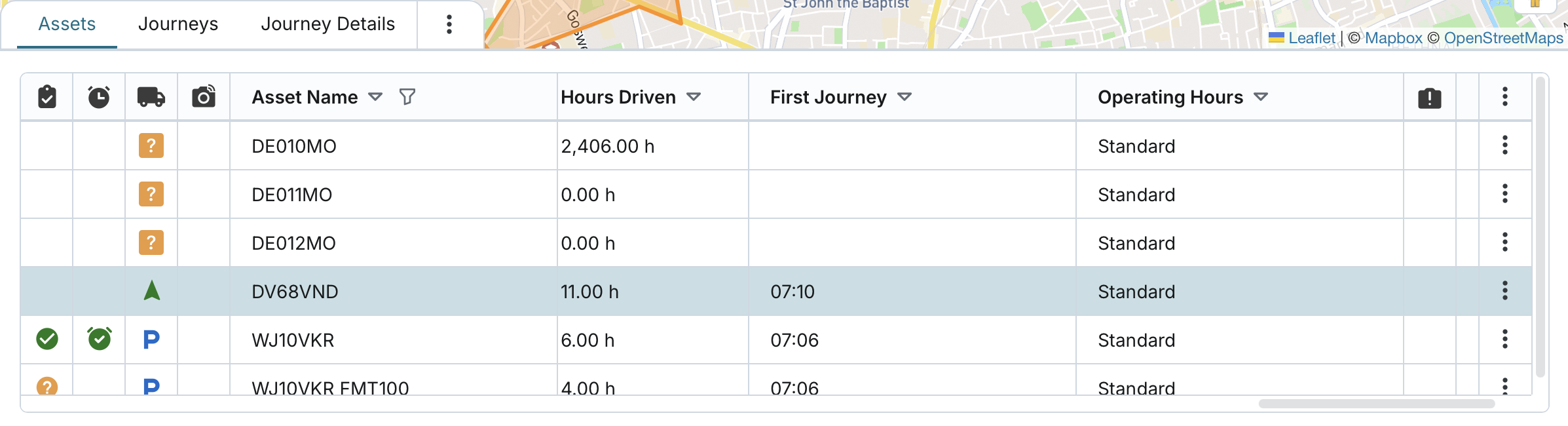
- Fuel Level, Odometer (miles/km), Hours Driven, Distance (miles/km)
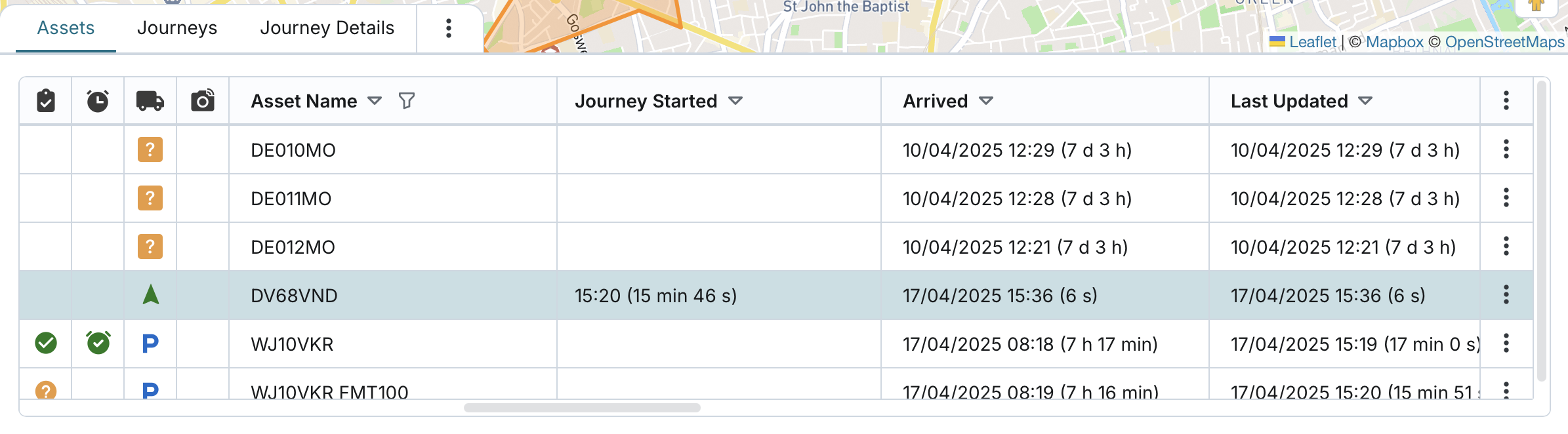
- Operating Hours, First Journey, Journey Started, Arrived, Last Updated
- Driver Info
- Current Driver: Driver based on last driver key detected by tracker.
- Driver: Driver manually assigned at the asset level.
- Temperature Data
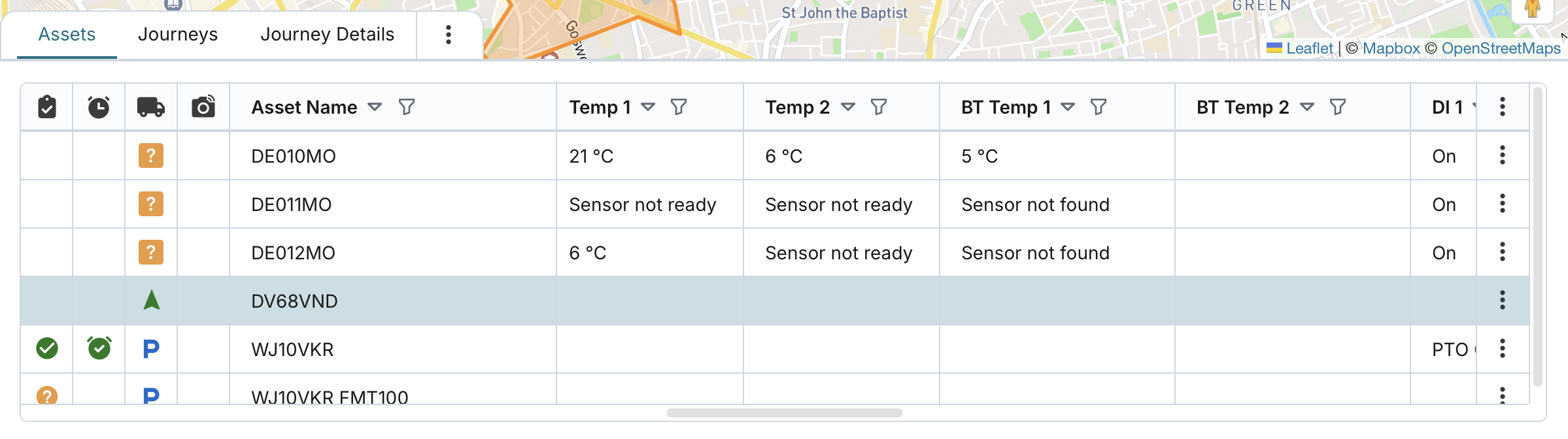
- Temp 1 & Temp 2: Pulled from tracker using Temp ID fields.
- Formatted if temperature format is set; otherwise shown as-is.
- Error Code: If the tracker returns one, it's displayed unformatted.
- BT Temp 1 & BT Temp 2: Bluetooth 'EYE Temperature' readings.
- Temp 1 & Temp 2: Pulled from tracker using Temp ID fields.
- Digital Input & Output States
- DI 1-4, DO 1-4, PTO: On/Off display based on tracker data. If custom labels are set in the asset group, those are shown instead of On/Off.
- Camera Monitoring and Health
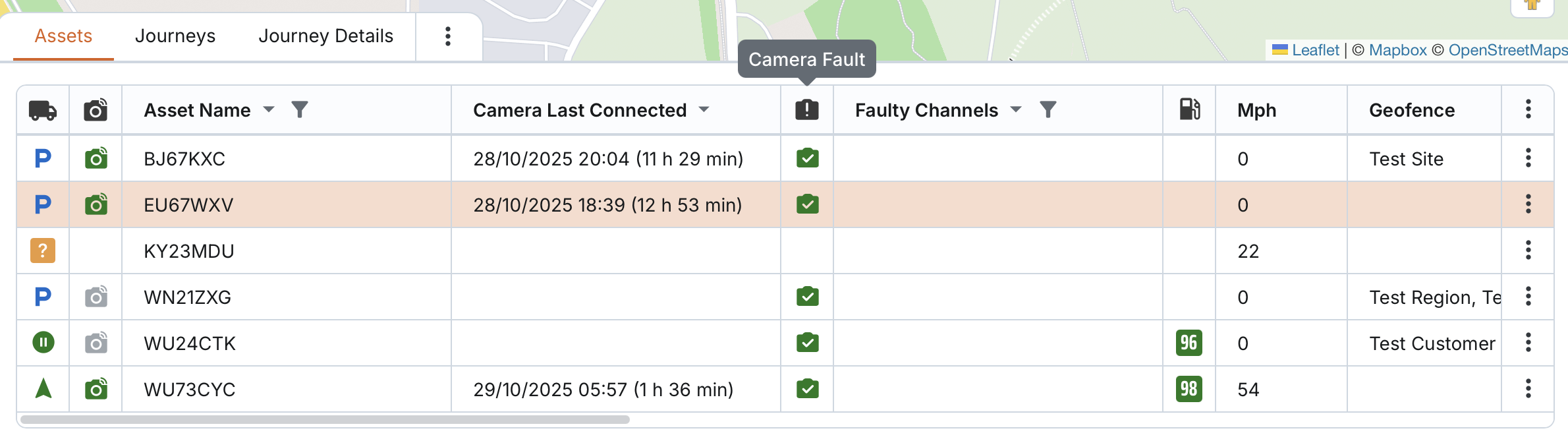
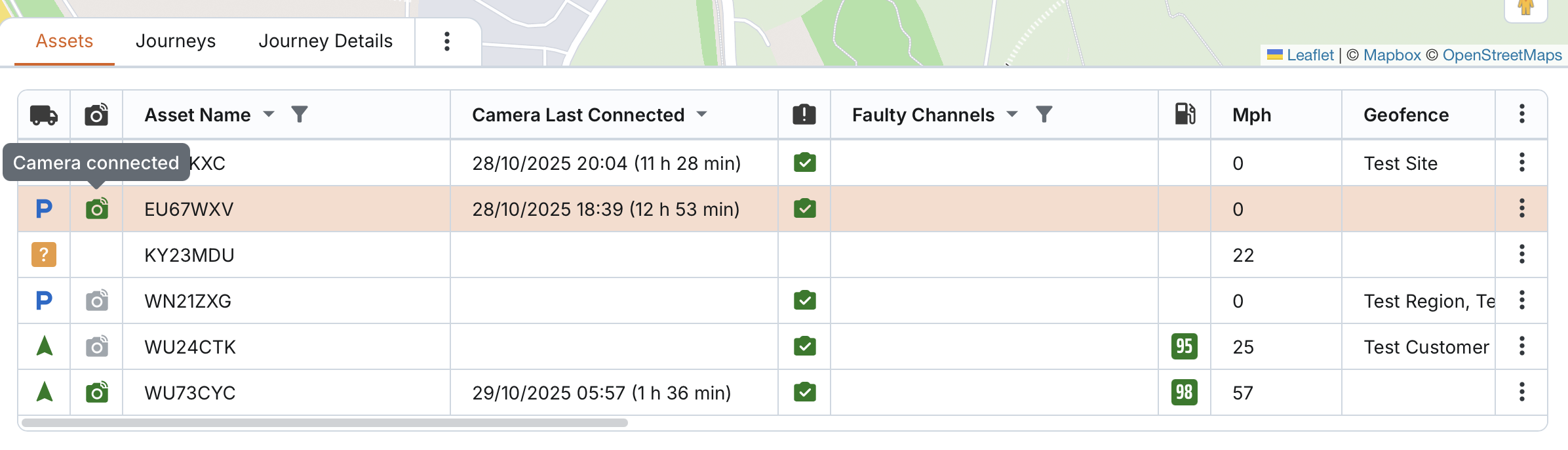
- Camera Connection Status: Indicates whether the asset’s camera is currently online or offline.
- Camera Last Connected: Shows the last date and time that the camera was successfully connected to the system.
- Camera Fault: Indicated if the camera is currently experiencing a storage fault.
- Faulty Channels: Lists any camera channels that are currently faulty or not transmitting data as expected.
- Other Key Fields
- Grade: (Coming soon)
- Geofence: Shows the names of any geofences the asset is currently located in.
- Address: Last known address of the asset.




Search, Sort & Filter Options
The Asset Table View allows you to search, sort, and filter the table content:
- Sort by: Asset Name, Fuel Level, Reference, Current Driver, Driver, Geofence, Tracker Battery Level, Asset Battery Level, Journey Started, Arrived, Last Updated, Temp 1-2, BT Temp 1-2, DI 1-4, DO 1-4, Odometer, PTO, Asset Group, Distance, Hours Driven, First Journey, Operating Hours, Camera Last Connected, Camera Connection Status, Camera Fault, and Faulty Channels.
- Filter by (with multiselect capability):
- Reported Status of Last Asset Checklist
- Last Checklist Due Status
- Moving Status
- Geofence
- Display Group
- Temp 1 & Temp 2
- BT Temp 1 & 2
- DI 1-4 & DO 1-4
- Asset Group
- Camera Connection Status
- Camera Fault
- Faulty Channels
- Search by: Asset Name, Reference, Current Driver, Driver, Address
You can select/unselect all or specific filter options. The Display Group filter will only show groups the user is assigned to. If the user has limited asset visibility, only associated groups are listed and will return results the user can access.
You can apply any combination of search, filter, and sort criteria. A Reset Filters button lets you return to the default unfiltered and unsorted view.

Important behaviour notes:
- Filtering/searching does not affect the map, except when filtering by Display Group.
- Switching between the Asset Table View and Asset List View resets all filters, searches, and sorting.
- A visual indicator appears on the "Assets" tab whenever any filter, search, or sorting is applied.
- You can zoom to a specific asset by choosing the "Zoom to" option from the asset menu. The map will automatically centre and adjust the zoom level to focus on the selected asset for detailed viewing.