
Asset List View
Updated:
You can also switch to the Asset List View, which presents the same set of assets in a simplified vertical layout with a more compact set of fields.
Here, you can see:
- Asset Name
- Active Driver
- Last Updated: Shows when the asset location was last updated
- Journey Started: Time when the ignition was last turned on
- Distance (miles or km): Shown based on your company’s "Units" setting
- Speed (mph or kph): Shown based on your company’s "Units" setting
- Arrived: Date and time the asset arrived at its current location
- Geofence: The name of the geofence (if any) where the asset is currently located
- Address: Last known location
- Moving Status: Parked, Moving, Stationary, Idle, Excessive Idle, Speeding, or Unknown
- Camera Connection Status: Indicates whether the asset’s camera is currently online or offline
- When a storage fault or faulty channel is detected, a warning icon will appear next to the connection status
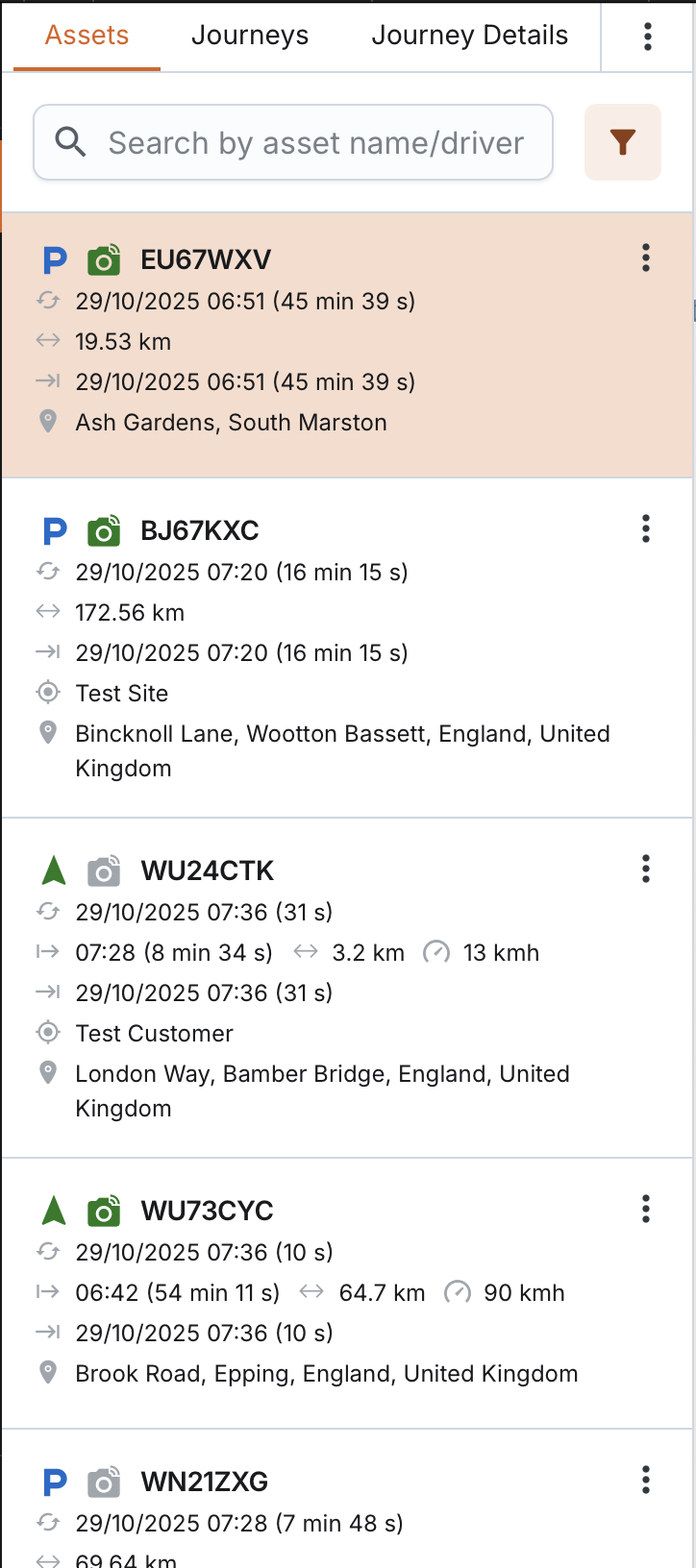
Search & Filter Options
In the Asset List View, you can:
- Search by: Asset Name, Active Driver
- Filter by: Display Group
The Display Group filter will only show groups the user is assigned to. When applied, only assets the user has access to will be displayed.
Users can apply a combination of search and filter criteria, and the system will present the relevant results.
Important behaviour notes:
- Filtering/searching does not affect the map, except when filtering by Display Group.
- Switching between Asset List View and Asset Table View resets all filters, searches, and sorting.
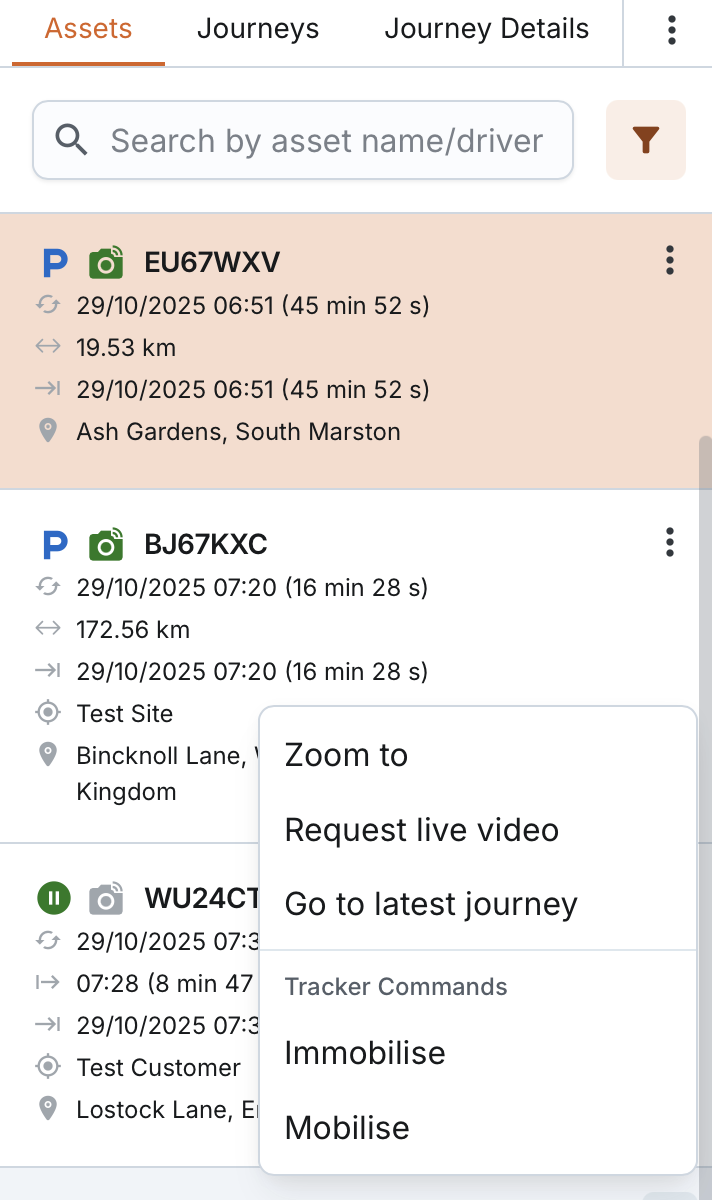
- You can zoom to a specific asset by choosing the "Zoom to" option from the asset menu. The map will automatically centre and adjust the zoom level to focus on the selected asset for detailed viewing.
