Viewing Assets on the Map
You can view all available ACTIVE company assets in real-time on the map:
- The asset list shown is filtered based on the display group(s) or individually visible assets configured at the user level.
- Assets marked as DEACTIVE (VISIBLE) are not displayed on the map.
Map Defaults:
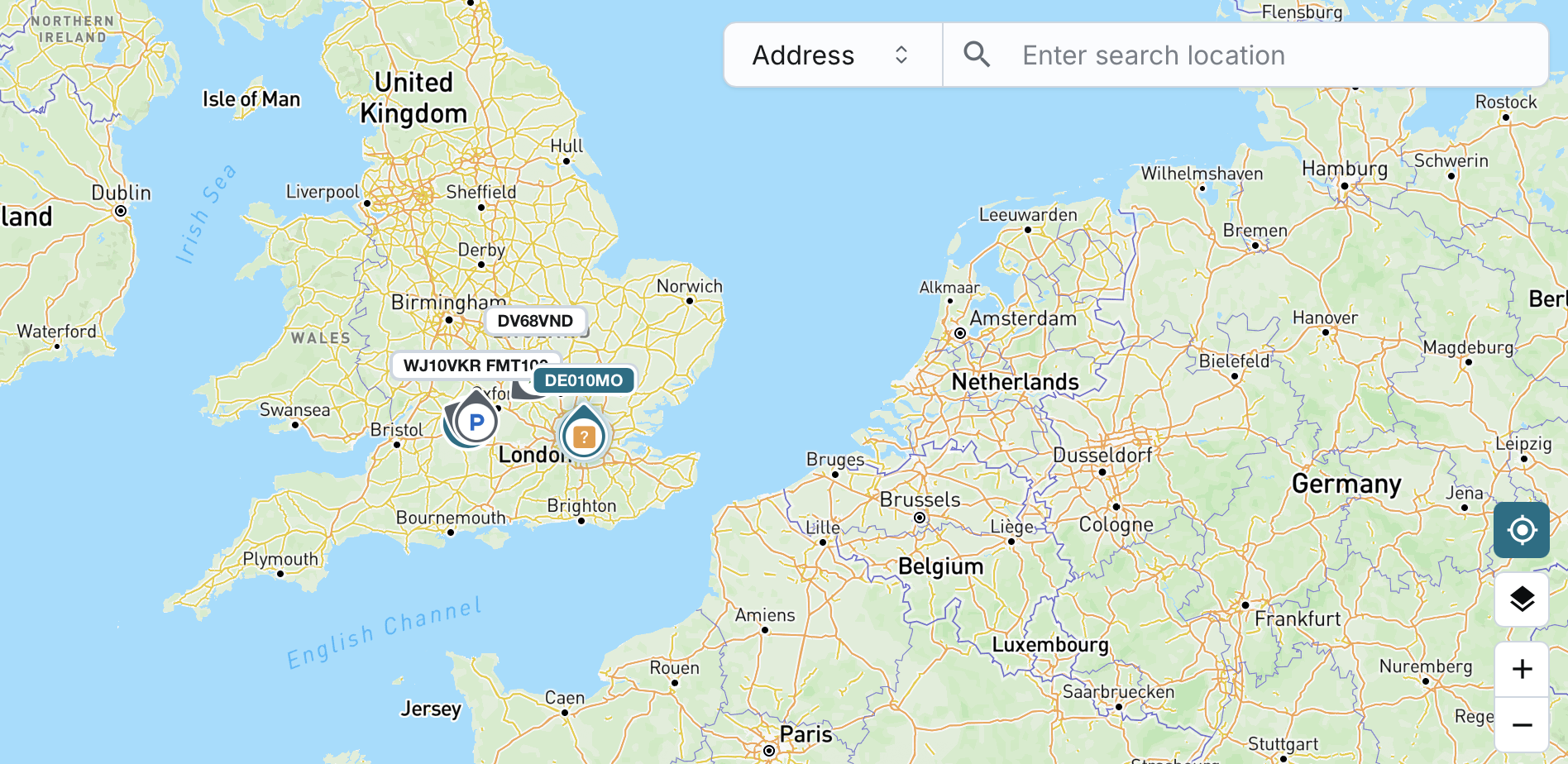
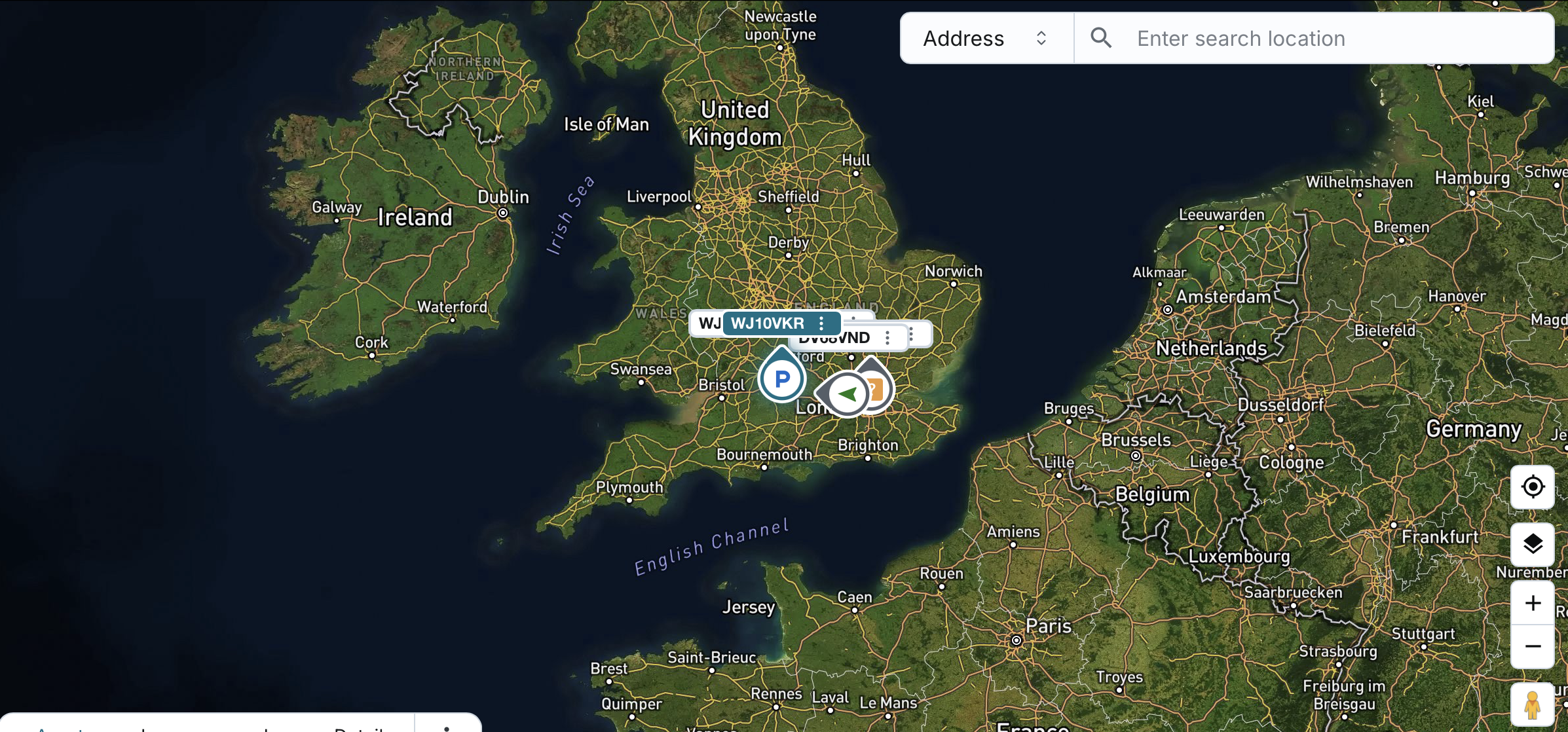
- The map defaults to Standard Mode, centred on a zoomed-out view of the United Kingdom.

Asset Representation:
- Each active asset is represented by an arrow icon showing its current movement status.
- The arrow orientation reflects the real-time direction of movement.
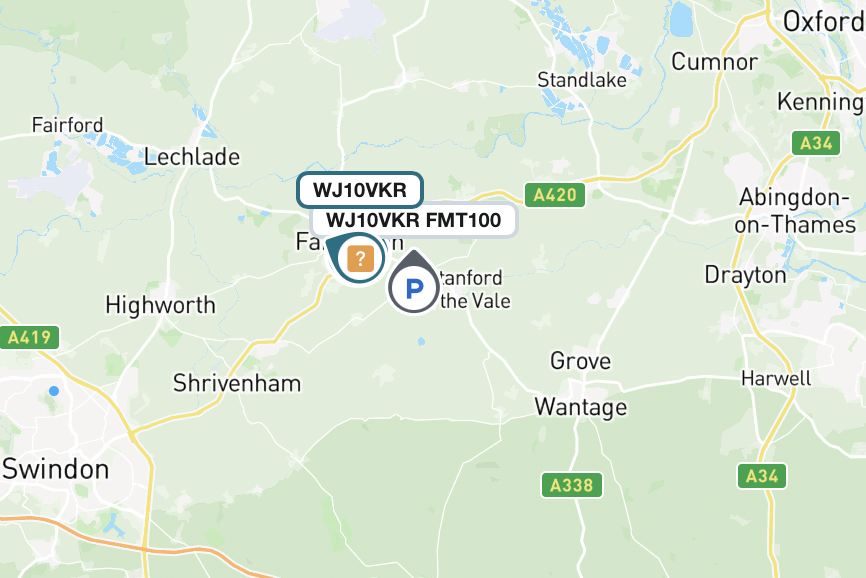
- Asset icons remain individually visible on the map even when assets are close together, with moving status, direction, and labels intelligently spaced to reduce overlap. Hovering highlights the asset and label, and when zoomed out, asset and label icons become smaller and the three-dot menu is hidden.
- Asset name is displayed by default next to the icon.
- You can choose to display the active driver instead of the asset name.
Map Interactions:
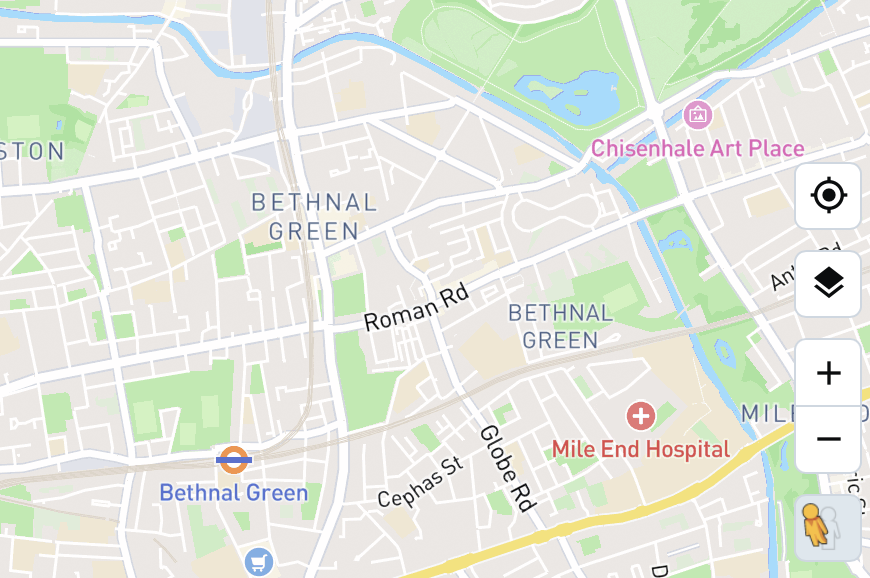
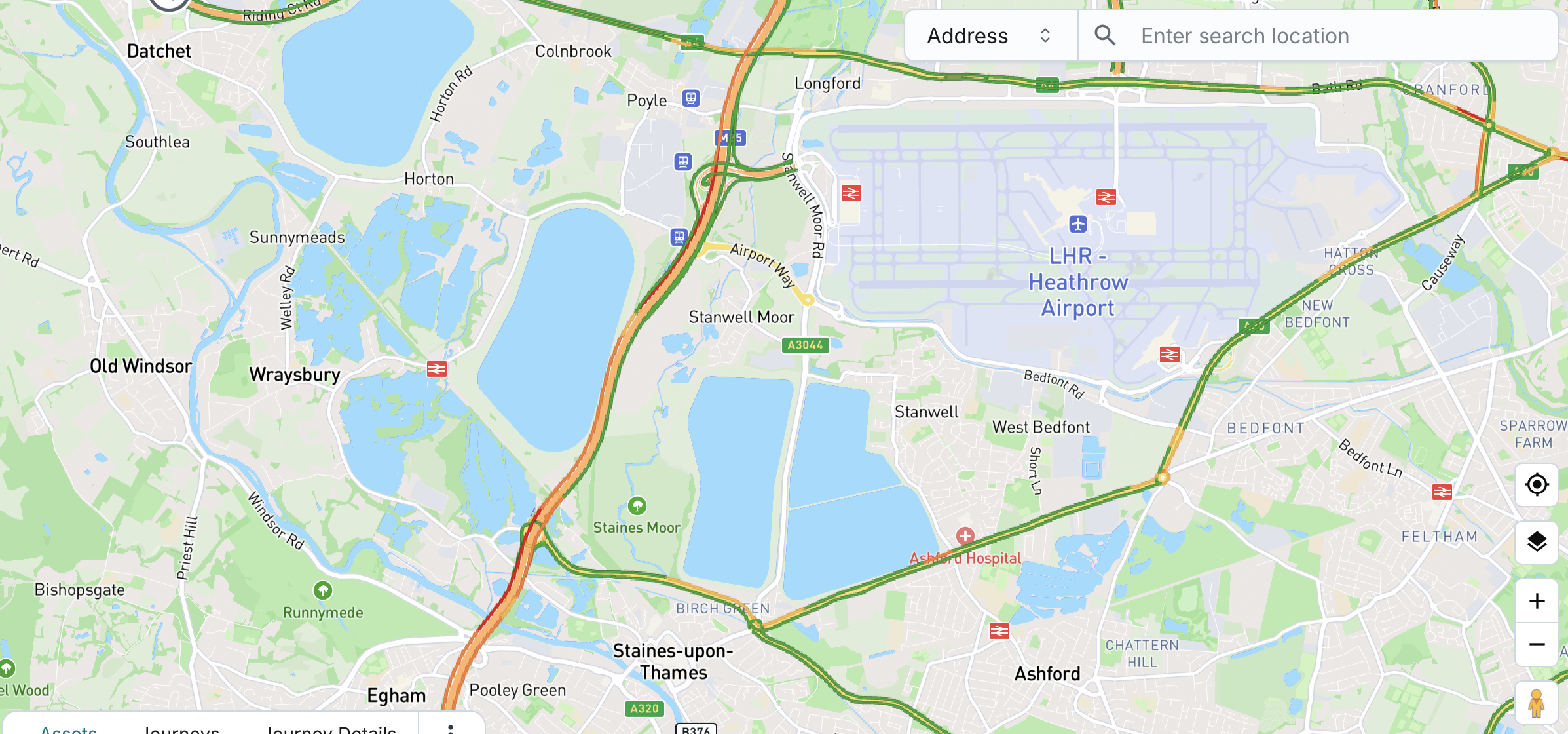
- You can zoom in/out and pan in all directions.
- You can toggle between Standard and Satellite view modes.
- You can enable/disable traffic overlay (off by default).
- This setting does not persist across sessions.
- Traffic mode auto-disables after 10 minutes if left ON.
Asset Selection Behaviour:
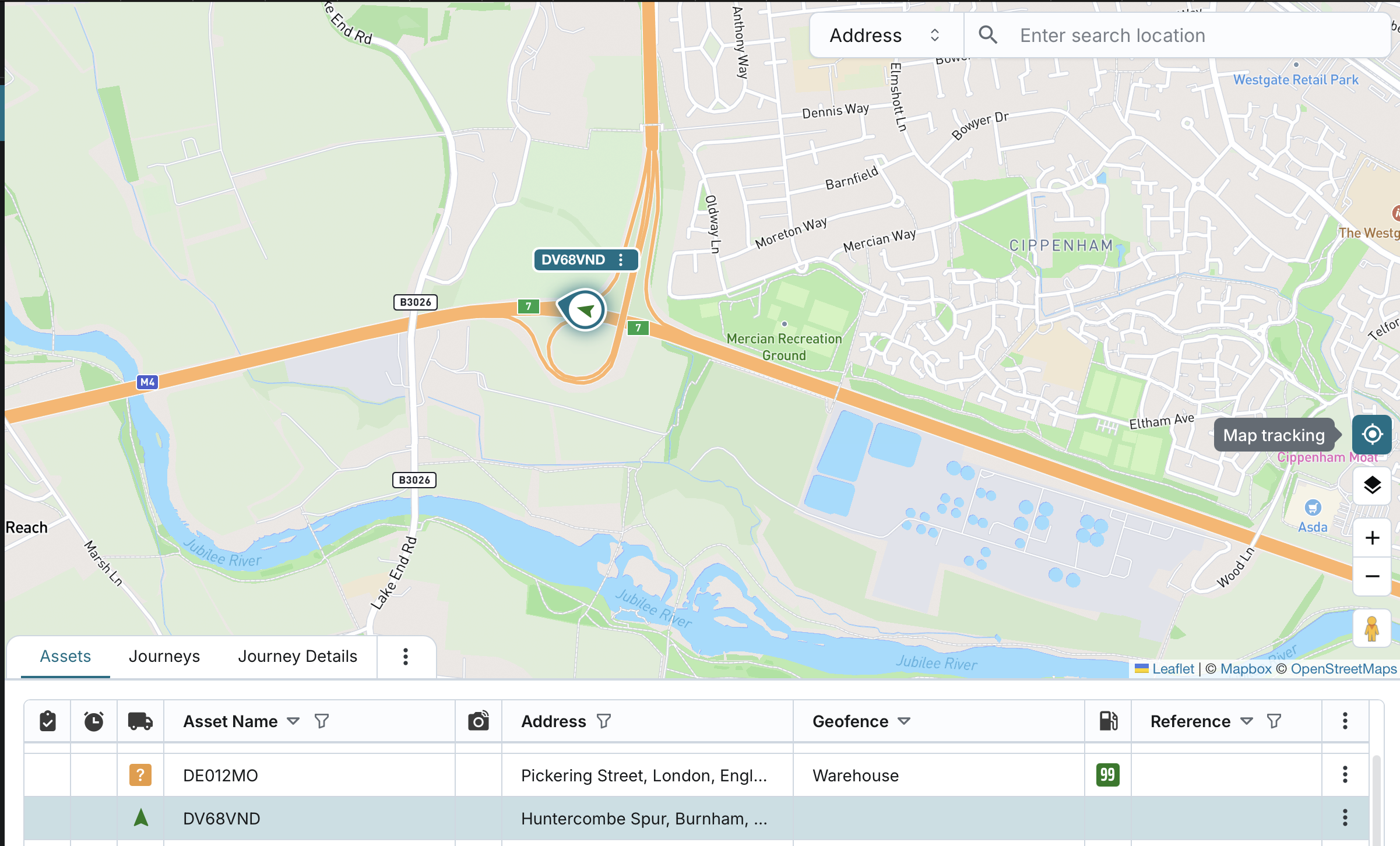
- Clicking on an asset in the table/list will center the map on that asset, maintaining the user’s current zoom level.
- The selected asset will also be highlighted on the map.
- Clicking an asset on the map will select that asset in the table/list.
- The system will auto-scroll the table to bring the asset into view.
Map Tracking Toggle:
- By default, map tracking is enabled.
- If active, clicking an asset centers the map and keeps the selected asset in view.
- If no asset is selected when enabling tracking, the system defaults to the top asset in the table/list.
- The system follows the asset’s movement and auto-adjusts the map view in real-time.
Search Location by Address, Postcode, or Geofence
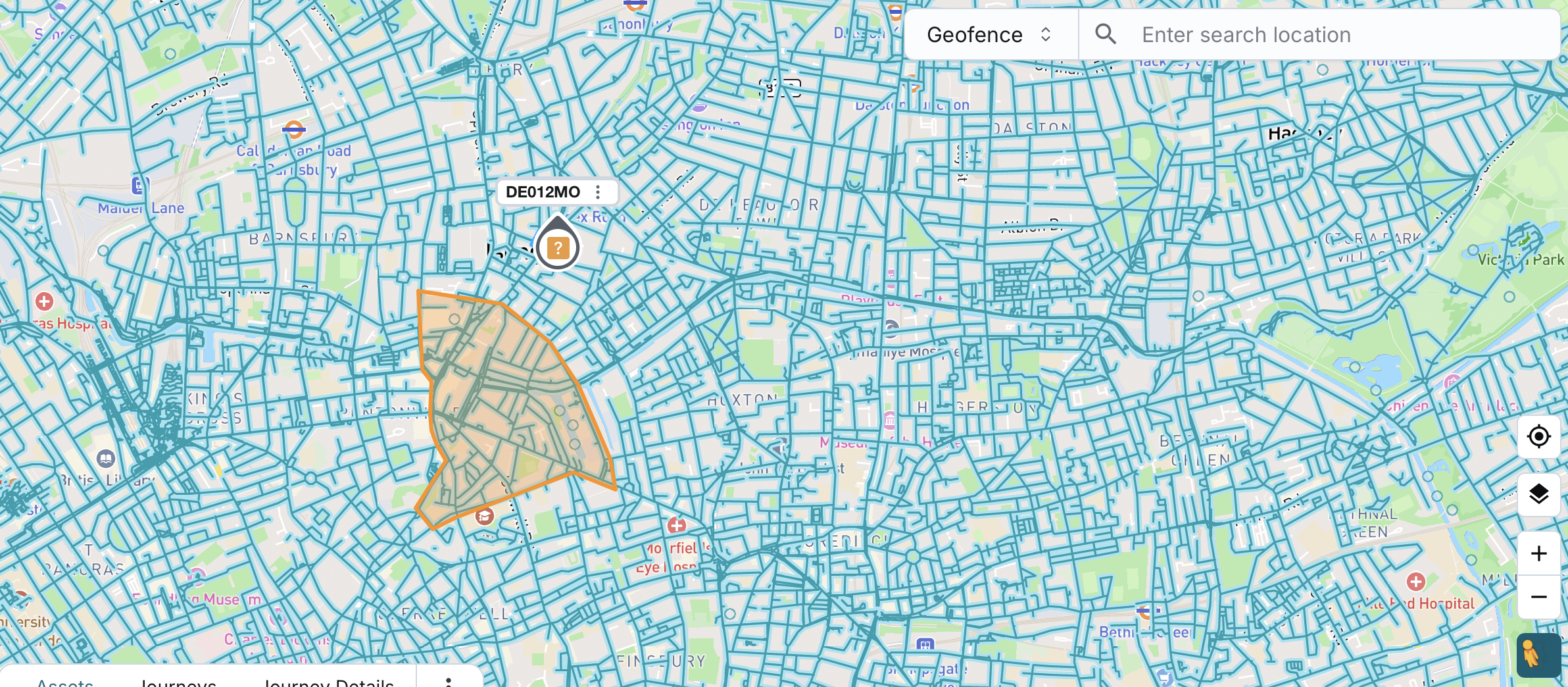
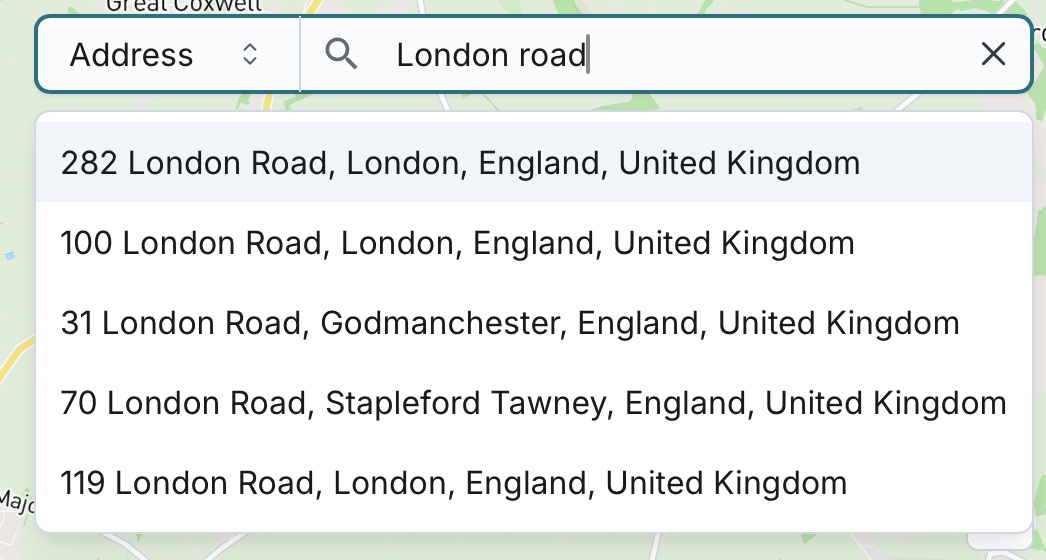
You can search for specific locations using an address, postcode, or geofence name directly on the map.
- As you begin typing in the search bar, the system will suggest matching addresses, postcodes, or geofence names from your company data.
- You can select the category of your search:
- Address (default): Combines address and postcode search.
- Geofence
- The system remembers your selected category for future searches.
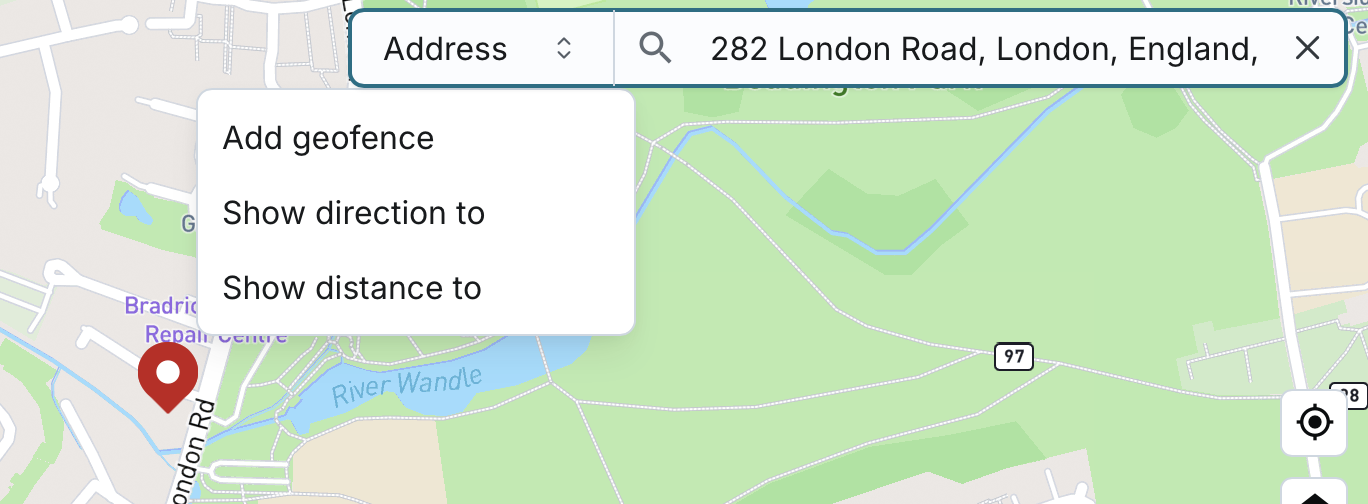
Once you select a suggestion:
- The map will pan to the location and place a marker at:
- The specific address location
- The center of the postcode area
- The center of the geofence area
The marker opens with relevant options based on the type of search:
- If searched by address/postcode:
- Add geofence
- Show direction to
- Show distance to
- If searched by geofence:
- Edit geofence
- Add geofence
- Show direction to
- Show distance to
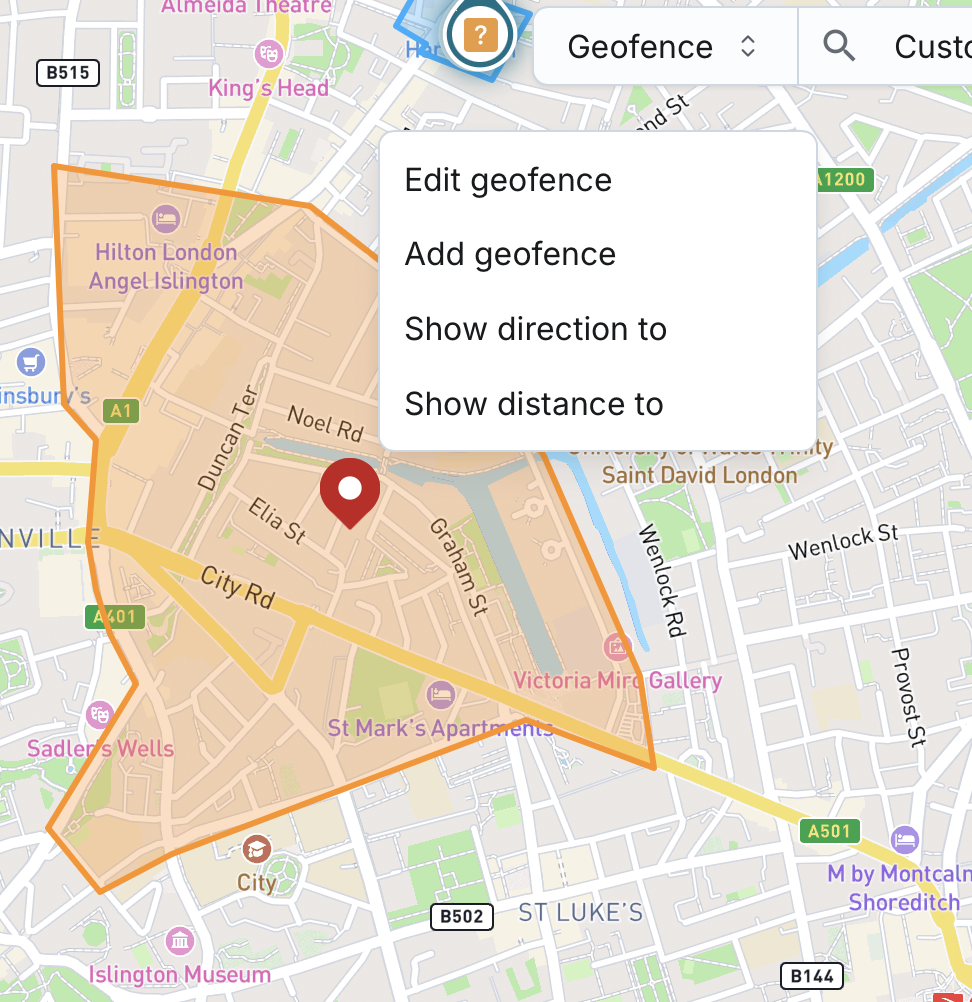
When the map pans to the selected location, it will also zoom in so the area is clearly visible.
This feature helps you quickly locate operational zones or destination points with ease during live tracking.
Street View Mode
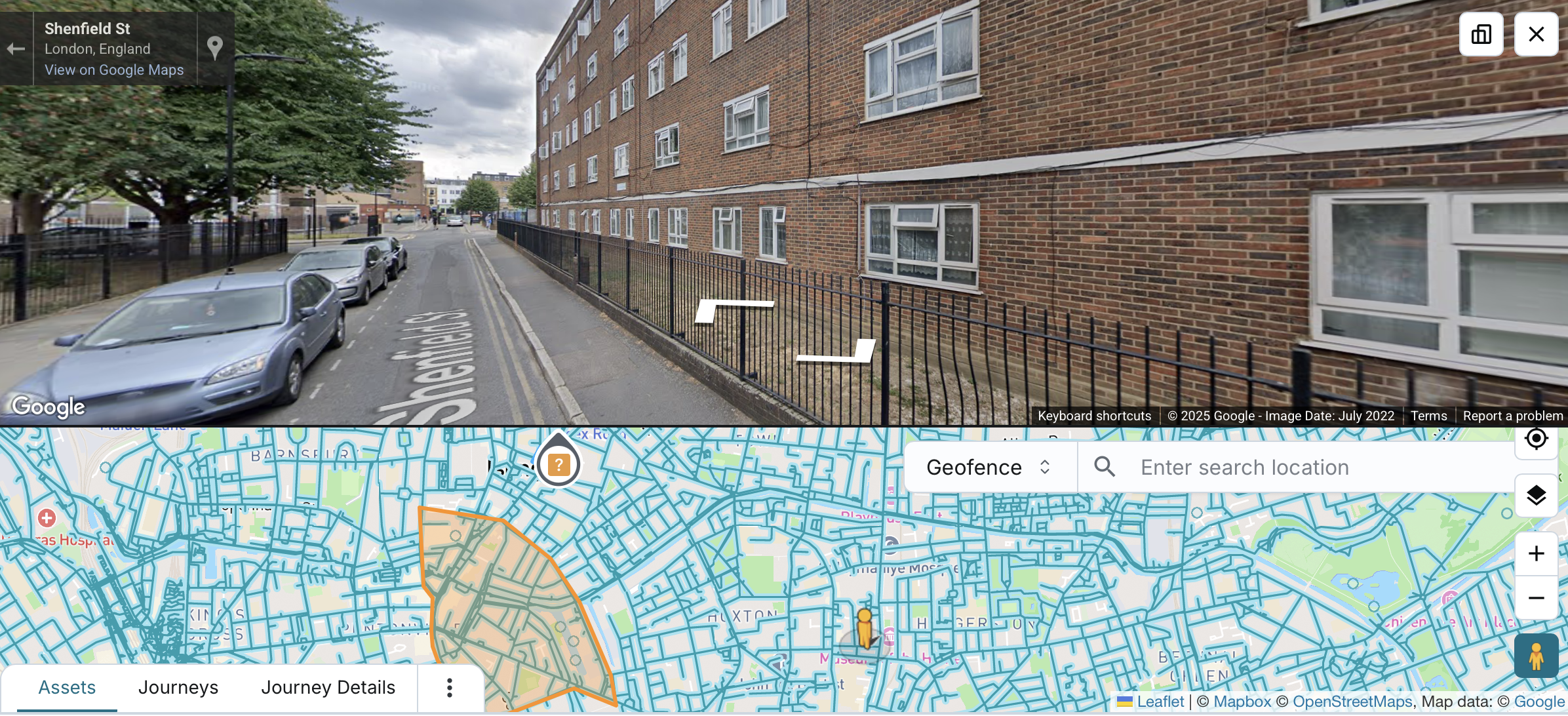
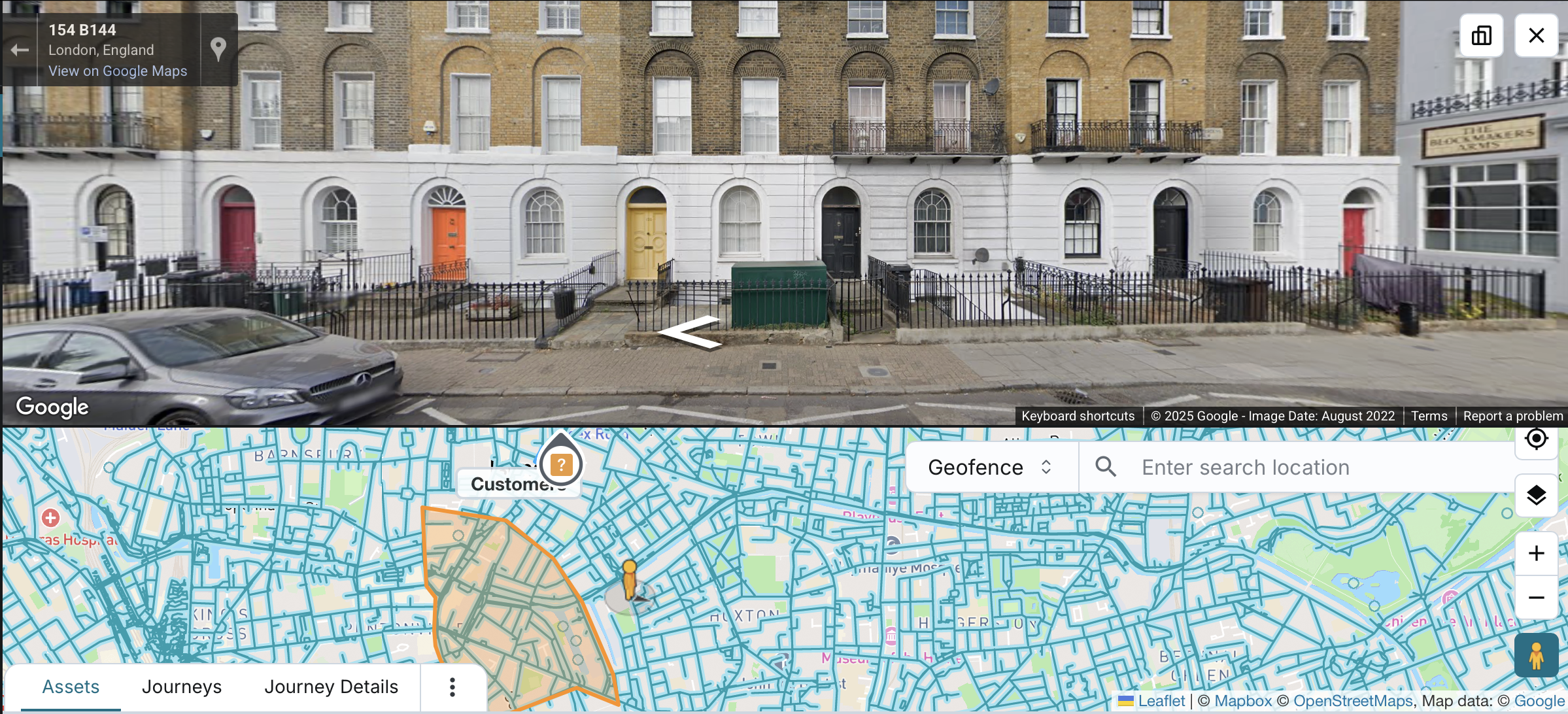
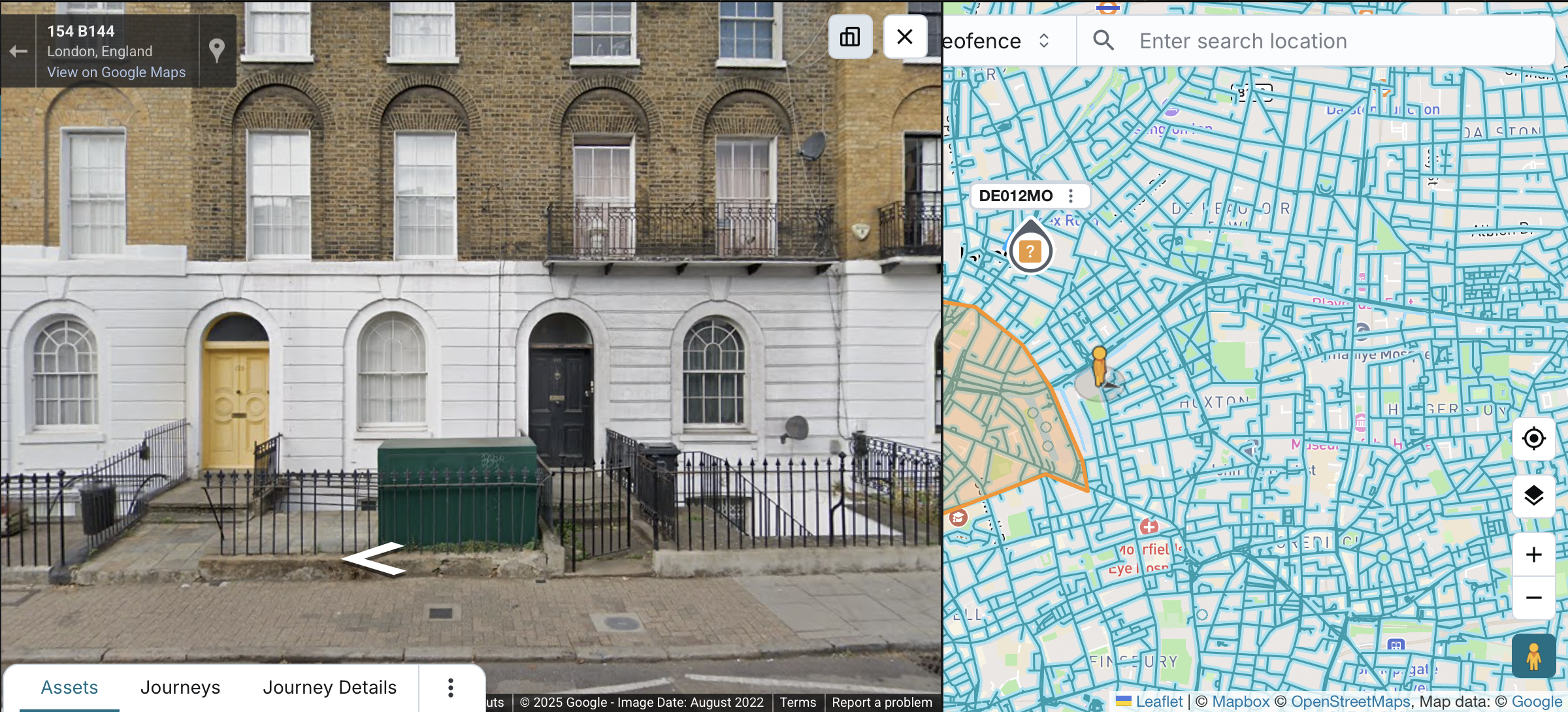
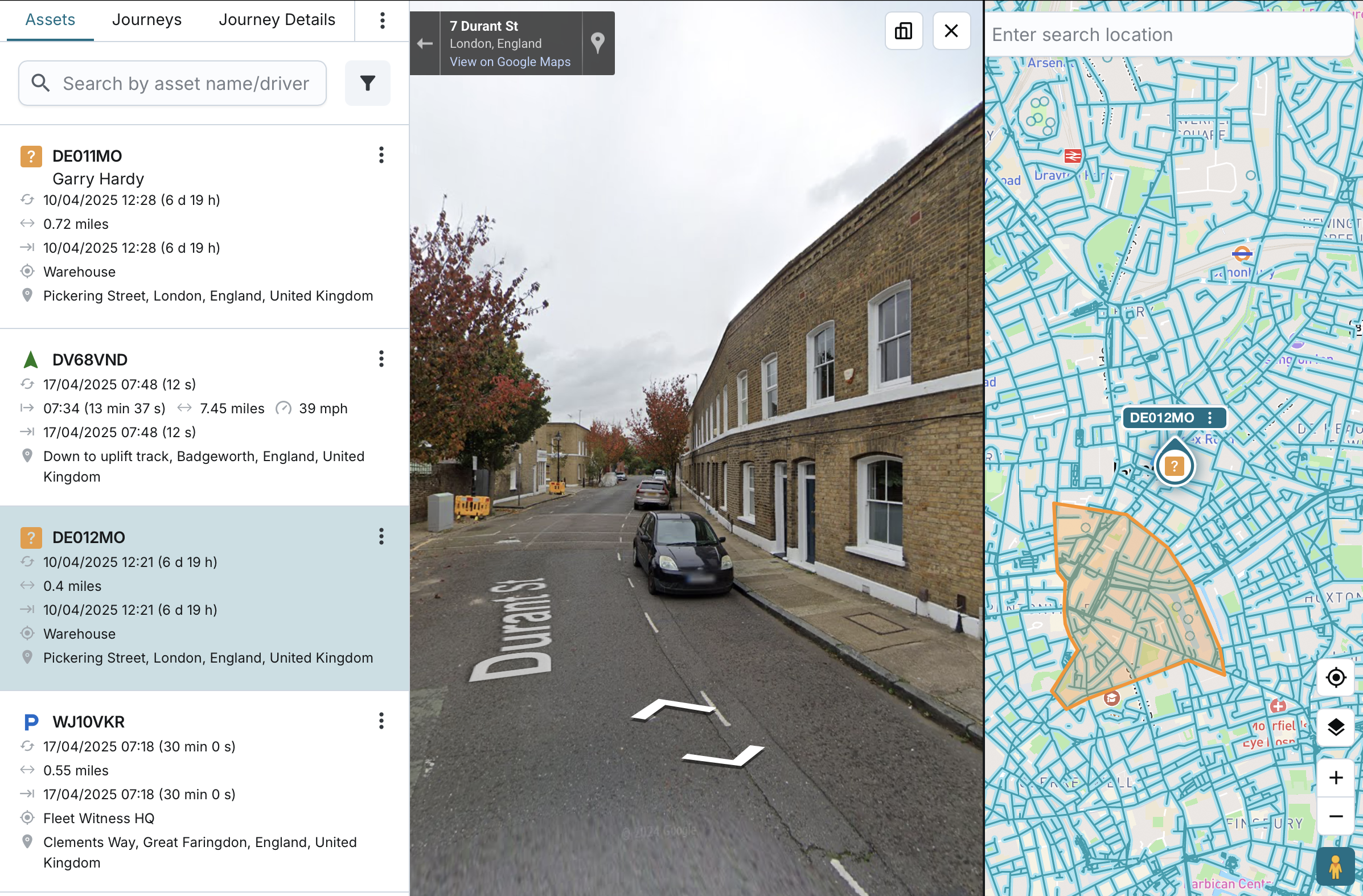
The Street View Mode enables you to explore street-level imagery directly within the map on the Fleet page.
Enabling Street View Mode
You can activate Street View Mode using either of the following actions:
- Clicking the “Street View” button on the map interface.
- Clicking the button enables the mode, highlighting areas on the map where Street View is available.
- It does not immediately display the panoramic view.
- To view the panoramic street-level imagery, you need to click on the map.
- Clicking the button enables the mode, highlighting areas on the map where Street View is available.
- Dragging and dropping the Street View marker icon onto a specific map location.
- It will instantly open the panoramic street-level view and center it on the selected map location.
Once enabled, the panoramic view is displayed on top of the map by default.
User Controls:
- Position Toggle: You can switch the panoramic view's layout between:
- Top position (default)
- Left-side position
- Resizable Layout: You can drag to adjust the size between the street view and the map.
- Live Interactivity:
- Dragging the Street View marker on the map will update the panoramic view in real time.
- Similarly, navigating within the panoramic view will move the marker on the map to reflect the new location.
Disabling or Closing
- Clicking the Street View button again will fully disable Street View Mode, removing highlights and controls.
- Clicking the close button on the panoramic view will only close the street-level display.
- The mode remains active, with highlighted areas still visible on the map.
- You can click again on the map to re-open the panoramic view.
Note: “Pin” functionality (placing/removing a pin for geofences or using “Show direction to” or “Show distance to”) is disabled while Street View Mode is active.