Map Actions
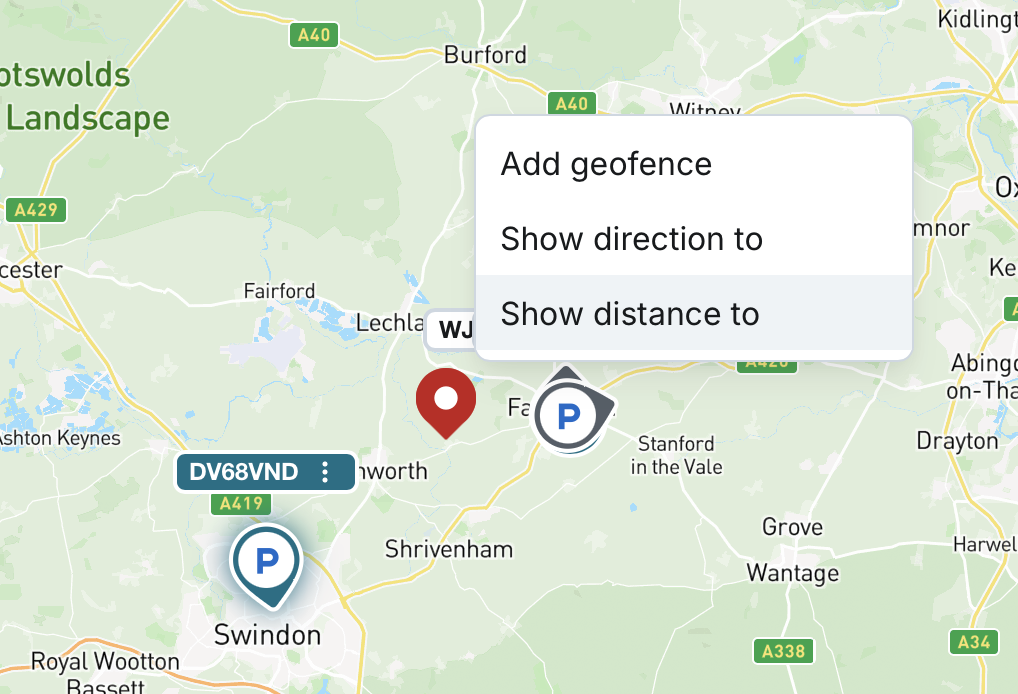
Show Distance To
You can perform quick actions directly on the map to check distances and generate directions to any location.
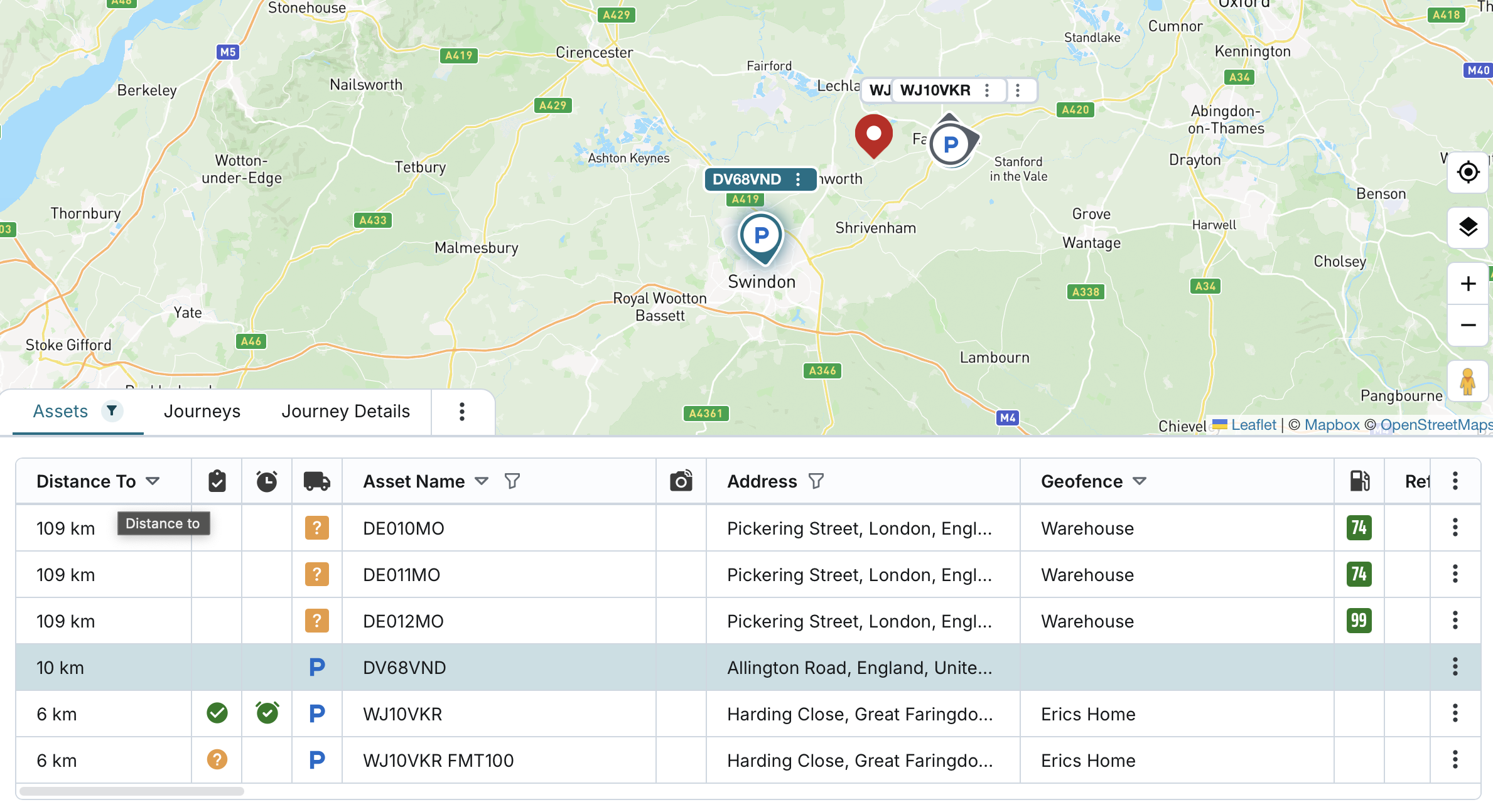
- Click anywhere on the map to drop a pin icon, then select Show distance to.
- The system will calculate the straight-line distance between the selected point and all ACTIVE assets in your fleet.
- The calculated distance is shown in a new dynamic table column named Distance to.
- This column:
- Is automatically added to the first position in the horizontal table view.
- Is not available in the column configuration settings (cannot be removed or reordered).
- Remains visible until the pin is removed from the map.
- Updates automatically in real time as assets move.
- If you are in vertical list view before applying "Show distance to," the table will automatically switch to horizontal view.
- You can sort the table by the “Distance to” column to see which assets are closest or furthest from the selected point.
- Distance values will appear in either miles or kilometres, depending on your company’s Units settings.
Show Direction To
You can perform quick actions directly on the map to check distances and generate directions to any location.
- After placing a pin on the map, select Show direction to.
- The system generates a Google Maps link using the latitude and longitude of the selected point.
- This link:
- Automatically opens in a new browser tab.
- Uses Google Maps in its standard mode, displaying directions to the selected location.
These map actions make it easy for you to assess proximity to important locations and plan navigation routes directly from the live map view.

Asset Details Panel
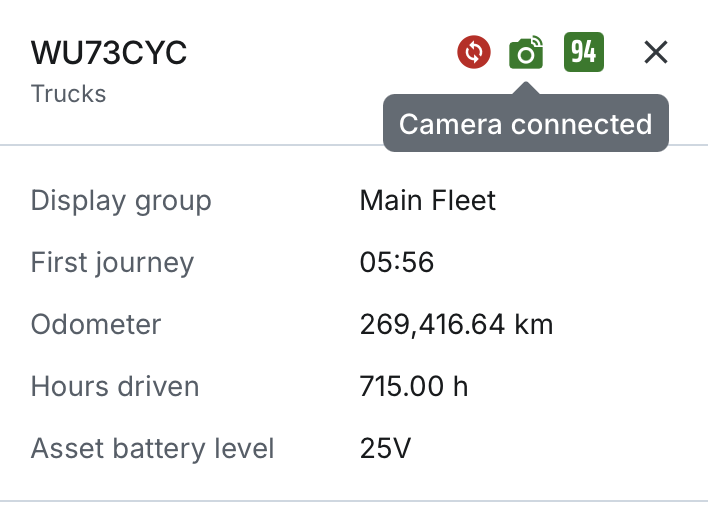
You can choose to view a dedicated Asset Details panel for more in-depth, real-time information on any selected asset.
Visibility and Behaviour
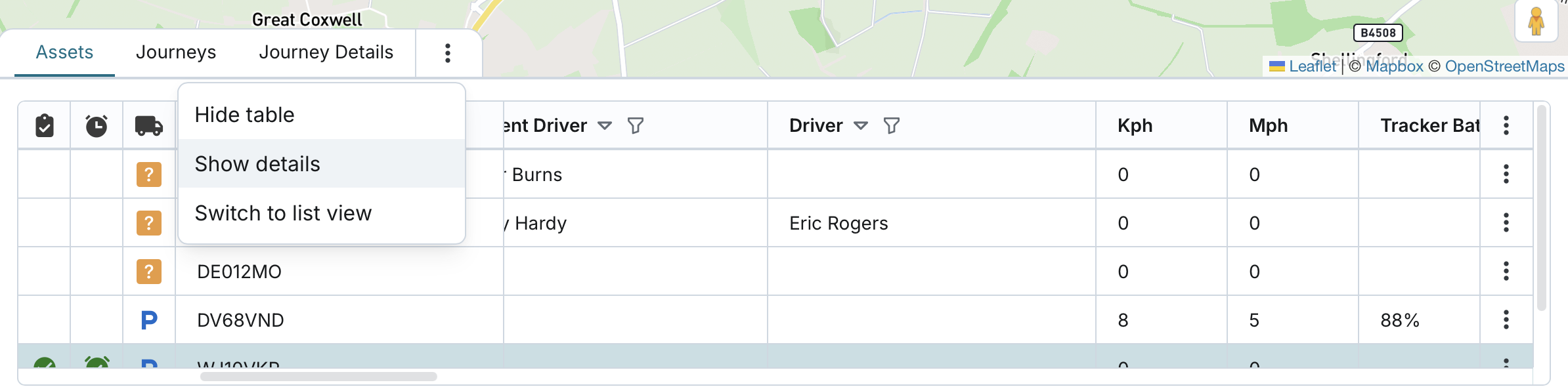
- The Asset Details section is hidden by default.
- Users can manually choose to show or hide the panel using:
- The asset table configuration, or
- The close button on the section itself.
- The visibility state is persisted per user, so the system remembers if the section was hidden or shown previously.
Asset Selection
- If no asset is selected by the user, the system will auto-select the top asset from the table and display its details.
- When shown, the section dynamically updates to reflect live data from the tracker for the currently selected asset.
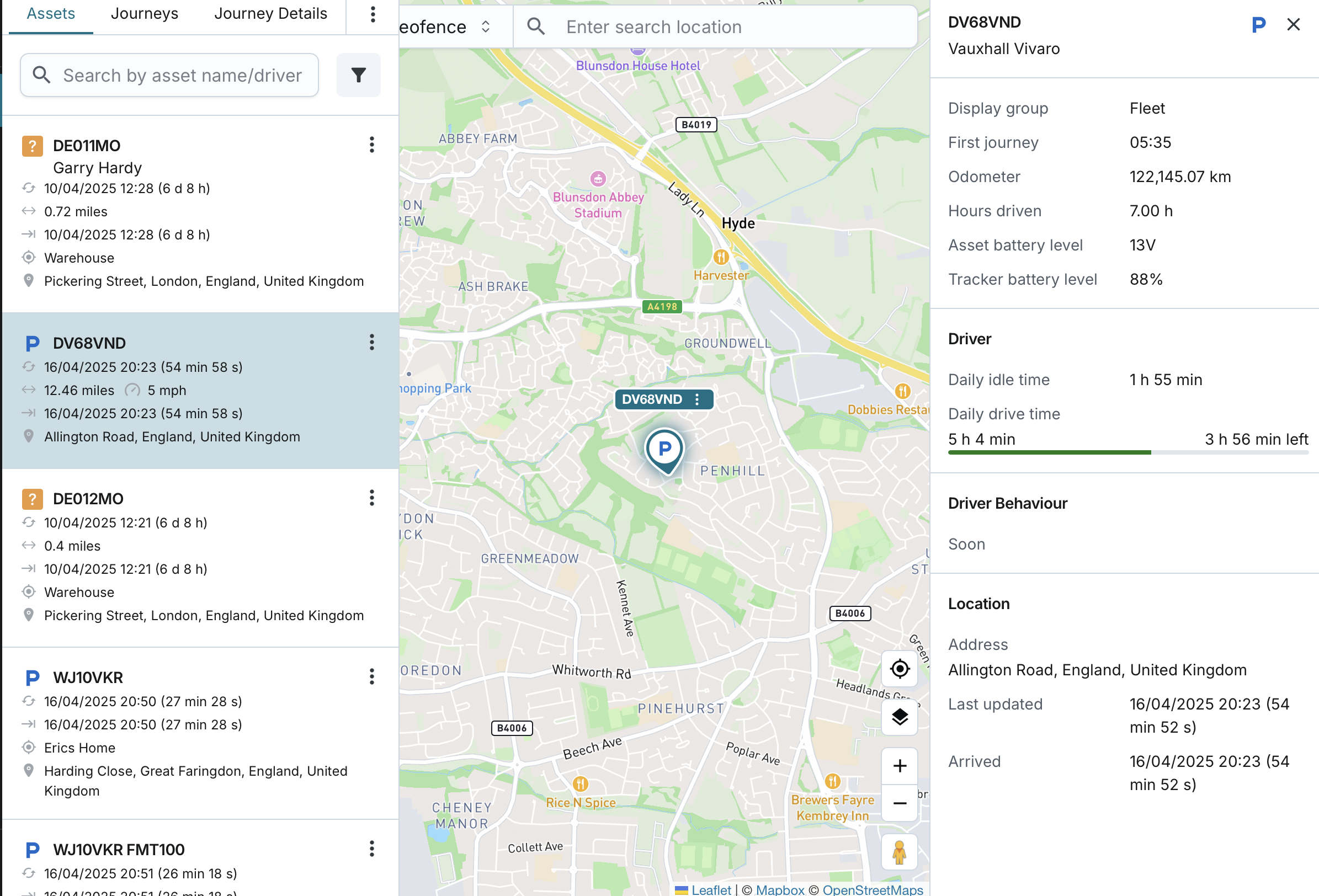
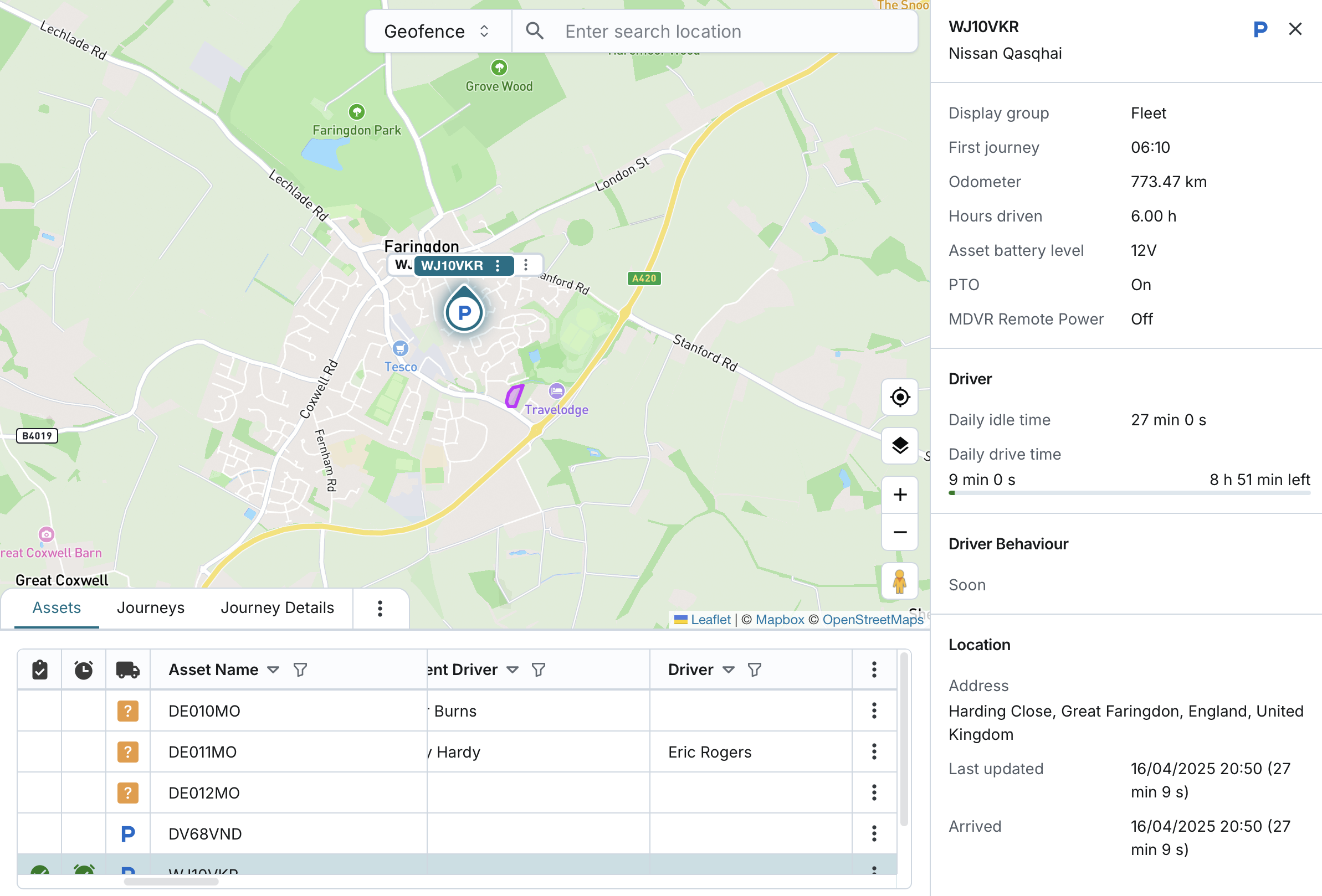
If shown, the panel includes the following sections, populated dynamically based on the available data and configuration at the asset group level:
Asset
- Asset Name
- Asset Group
- Moving Status
- Camera Connection Status
- Fuel Level
- Display Group
- Moving Status
- Camera Connection Status
- Fuel Level
- Display Group
- First Journey: Time the first journey started today (based on ignition ON); if the journey started yesterday and is ongoing, the system displays the date (dd/mm/yyyy) before the time.
- Odometer Reading
- Hours Driven
- Camera Fault: This field is shown only if a fault currently exists.
- Faulty Channels: This field is shown only if a fault currently exists.
- Asset Battery Level
- Tracker Battery Level
- Digital Inputs (1–4): Shown only if names are defined at the asset group level.
- Digital Outputs (1–4): Shown only if names are defined at the asset group level.
- PTO: Shown only if name is defined at the asset group level.
- Temperature Sensors (Temp 1 & Temp 2): Displayed only if names are set at the asset group level.
Driver
- Active Driver
- Phone Number
- Driver Key
- Daily Idle Time: Total time the asset has been idling since midnight.
- Daily Drive Time: Total time driven since midnight, excluding idle time.
- Also displays Time Left, calculated against a 9-hour working day.
Live Tacho Data
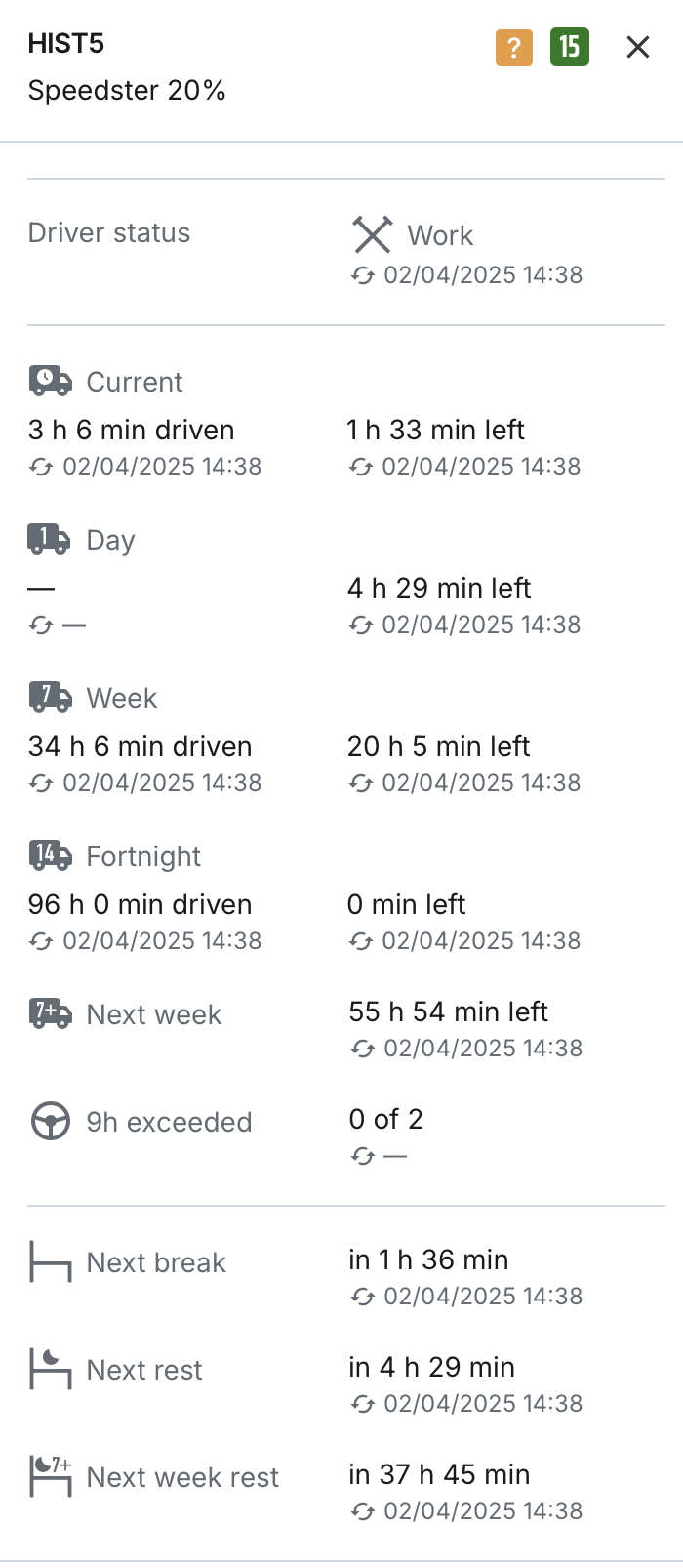
When an asset is paired with a 6xx-range tracker that supports Live Tacho Data, additional dynamic data fields become available in the Driver subsection of the Asset Details panel.
Live Tacho Data Availability
- These fields appear only if and when the tracker communicates specific tacho data for the selected asset.
- Fields are not visible until data is received.
Transition from “Daily Drive Time” to Tacho
- If the tracker has not yet reported any Live Tacho Data, the system continues displaying:
- “Daily drive time”, calculated internally as per usual logic.
- Once any Live Tacho Data field is received:
- The system hides the “Daily drive time” field.
- Relevant Live Tacho Data fields begin to appear dynamically.
Driver Session
If Driver Key is set to Log driver off:
- When the ignition turns off, the system:
- Hides all Live Tacho Data fields that were previously visible.
- When the driver signs in again:
- The system begins displaying Live Tacho Data as new updates are communicated.
If Driver Key is set to Do not log driver off:
- The system continues showing the previously received Live Tacho Data fields unless:
- Another driver key is reported by the same tracker, OR
- The same driver key is reported by another tracker.
- In either of the two cases above, the system:
- Hides previously shown Live Tacho Data fields.
Live Tacho Data Fields
The following fields are part of the tacho data display. All fields support tooltips shown when hovering over their respective icon and title:
- Driver status
- Current: Hours driven since last break
- Day: Hours driven today
- Week: Hours driven this week
- Fortnight: Hours driven this fortnight
- Next week: Number of hours the driver may drive next week
- 9h exceeded: Number of times the driver exceeded 9 hours within a week
- Next break
- Next rest
- Next week rest
- Calibration
Each field also displays a timestamp (labelled “Updated”) indicating the last time the data was received.
Driver Behaviour
- Coming Soon
Location
- Address
- Last Updated:
- Shows date/time of the last location update from the tracker. Also displays how long ago the update occurred.
- Arrived:
- Shows date/time the asset arrived at its current location. Also displays how long the asset has been at that location.
- Journey Started:
- Time of the last ignition ON event. Also displays how long ago the journey started.
Navigating to an Asset’s Latest Journey
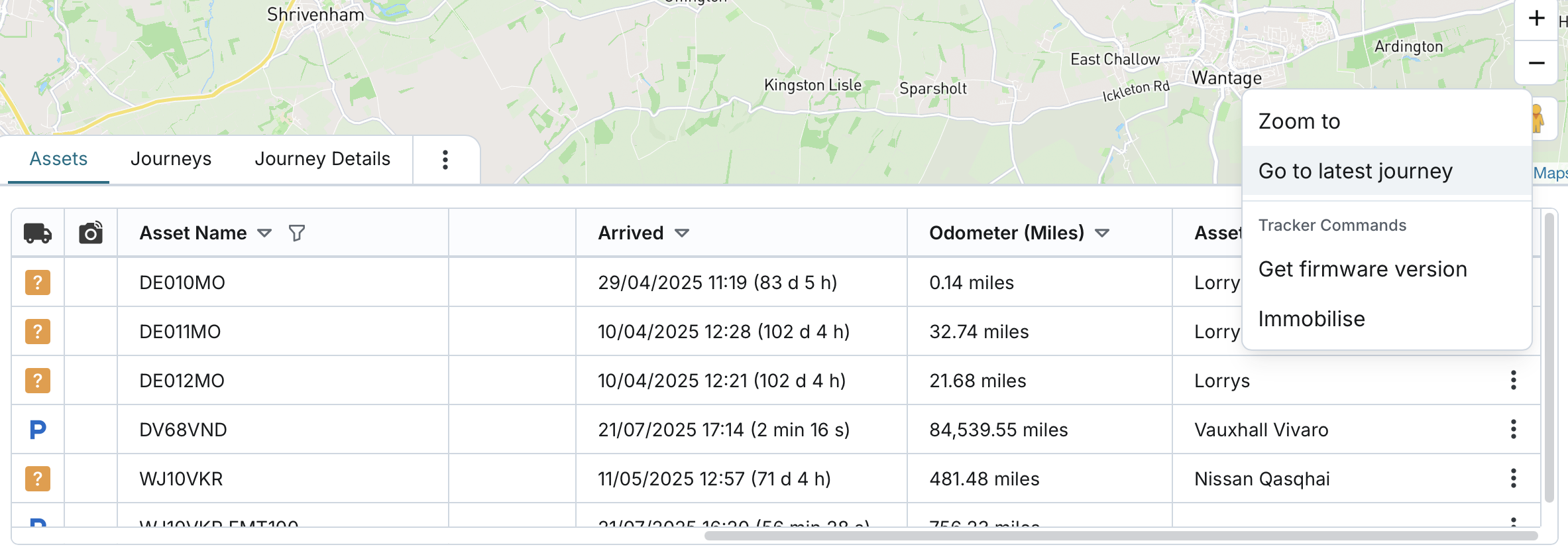
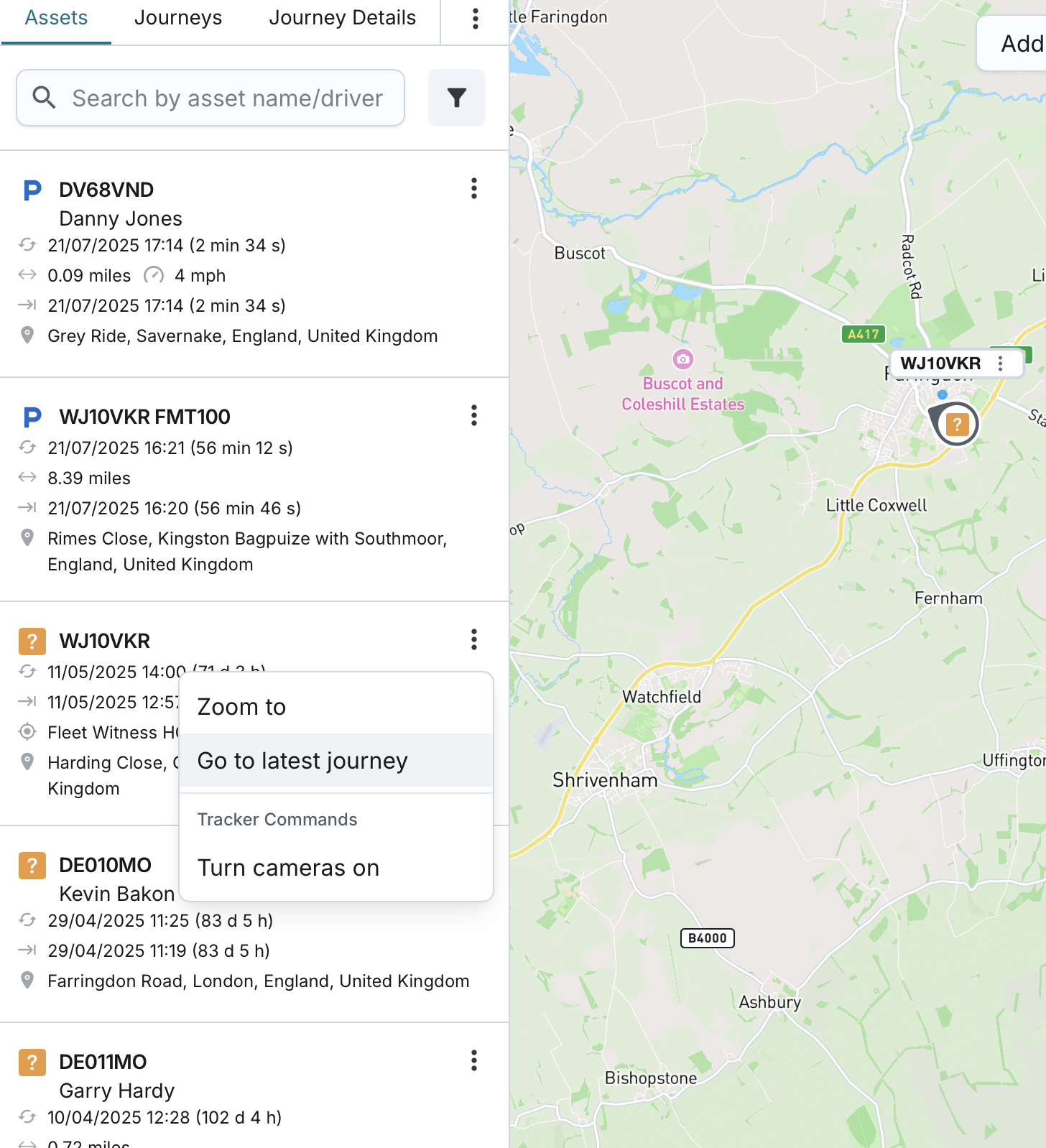
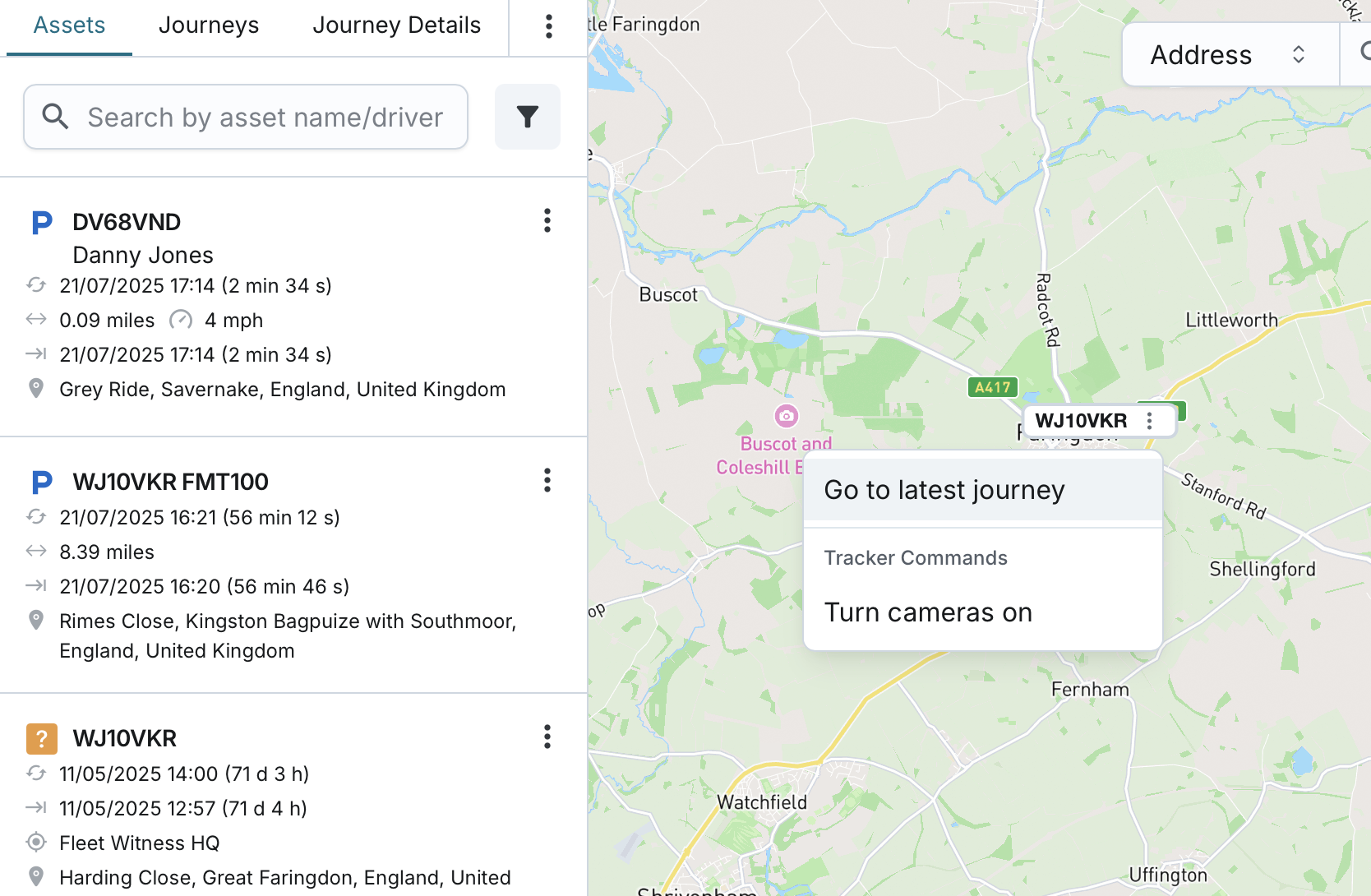
From the Assets tab, you can quickly access the latest journey of a specific asset through several views
- On Web:
Use the three-dot menu to navigate to an asset’s latest journey from:- The horizontal asset table
- The vertical list
- The map view under the Assets tab
When you select this option, the system will:
- Redirect you to the Journeys tab with the asset already selected.
- Adjust the date picker to the start date of the latest journey.
- Automatically select the latest journey in the table.
- Clear any saved filters, searches, or sorting to ensure the journey is visible.
- If there are no journeys for the asset yet, the date picker will default to today’s date, and an empty state message will be displayed.