Live Tracking in the Mobile App
Updated:
Accessing The Live Tracking Page
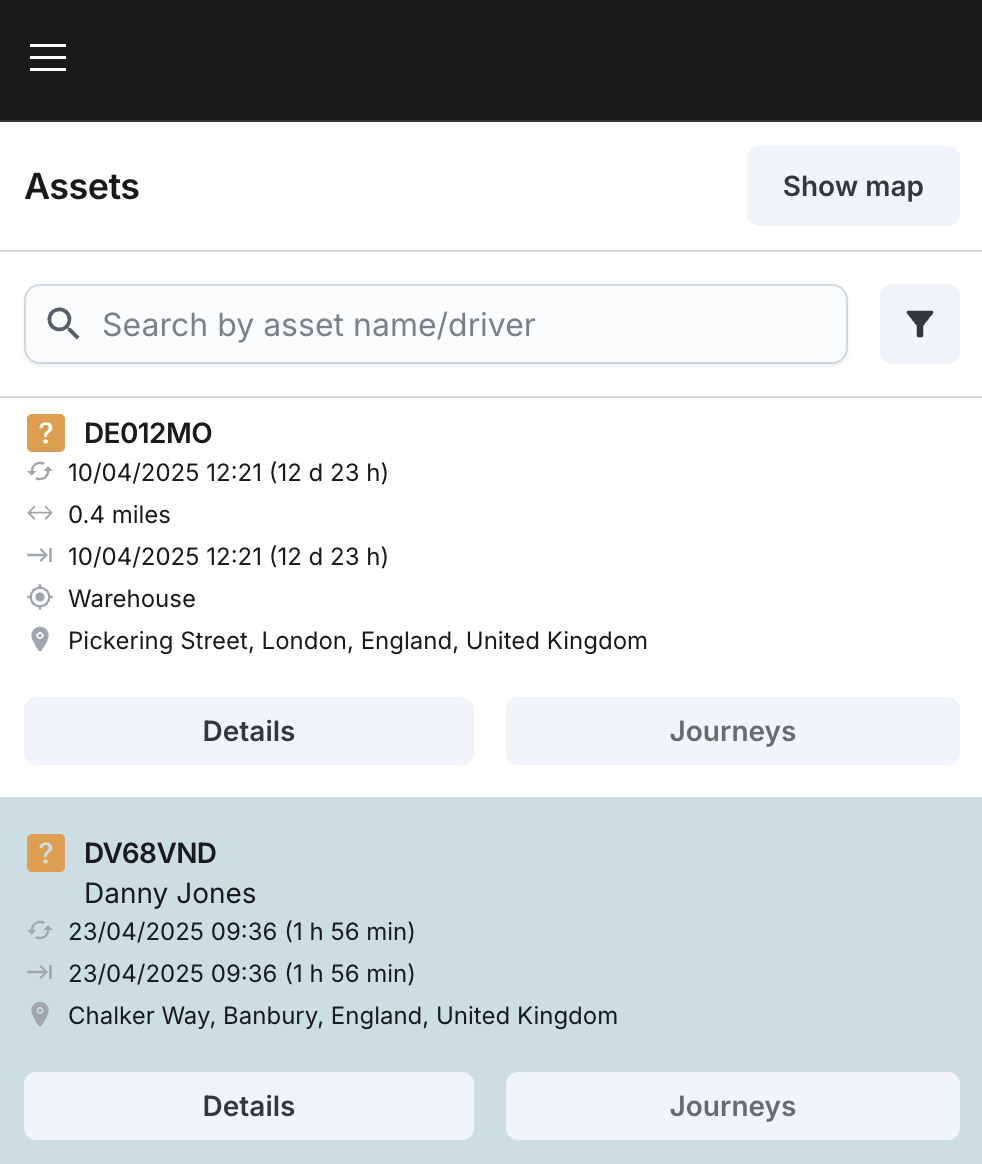
To view live tracking data on the mobile app, start by tapping the Fleet option from the main navigation menu.
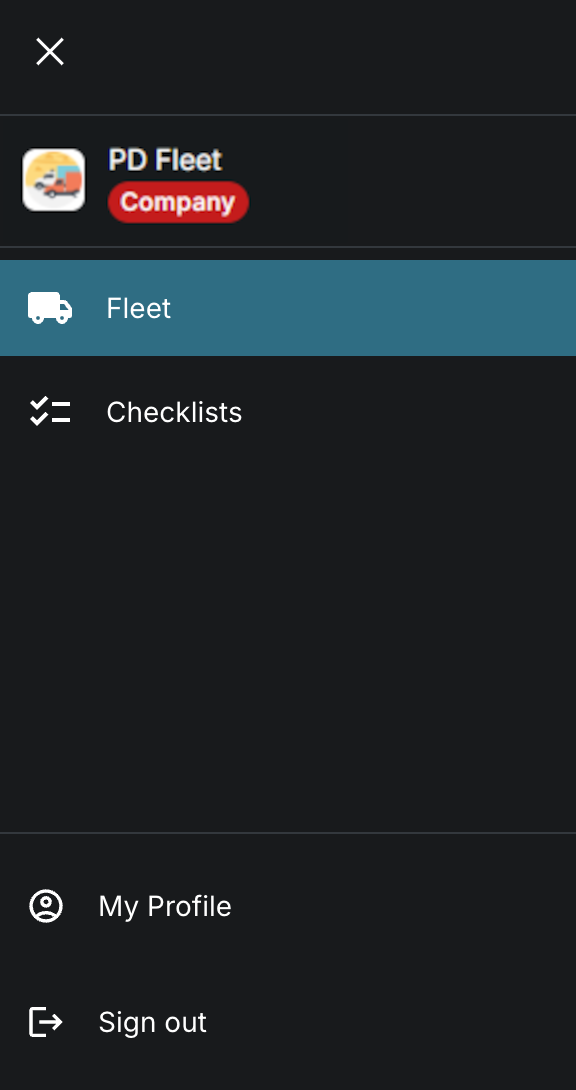
This takes you to the Live Fleet View, where you can:
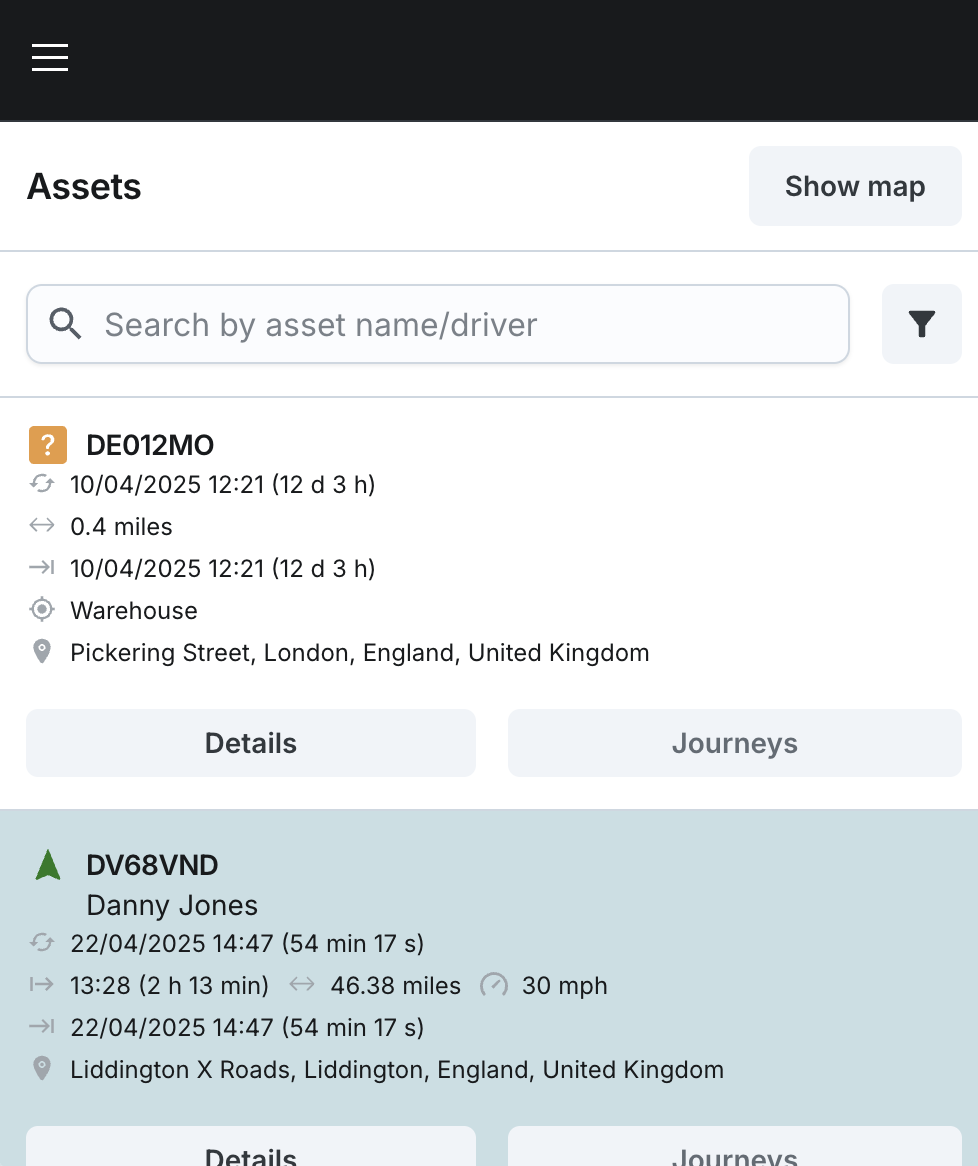
- See a list of your assigned assets (based on your Display Group access)
- Tap into any asset to view its live location, movement status, journey info, and more
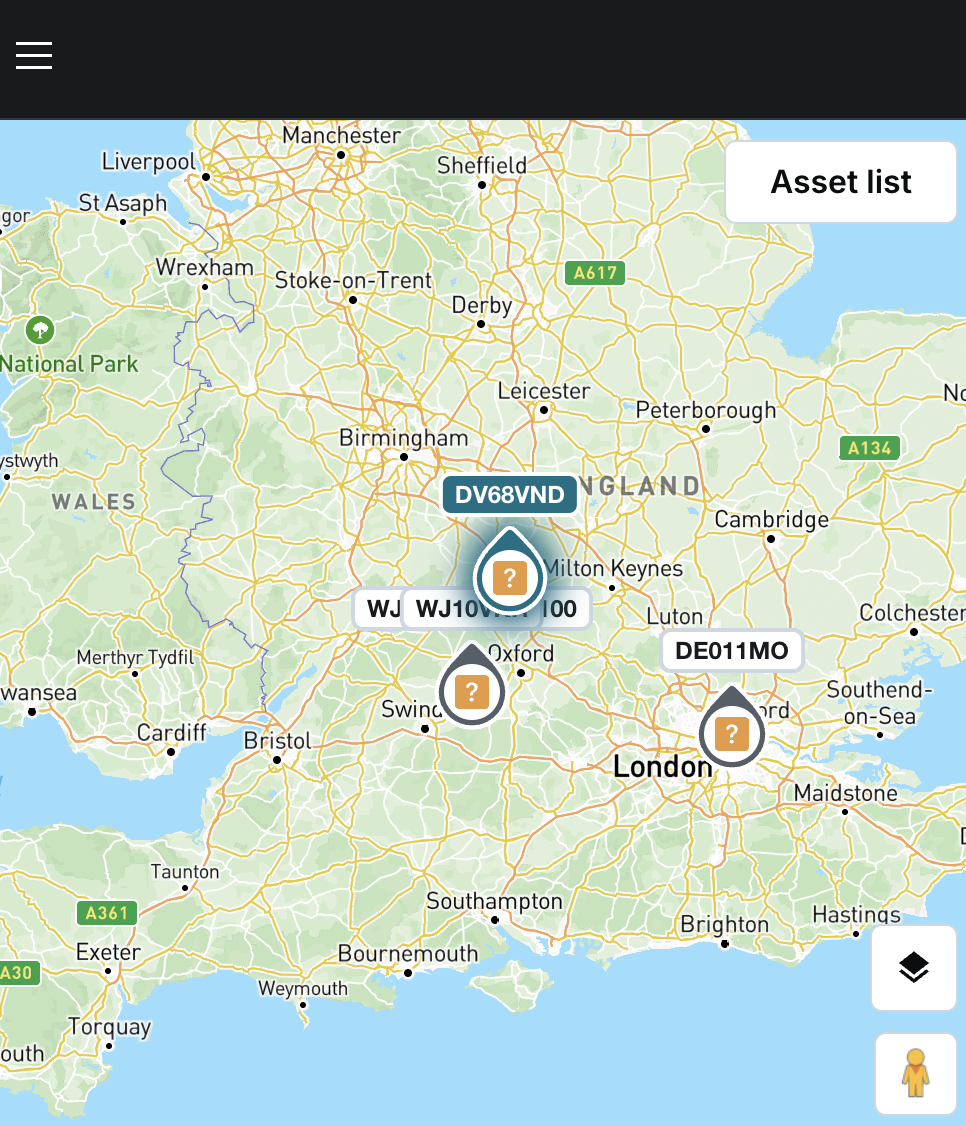
- Switch between map and list views for a better overview
- Search and filter assets by Asset Name, Active Driver and Display Group
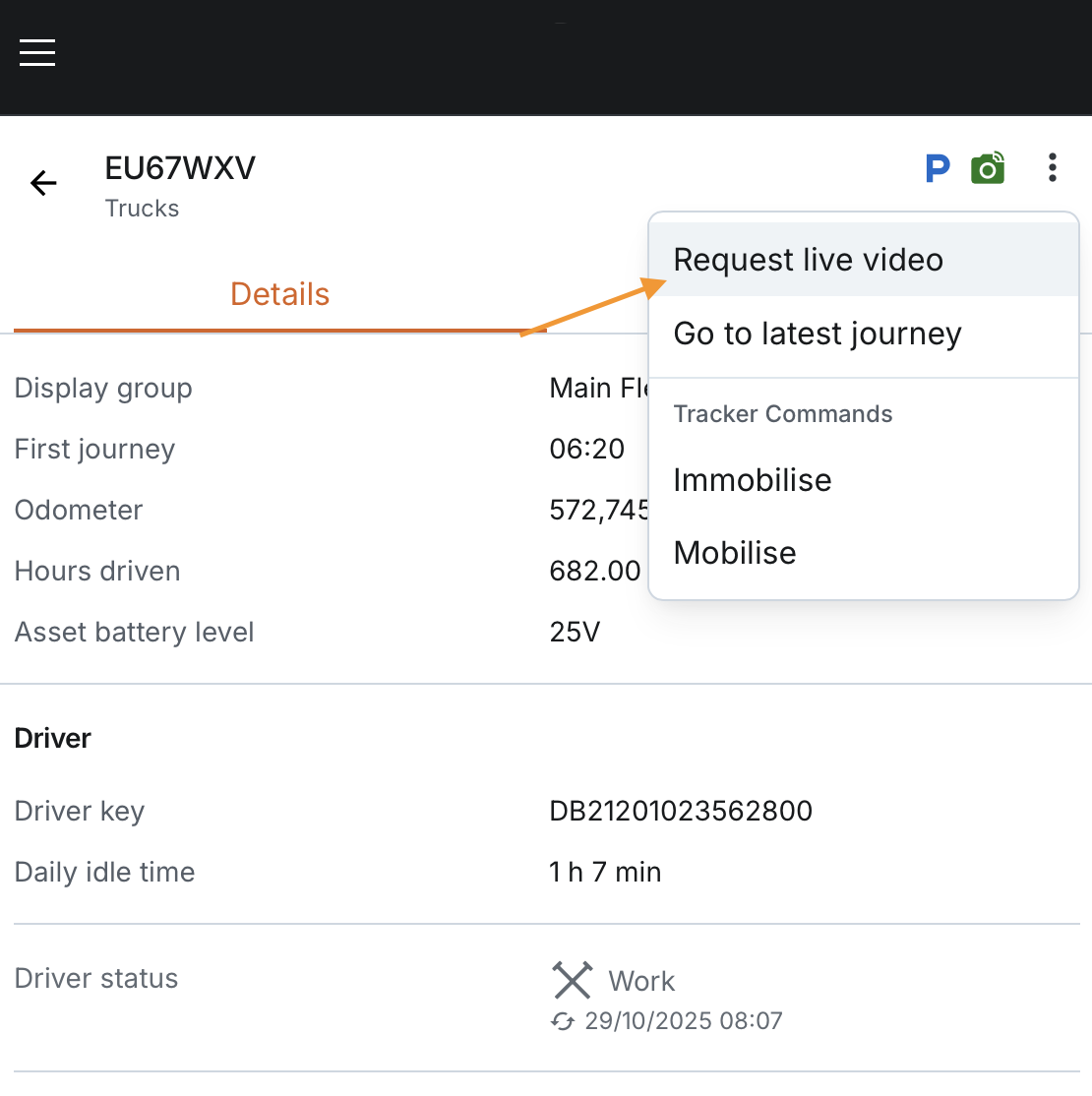
- Access available Fleet Commands (only if the asset is ACTIVE and eligible for commands)
- Request live video from the asset (only if the asset is ACTIVE and has a camera assigned)
Navigating Between List and Map Views
On the mobile app, you can:
- Switch to map view from the list of assets on the Fleet page by clicking "Show map". The map automatically zooms out to a level where all displayed assets are visible. This applies regardless of whether a specific asset is selected in the list or not.
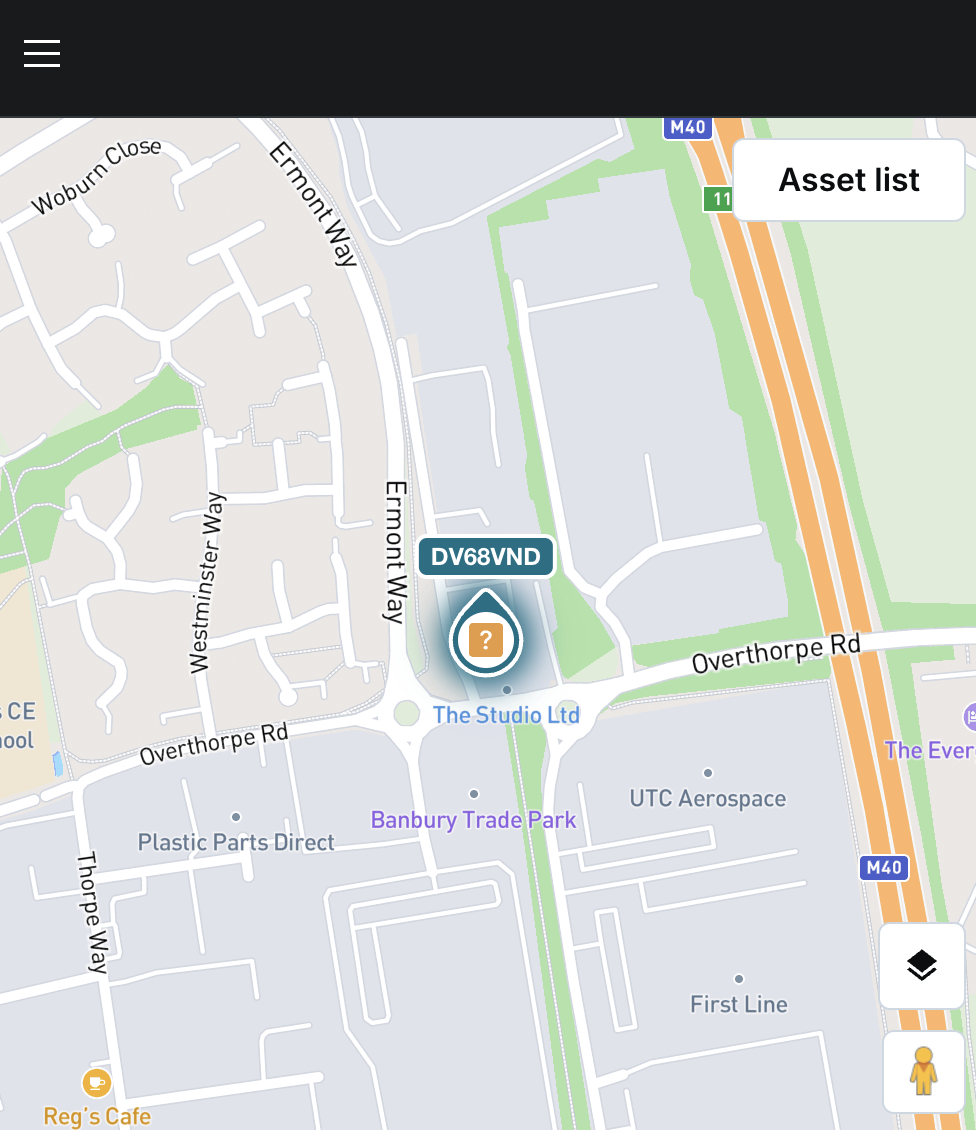
- Return to list view by clicking "Asset list" and tapping on a specific asset. The map will then centre on the selected asset, zoomed in closely, and the asset will stand out visually. In this case, the map will also follow the movement of the selected asset in real-time, keeping the asset centred as it moves, without changing the user’s current zoom level.
Accessing Asset Details
You can view detailed information for an asset in two ways:
- By tapping "Details" from the list of assets on the Fleet page
- By selecting an asset from the map view and tapping on it
In either case, the asset details page opens, showing key live tracking information including journey data, movement status, and more.
Note:
- Geofenced areas are not displayed on the mobile map.
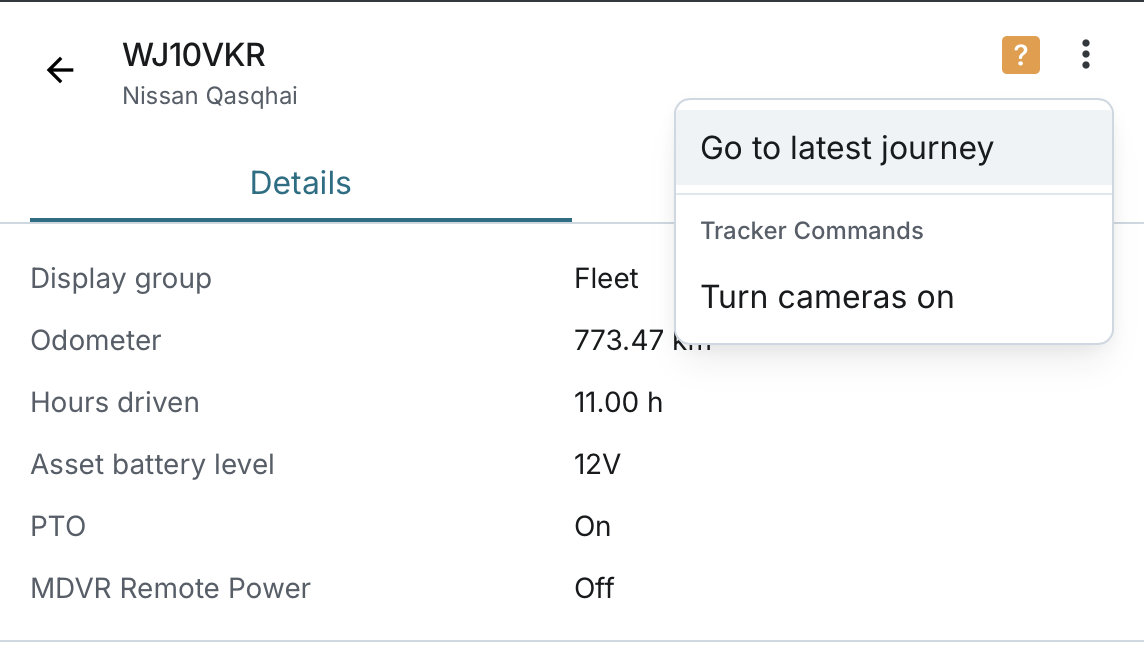
- If the asset is eligible for fleet commands, users can send commands via the Commands menu inside the asset details screen.
- From the Fleet page, when you select an asset and choose “Go to latest journey” (via the three-dot menu), the app will take you to the Journeys tab.