
Live Video Windows
Updated:
Once you request live video, the system will create a video window for each selected camera channel:
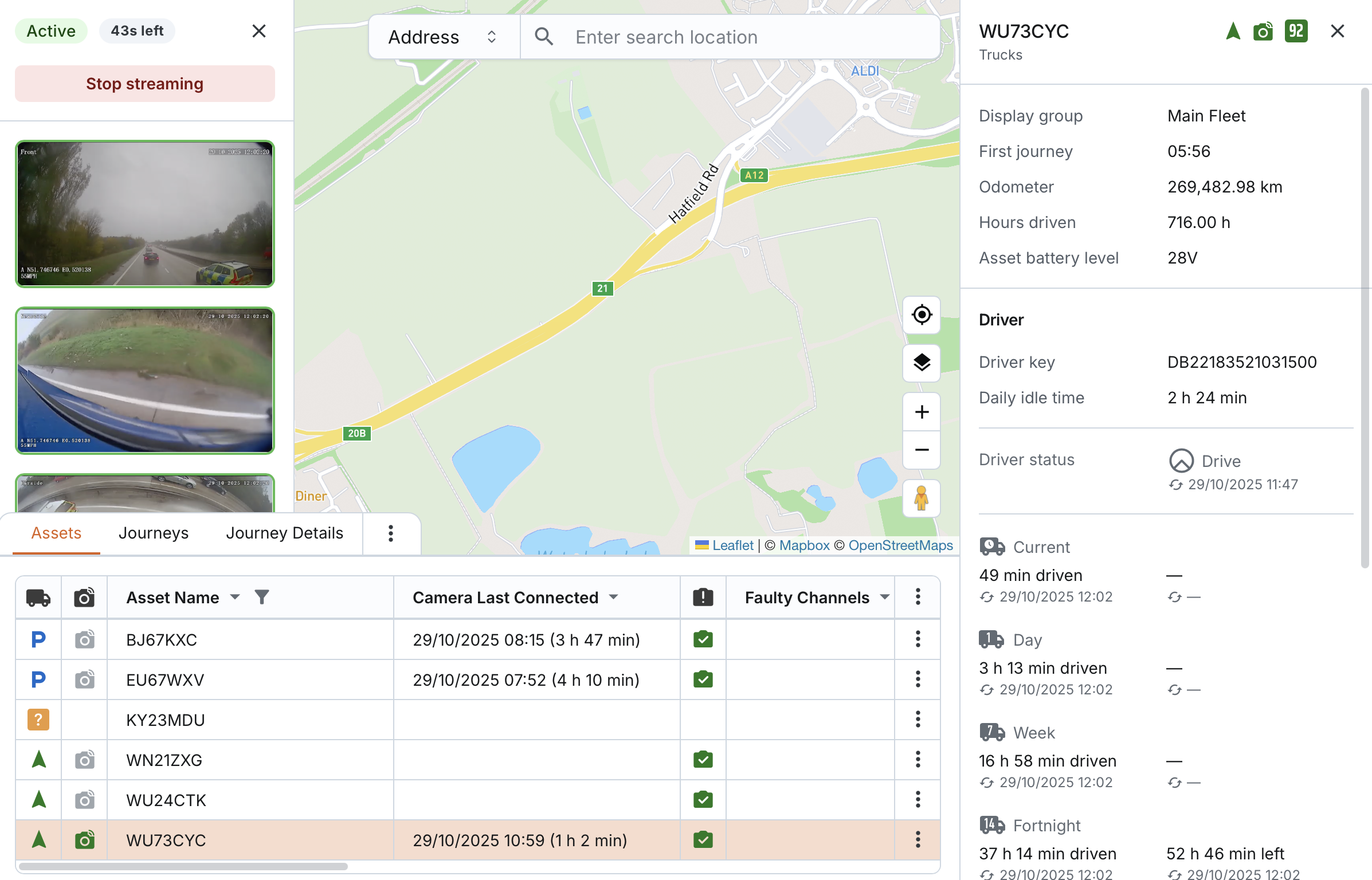
- Video windows are overlaid on the map. Their positions adjust based on the page layout (horizontal table vs. vertical list of assets).
- Video windows are stacked in the same order as the channels appear in the selection field, reflecting the exact order you chose.
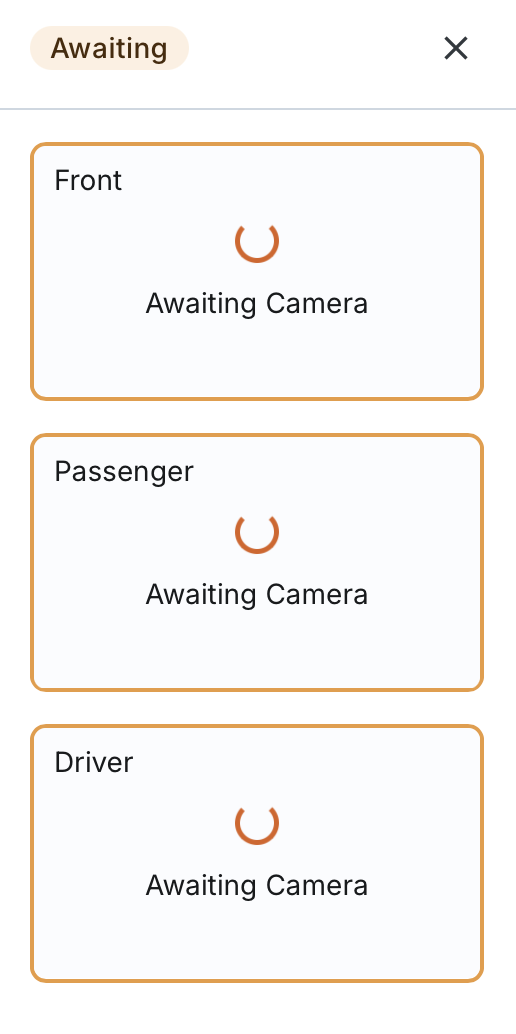
- Each video window displays its channel name while the request status is awaiting camera or failed.
- To view the channel name of an active or stopped video window, hover over the window.

Individual Video Window Status
Each video window shows its individual request status, updated in real-time:
- Awaiting camera: System is attempting to connect and retrieve the real-time video.
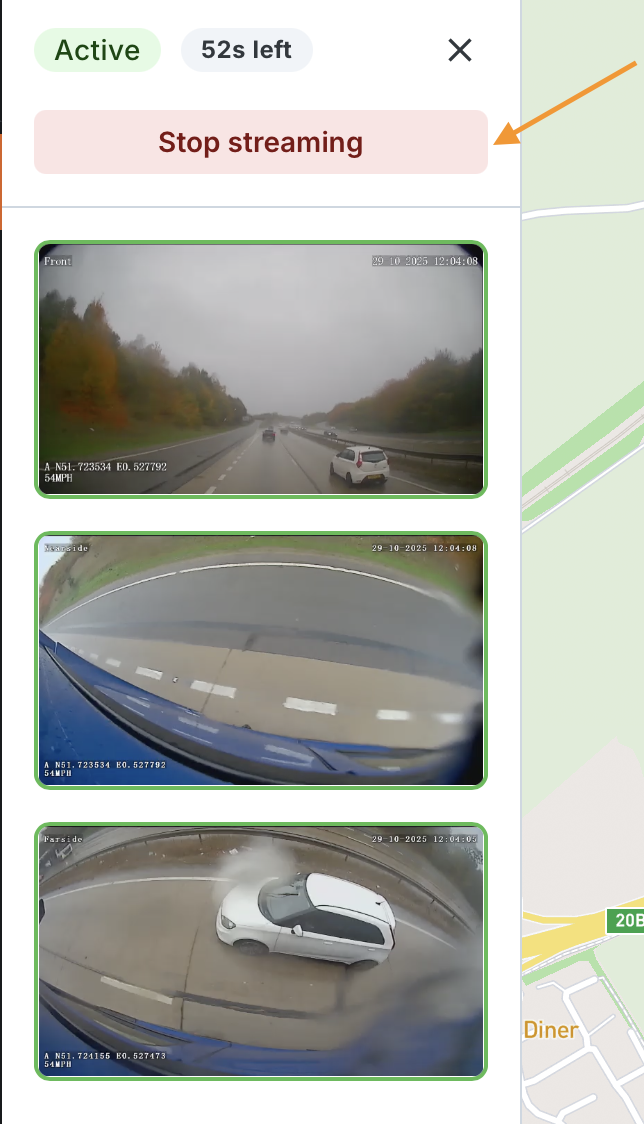
- Active: Live video is playing in the window with an active stream.
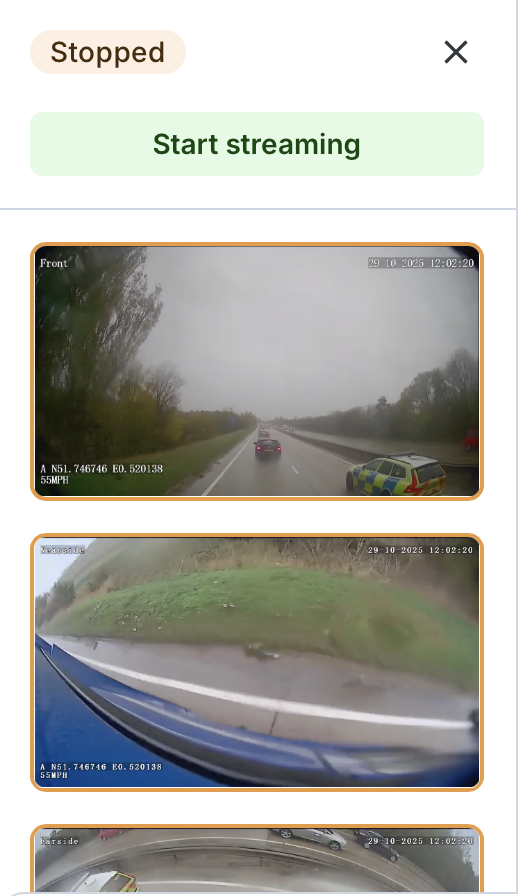
- Stopped: Streaming has been manually stopped by you or automatically stopped after 60 seconds.
- Failed: System could not establish a connection and failed to get the live video.
Global Live Video Request Status
You can view the global status for your live video request, displayed in the top section, which updates in real-time:
- Awaiting: The system is attempting to connect. None of the video windows has started streaming yet, and none has failed.
- Active: At least one video window is successfully streaming.
- Stopped: Streaming has been manually stopped by you, automatically stopped after 60 seconds, or stopped due to reaching the data usage limit.
- Failed: The system could not establish a connection and failed to retrieve real-time video from all requested channels.

Global Countdown Timer
- Once at least one video window starts streaming, a global countdown timer appears and counts down from 60 seconds.
- The timer applies to all video windows globally.
- When the 60-second limit is reached, all video streams automatically stop:
- Active video windows stop on the last frame.
- Awaiting or Failed video windows show a Stopped state.
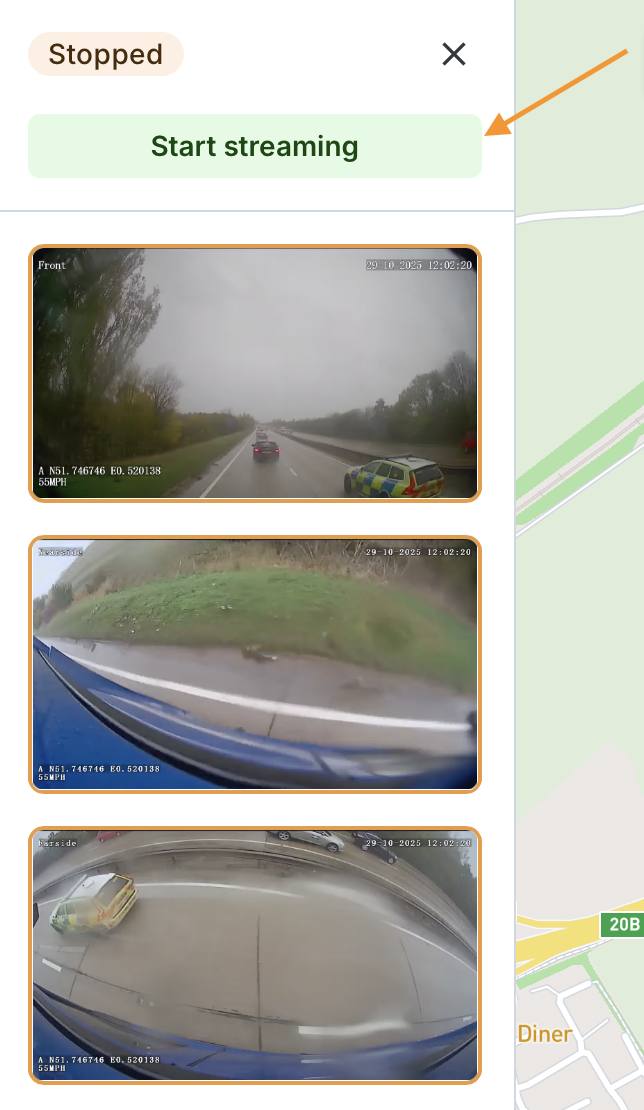
Manual Controls
- You can manually stop streaming when at least one window is actively streaming and the global request status is
Active. - You can manually restart all video streams when the global request status is Failed or Stopped.
- When restarted, the counter resets and begins counting down from 60 seconds once at least one window starts streaming.
- You can close all video windows at once.
Expanding and Minimising Video Windows
You can expand or minimise an individual video window when its status is Active or Stopped.
Expanding a Video Window
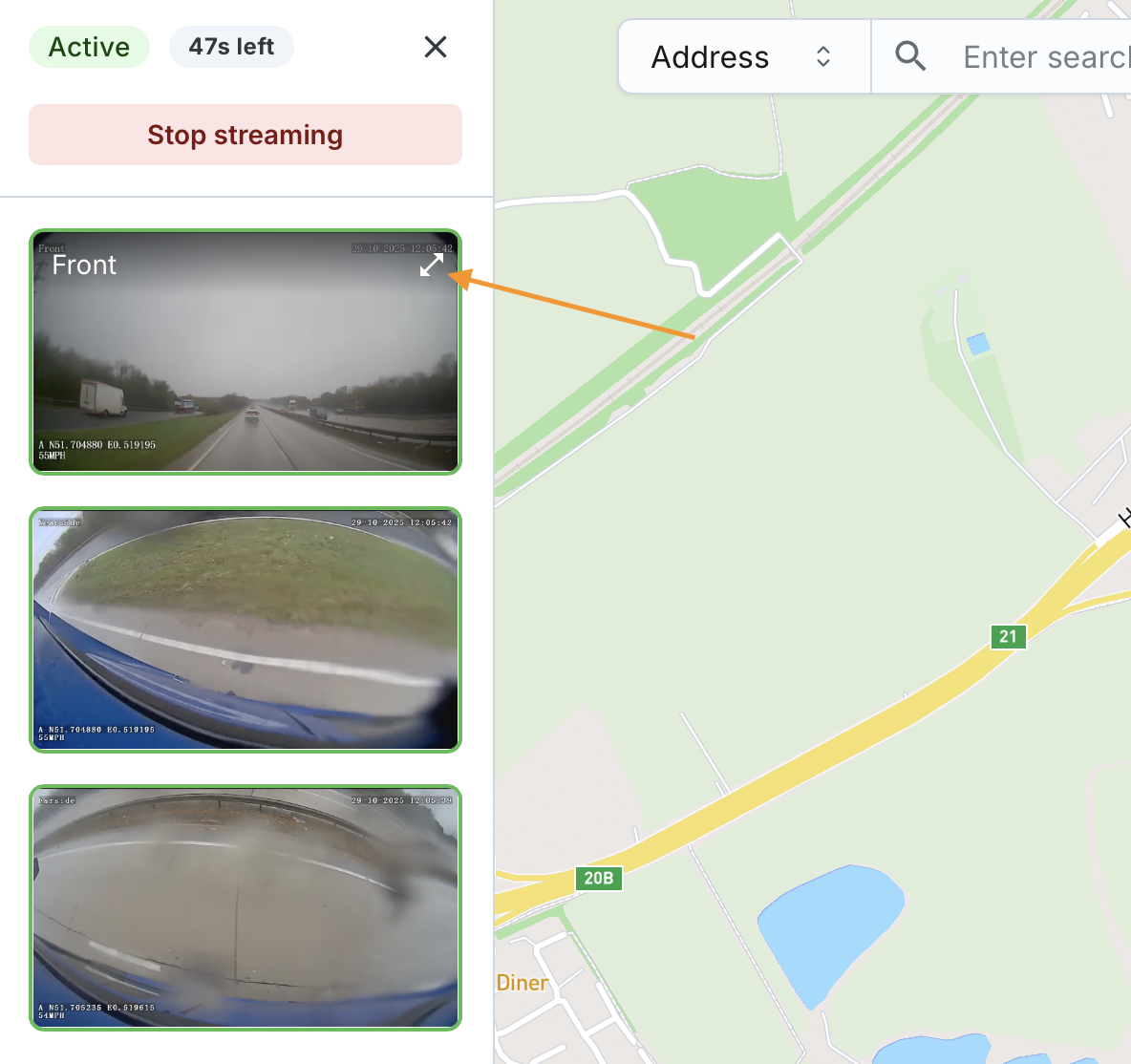
- You can expand a specific video window while keeping its placeholder visible in the video windows stack.
- The video stream plays only in the larger window when expanded.
- The larger window appears over the rest of the page components, and you can drag and resize it.
- The smaller window in the stack remains visible but displays “Playing in floating player” instead of playing the stream.
- You have a control to flip (mirror horizontally) the video in the expanded window.
- While a video is expanded, you can expand another video from the stack; the newly selected video replaces the currently expanded one.

Minimising a Video Window
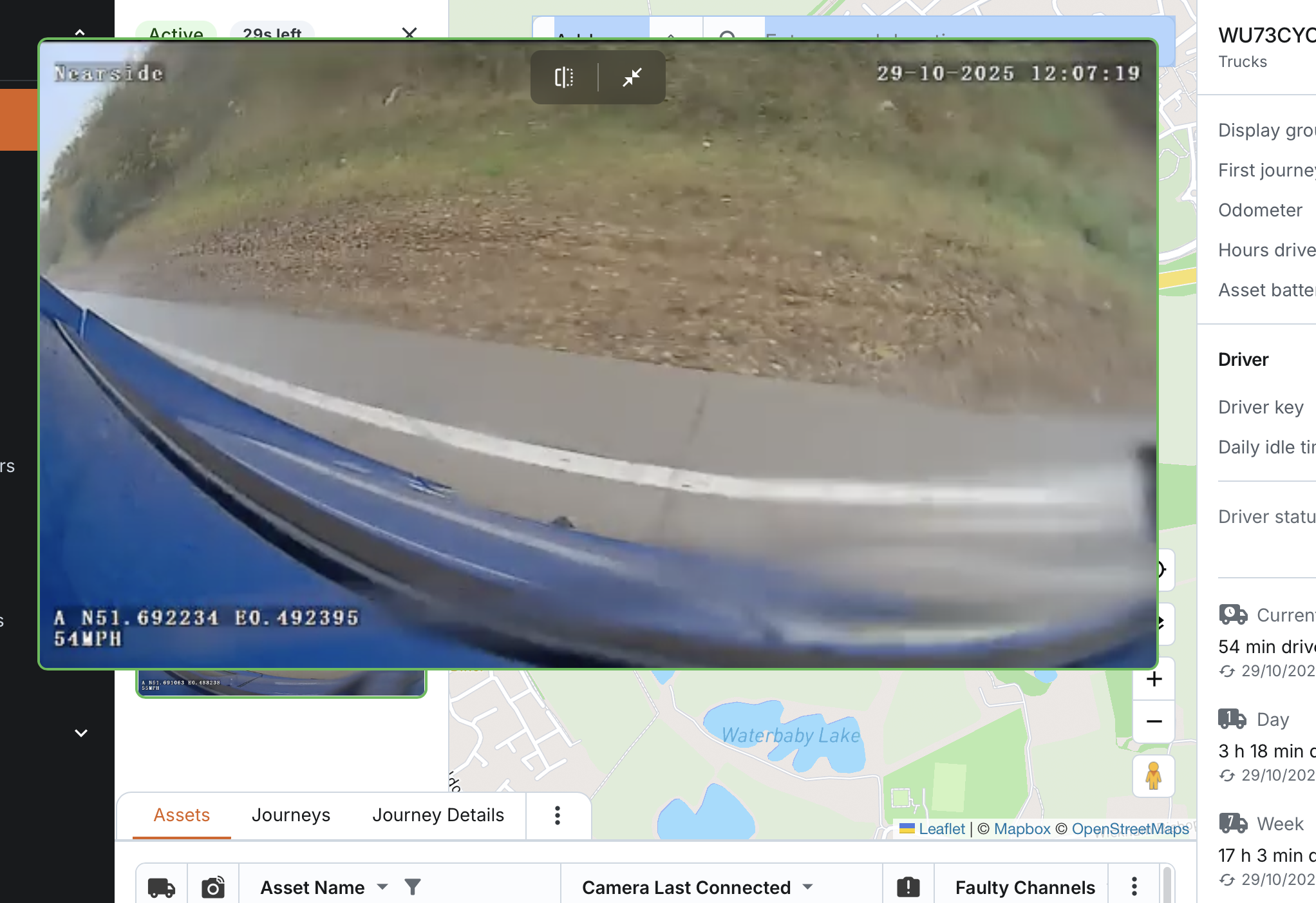
- When you minimise a video window, the larger window closes, and the video resumes playing in the smaller window in the stack.

Additional Behaviour
- If you navigate away from the page, refresh the page, select a different asset in the table/list, or select Go to Latest Journey, all video windows automatically close.
- Currently displayed video windows remain unaffected when you:
- Click Zoom on any asset in the table/list
- Send fleet commands to any asset from the table/list or map
Hover Controls and Indicators
- Expanded in-app notifications appear above the expanded video window if they overlap.
- The Expand button is displayed when hovering over a small window in the stack.
- When hovering over a small window that is expanded (displayed as “Playing in floating player”), you can see its channel name.
