
Journeys in the Web App
Navigating to Journeys Tab
While on the Web App, you can navigate to the "Journeys" tab:
- From the horizontal Asset Table
- From the vertical Asset List
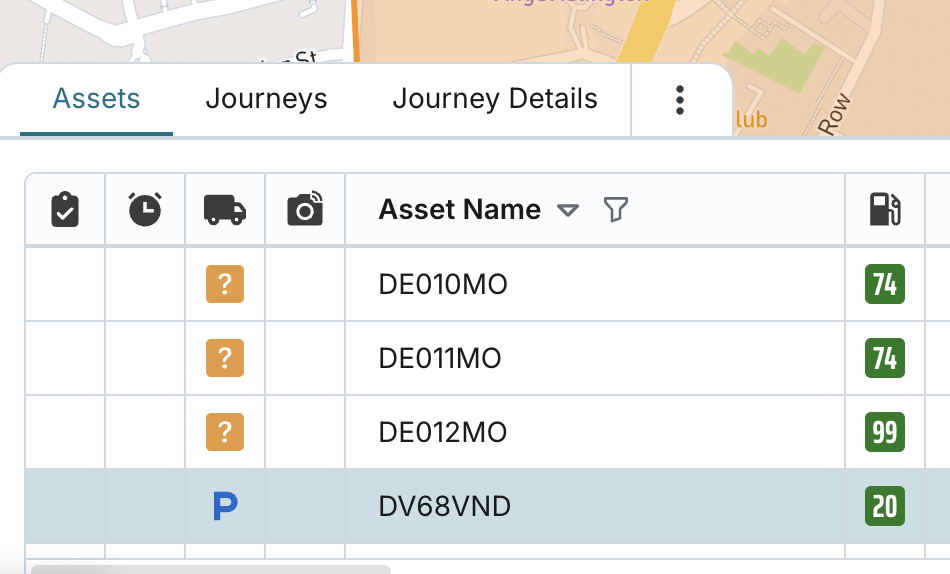
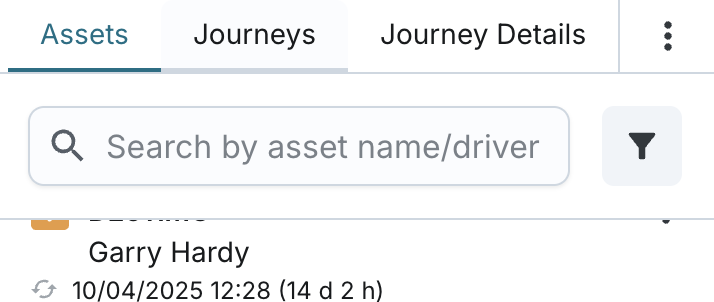
Tab Controls and Layout Options
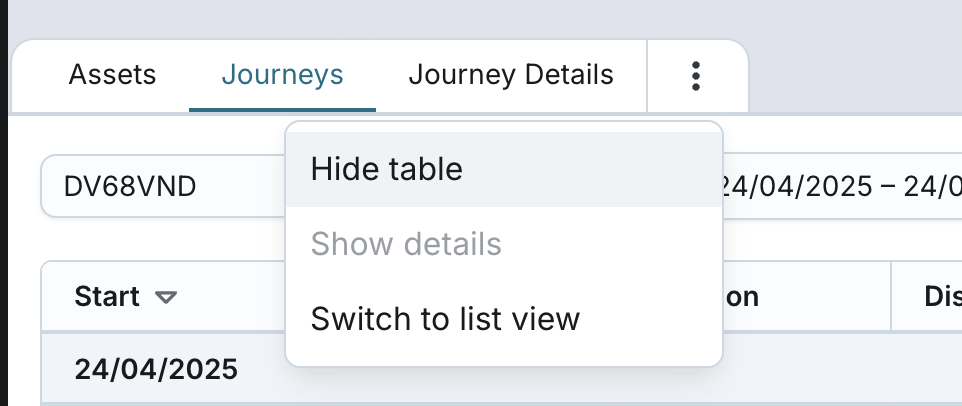
While on the Journeys tab, you can:
- Hide the table: This hides all UI components except for the map. When you choose to show it again, the system returns you to the same tab you were viewing before hiding.
- Resize the table: Adjust the height for a more flexible viewing experience.
- Switch to List View: You can toggle to a vertical layout with live Asset List View under the Assets tab.
- "Show Details" option: coming soon.
Column Configurator
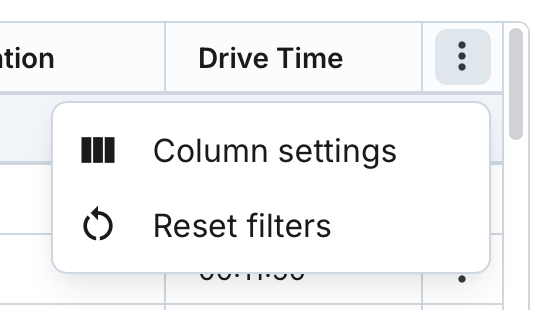
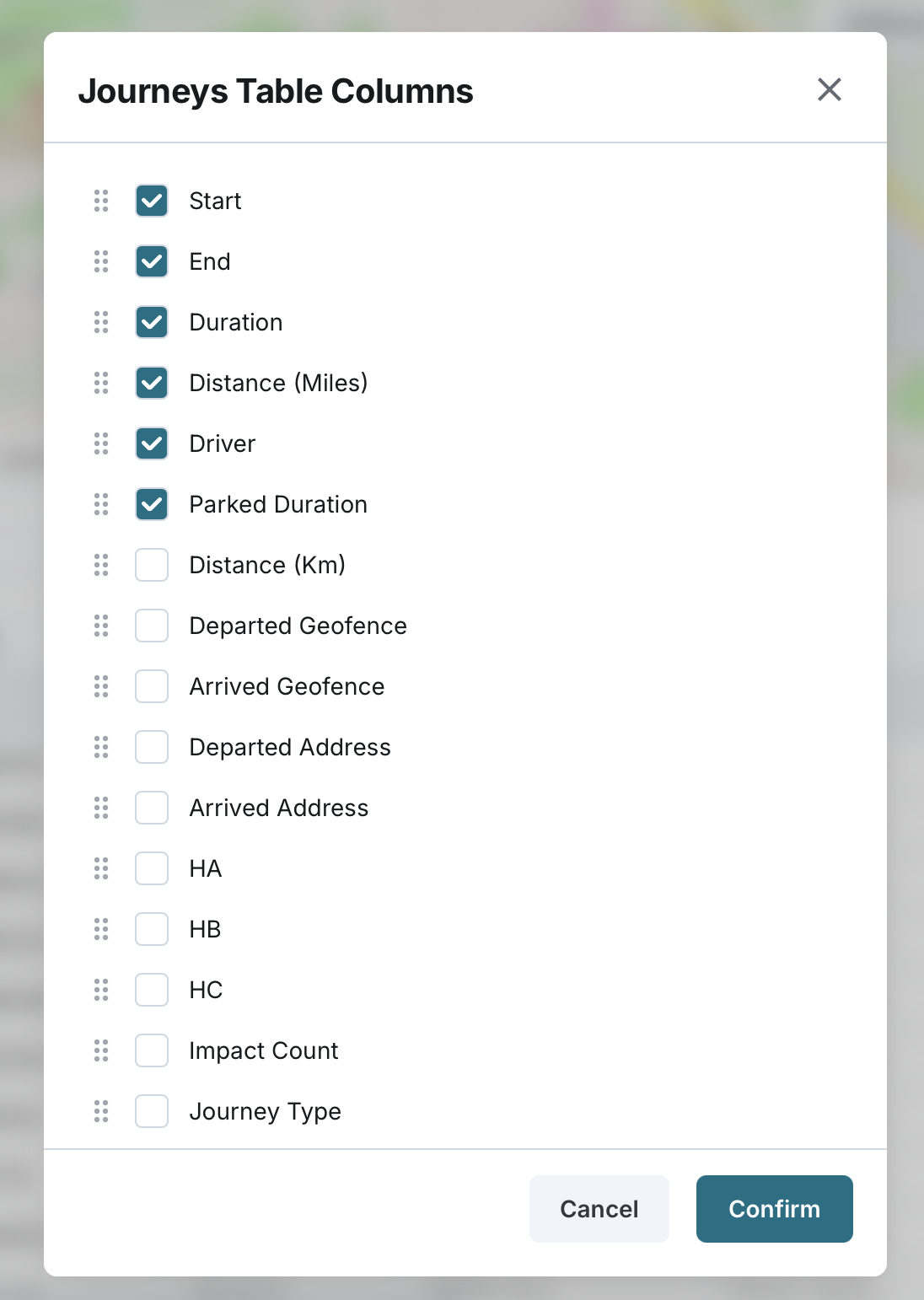
You can configure the table settings using the Column Configurator.
- The configurator displays currently visible columns as selected.
- You can unselect existing columns to hide them from the table.
- You can add new columns to display them with appropriate headers and data.
- Columns can be rearranged by dragging and dropping to set a custom order.
Asset Selection
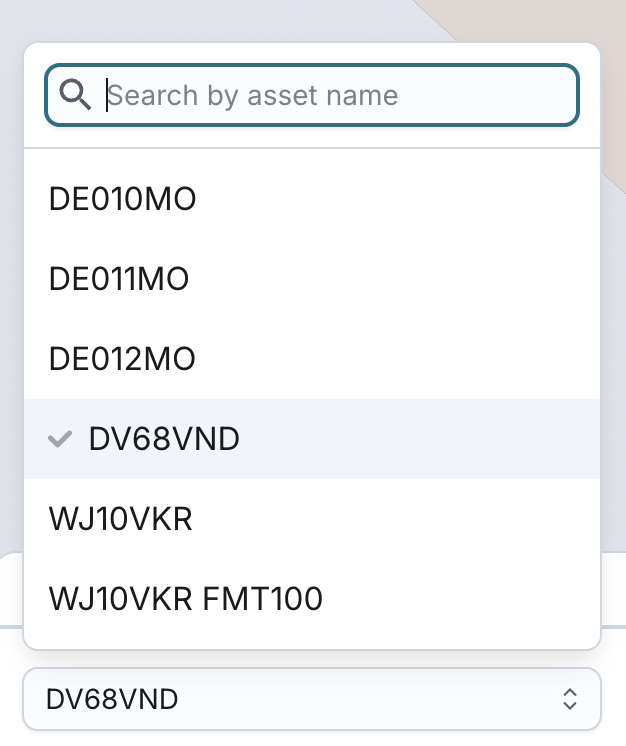
You can select a specific asset to view its historic journeys via:
- Single asset selection (searchable dropdown)
- The dropdown includes:
- ACTIVE assets with a paired tracker
- DEACTIVE (VISIBLE) assets, regardless of tracker status
- You can still view their past journeys, but they will no longer receive updates.
- The list is shown alphabetically by asset name.
- Only assets from your assigned display groups or visible asset settings will appear.
Auto-selection behaviour:
- If you had an asset selected on the Assets tab before navigating to Journeys, that asset will be automatically pre-selected.
- If no asset was selected, none will be pre-selected.
- When switching between the Assets, Journeys and Journey Details tabs, the previously selected asset remains pre-selected.
Selecting the Date Period
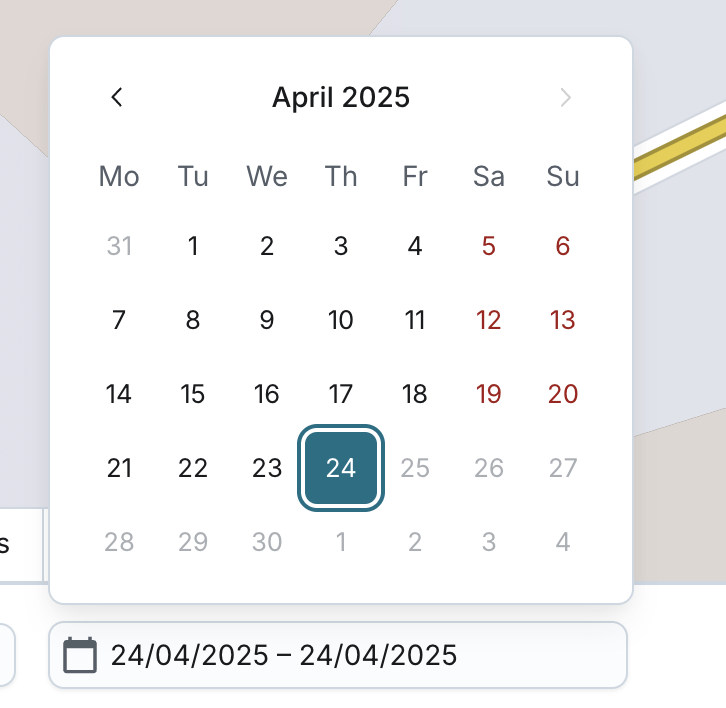
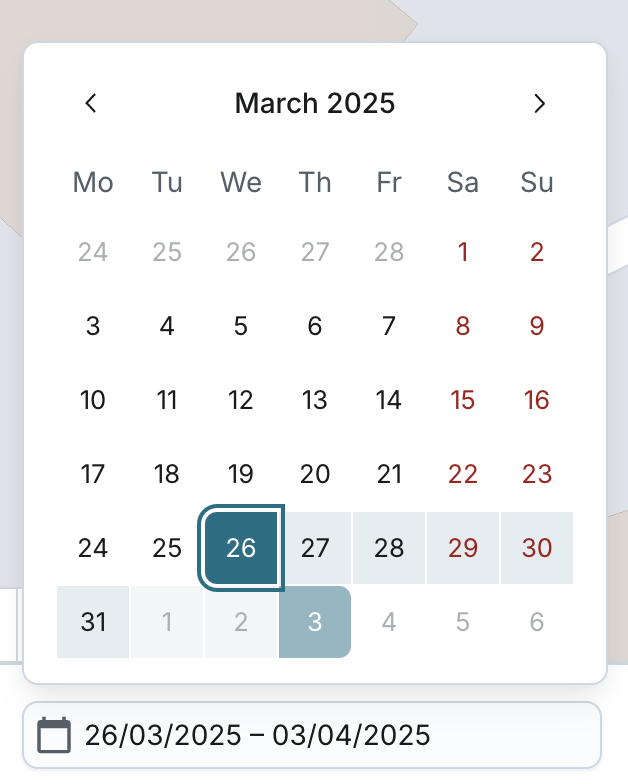
You can set a date range using the period picker:
- Default range: Today’s date
- The system will remember your last selected date range if you leave the Journeys tab and return to it later.
- Maximum range: 31 calendar days
- Earliest date selectable: 3 years before today
- Future dates cannot be selected
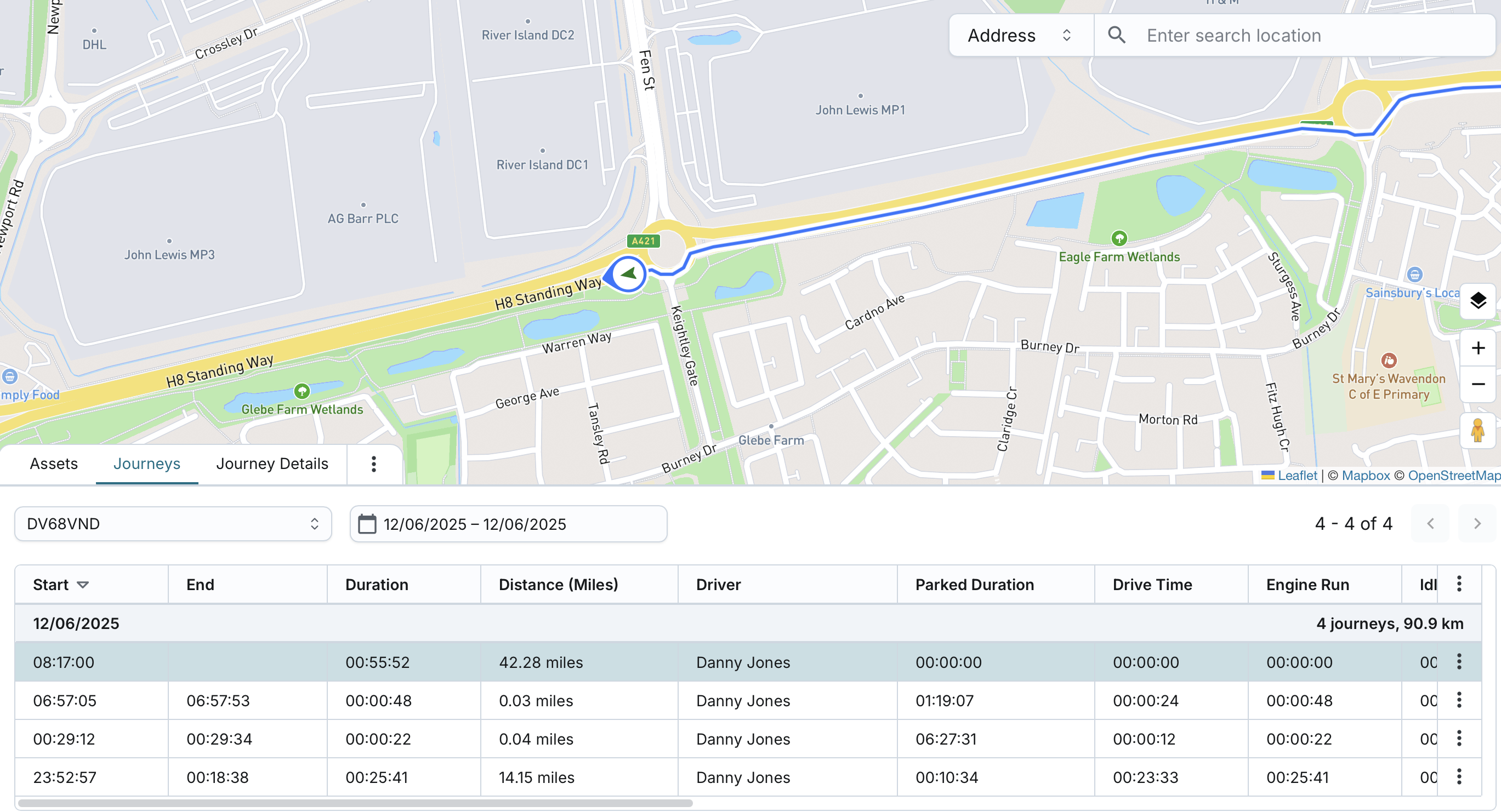
Journeys Table View
On the Journeys tab, journey data for the selected asset and date period is updated dynamically in real time.
You can view:
- Historic journey records grouped by day
- Journey details for both completed and the current ongoing journey (if any)
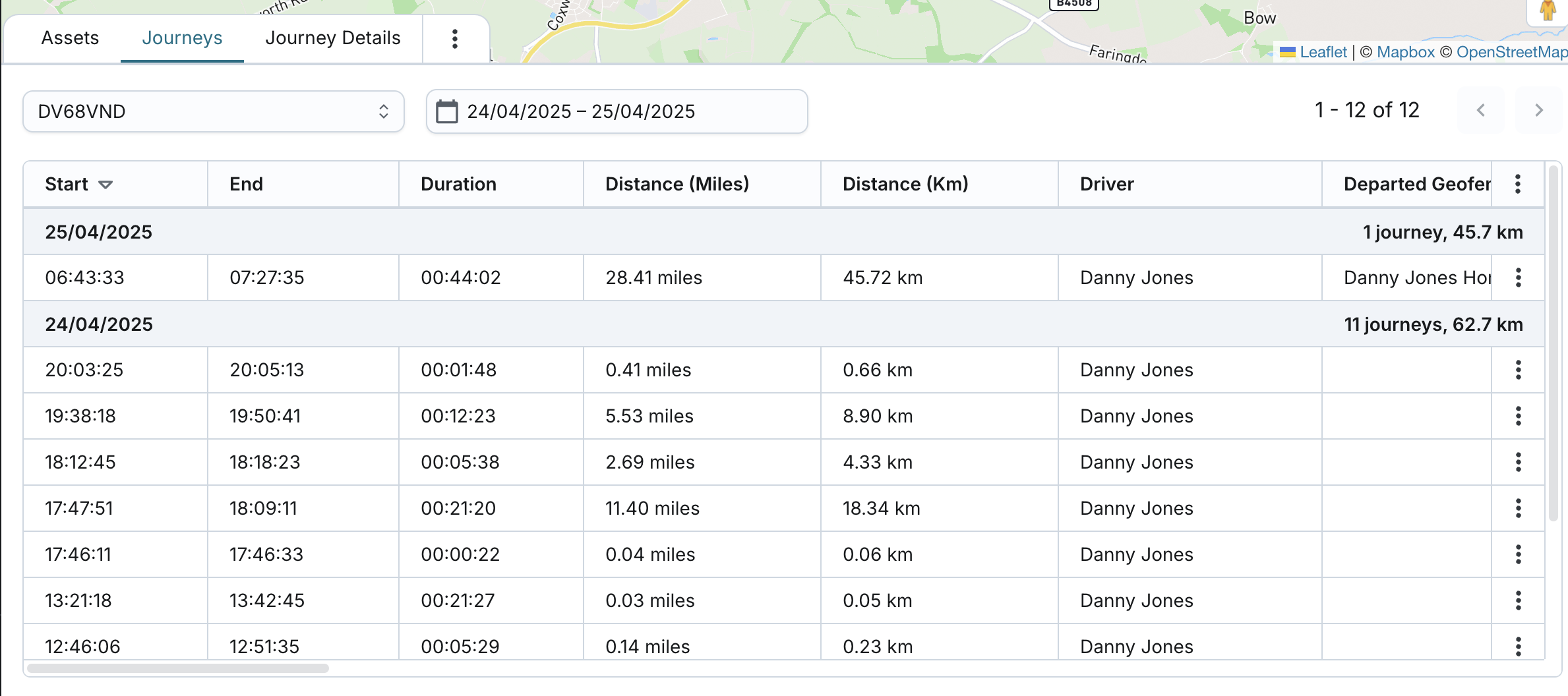
By default:
- Days are listed from the most recent to oldest
- Within each day, journeys are sorted from most recent to oldest start time
If a journey begins on one day and extends overnight, it will be recorded under the starting day only, with the end time showing the next day’s date.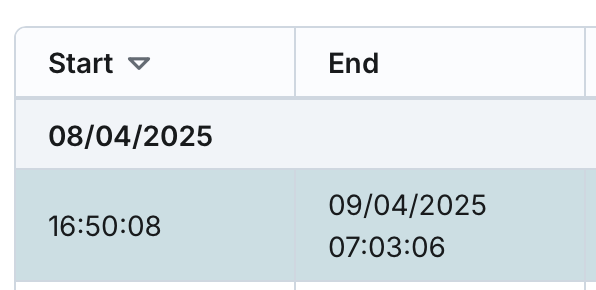
For each day shown:
- The system displays the number of journeys and total distance travelled
- The current journey (if any) is included in the journey count
- Distance is displayed in miles or kilometres, based on your company’s Units setting
System defaults:
- The top journey under the most recent day is auto pre-selected
- A single day’s journeys are never split across pages. Pagination is based on grouping full days together, with the following rules applied:
- Each page contains between 40 and 80 journeys, grouped by full days.
- If a single day exceeds 80 journeys, the system will allow that day to overflow and be displayed entirely on one page, even if that results in 100+, 200+, or more journeys.
- If the current page has fewer than 40 journeys, but adding the next day would push the count above 80, it is still allowed - the day will be added in full to the current page.
- You can navigate between pages and see the total number of journeys in the pagination control
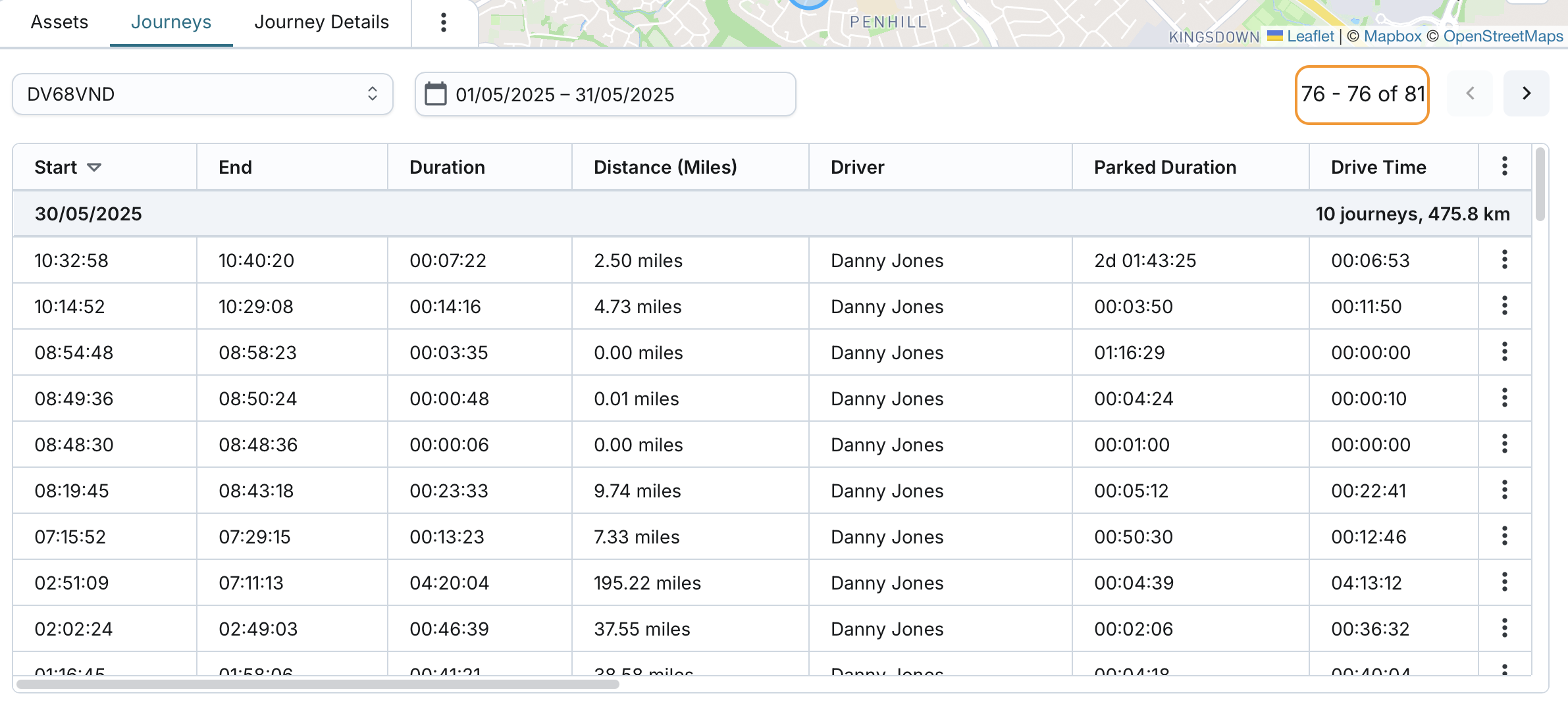
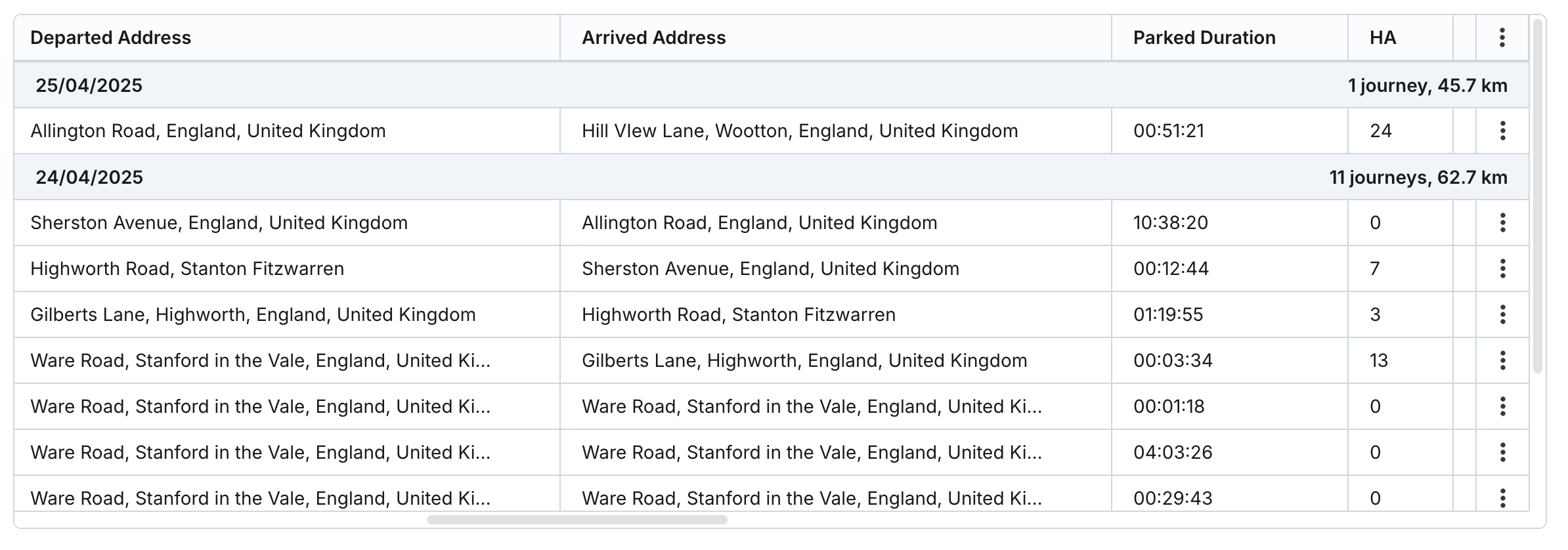
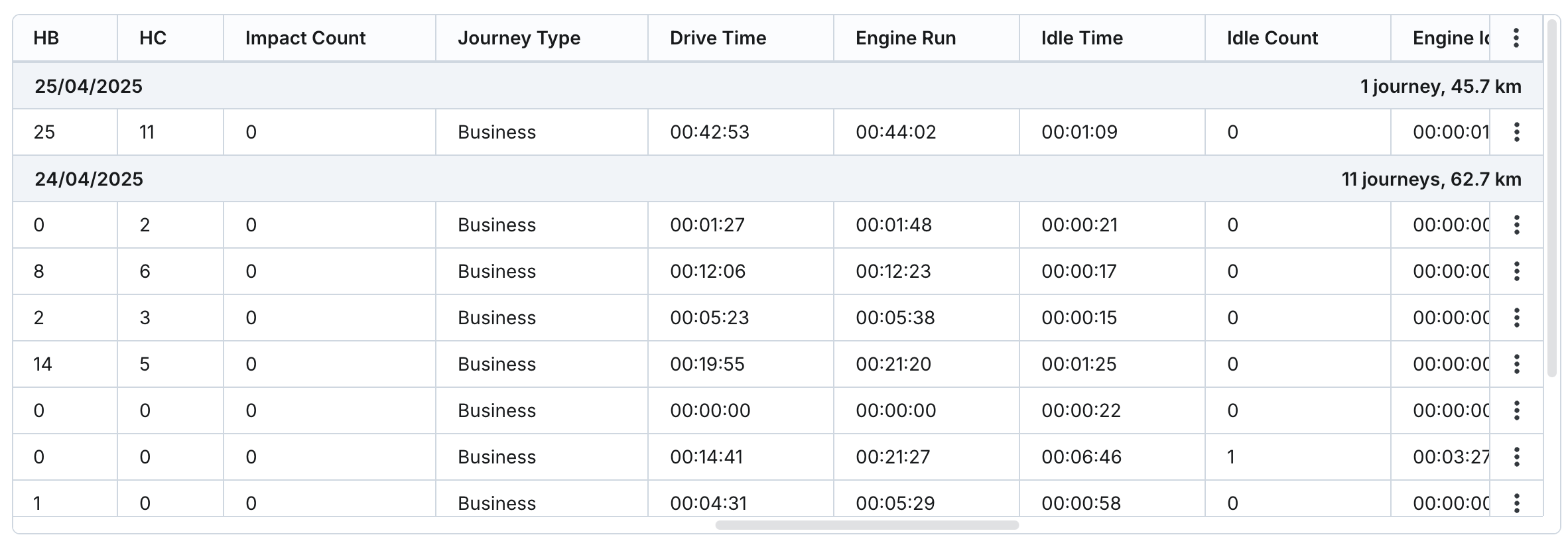
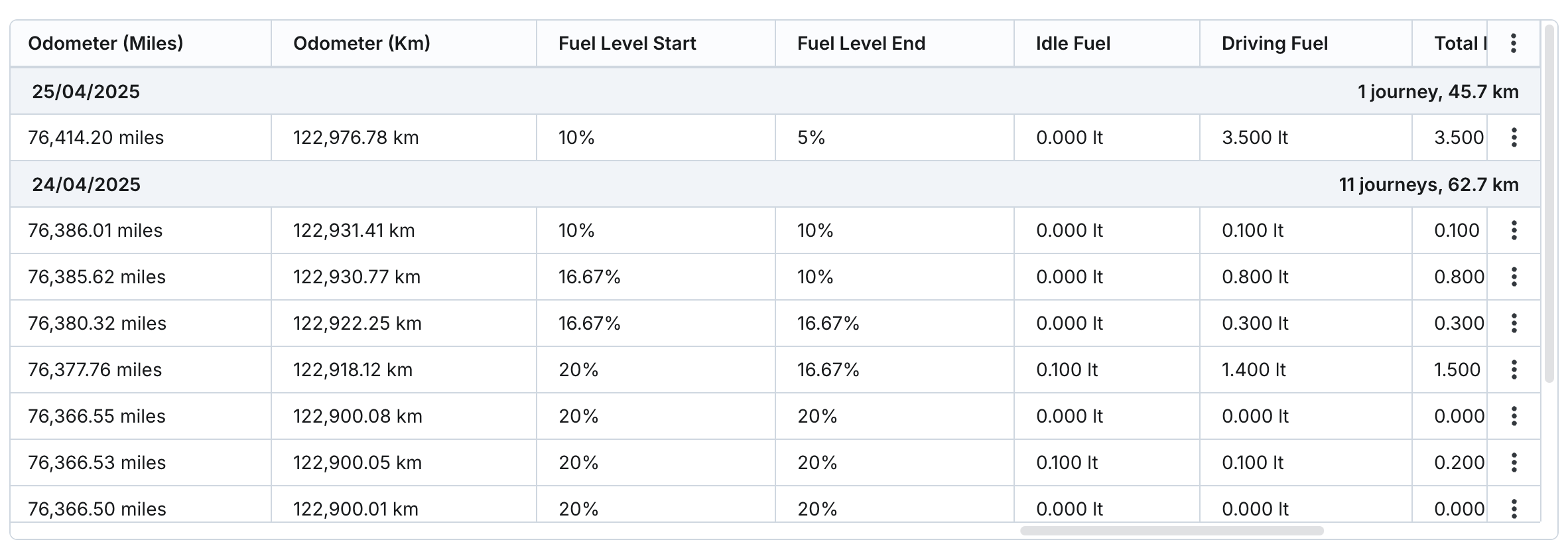
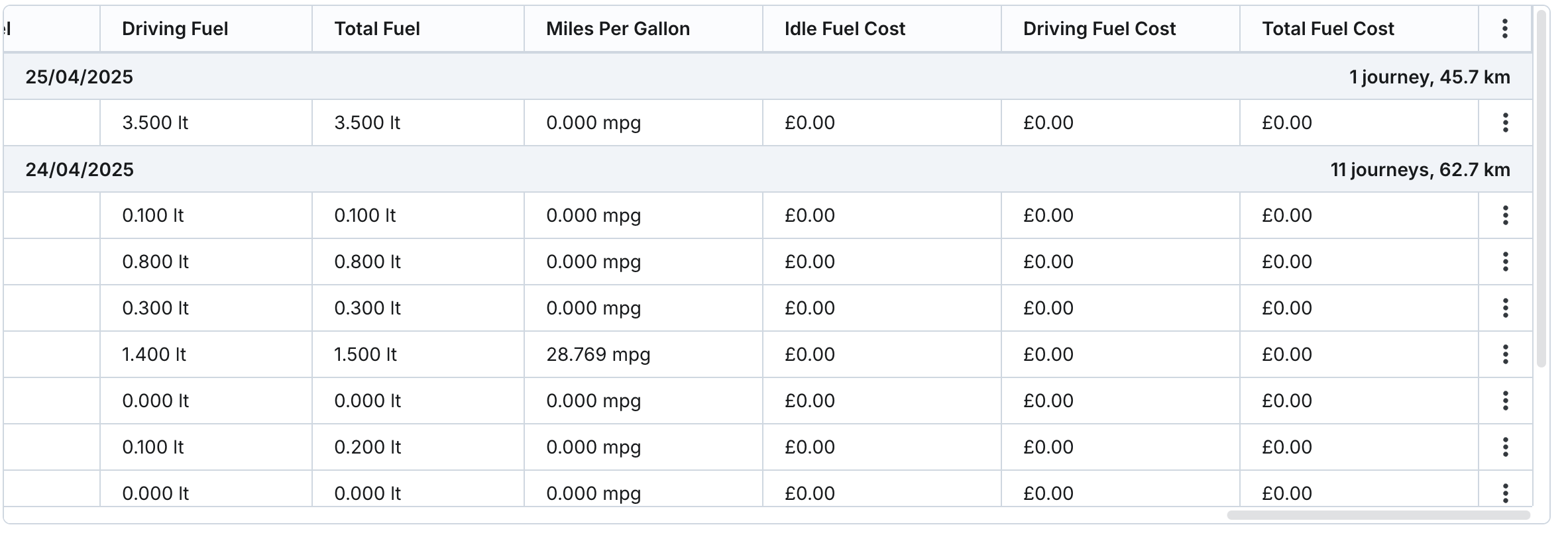
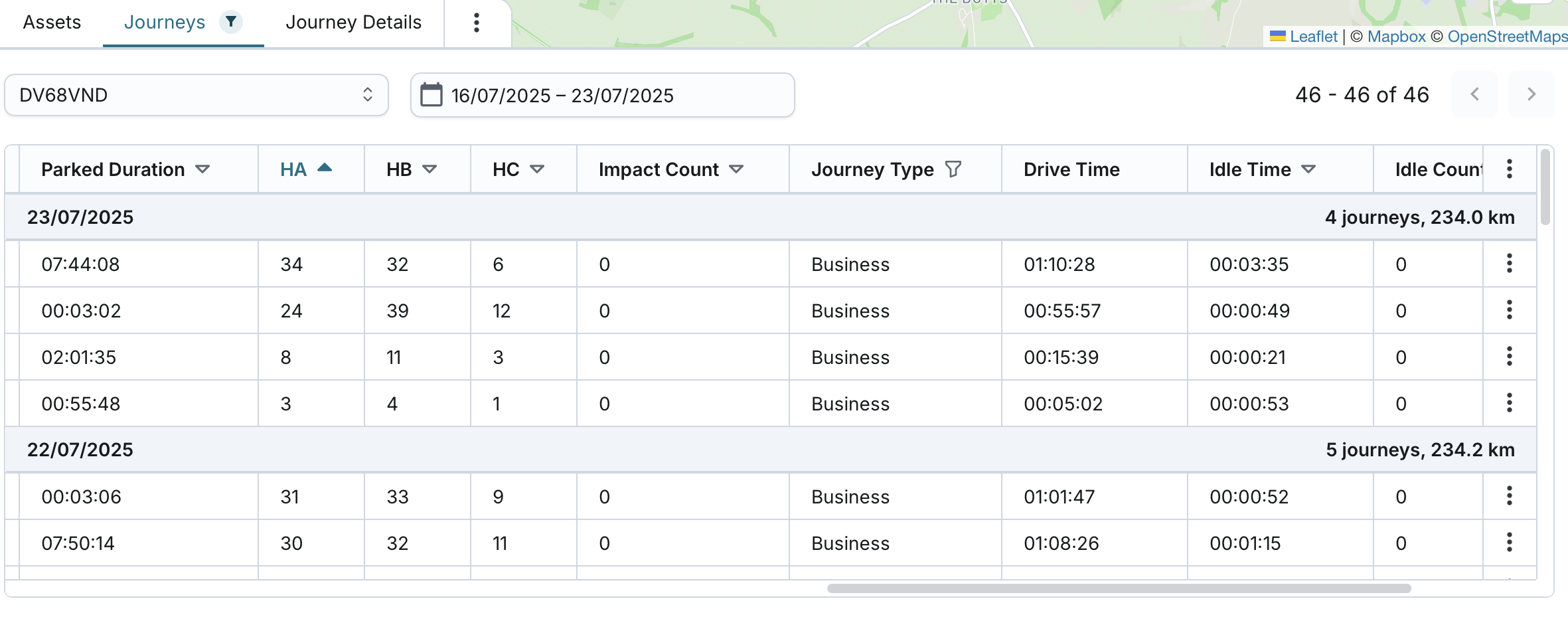
Table columns include:
- Start Time: Ignition turned on
- End Time: Ignition turned off
- Duration: Journey duration (ignition on to off), finalised at journey end
- Distance (miles/km): Travelled since journey start, updated in real time
- Driver: Last driver (historic name), updated in real time
- Departed Geofence: Geofence departed from at ignition on
- Arrived Geofence: Geofence arrived at before ignition off
- Departed Address: Address where the journey began
- Arrived Address: Address where the journey ended
- Parked Duration: Time parked at the arrival address, finalised at end of parking period
- HA: Harsh acceleration count, finalised at journey end
- HB: Harsh braking count, finalised at journey end
- HC: Harsh cornering count, finalised at journey end
- Impact Count: Number of impact events during the journey, finalised at journey end
- Journey Type: Source of journey type depends on:
- If a driver key was used, show the journey type from the driver key level
- If no driver key, show the journey type from the asset level
- Drive Time: Time spent driving, excluding idle time, updated at journey end
- Engine Run Time: Time engine was running, updated at journey end
- Idle Time: Time asset spent idle during the journey (without thresholds), updated at journey end
- Idle Count: Number of times asset exceeded the idle time threshold, based on configured threshold, updated at journey end
- Engine Idling: Time engine was running while asset was idle (no threshold), updated at journey end
- Odometer (miles/km): Odometer reading at journey end
- Fuel Level Start: Fuel level at start of journey
- Fuel Level End: Fuel level at end of journey
- Idle Fuel: Fuel used while idling, updated at journey end
- Driving Fuel: Fuel used while driving, updated at journey end
- Total Fuel: Total fuel used during journey, updated at journey end
- Miles Per Gallon: Calculated at journey end
- Idle Fuel Cost: Fuel cost while idling, updated at journey end
- Driving Fuel Cost: Fuel cost while driving, updated at journey end
- Total Fuel Cost: Total fuel cost during journey, updated at journey end
Search, Sort & Filter Options
When viewing the list of journeys of the selected asset within the selected date/date range:
- You can sort the list of journeys by: Start (start time), End (end time), Duration, Distance, Driver, Departed Geofence, Arrived Geofence, Parked Duration, HA, HB, HC, Impact Count, Idle Time, Idle Count, Engine Idling, Odometer, Fuel Level Start, Fuel Level End, Idle Fuel, Driving Fuel, Total Fuel, Miles Per Gallon, Idle Fuel Cost, Driving Fuel Cost, Total Fuel Cost.
- If a journey is currently in progress, it will appear at the top of the day’s list and won’t follow duration-based sorting.
- If the asset is currently parked, it will appear at the top of the day’s list and won’t follow duration-based sorting.
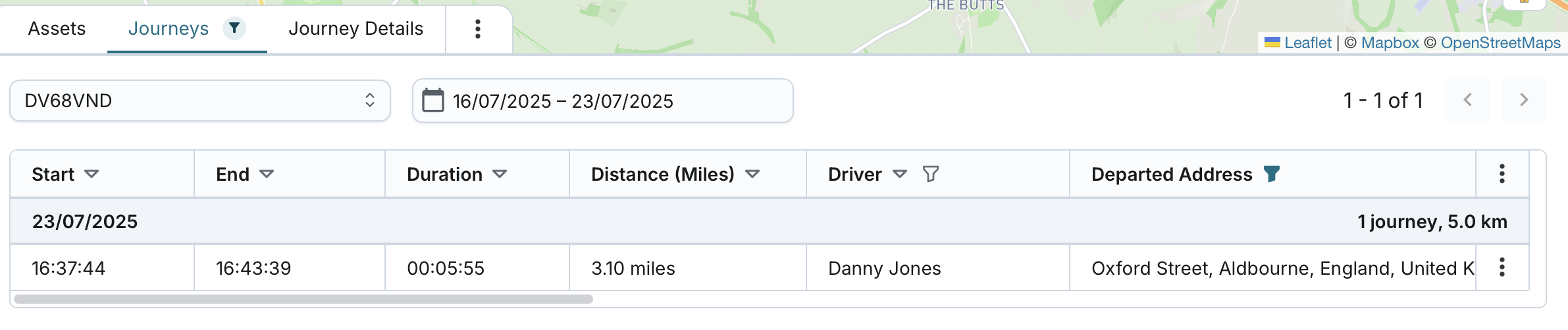
- Filter by (with multiselect capability): Journey Type.
- Search by: Driver, Departed Geofence, Arrived Geofence, Departed Address, Arrived Address.
- You can apply any combination of search, filter, and sort criteria.
- A visual indicator appears on the "Journeys" tab whenever any filter, search, or sorting is applied.
- Journeys from the same day will not be split across pages.
- If all journeys for a given day are filtered out (do not match the current filters/search), that day is hidden from the table view.
- If any journey within a day matches the criteria, that day remains visible, showing only the matching journeys.
- The “Journeys per day” count and “Distance travelled per day” total will update automatically to reflect only the filtered or searched journeys.
- These metrics give you a more accurate view of the data you're currently working with.
- Day groupings are preserved - sorting, searching and filtering affects journeys within each day only, not the day order itself.
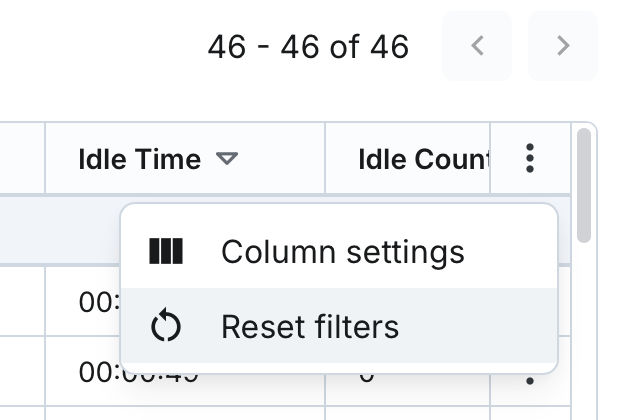
- You can reset all applied searches, sorting, and filters to the default state at any time.
- System will retain your top filters (selected asset and date range) when applying searches, sorting and filtering within the table and vice versa.
- System will also preserve your sort, search and filter selection at user level, even if you leave and return later.
View Journeys on the Map
On the "Journeys" tab:
- The map defaults to standard map mode.
- You can switch between Standard and Satellite view modes.
- Switching view mode on one tab does not affect the other tabs on Fleet page; each tab remembers its own map mode independently.
- You can zoom in/out and pan in all directions to explore the map.
- You can view, add, and edit geofences.
- You can search for a location by address, postcode, or geofence name.
- Street View mode can be activated.
- Journey routes are shown as estimated polylines, with the GPS points aligned to roads for more accurate representation.
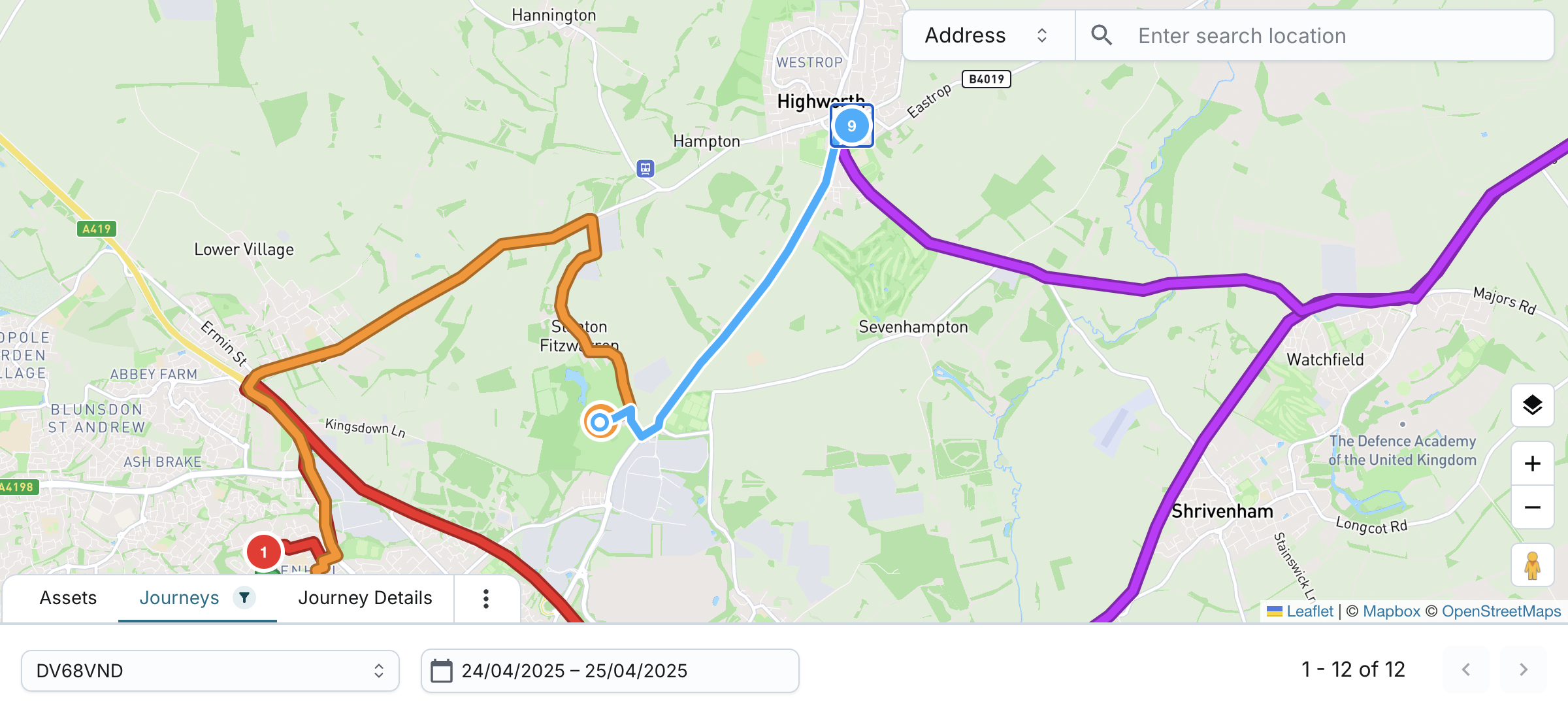
- Selecting an individual journey displays it on the map.
- The map auto-centres and adjusts zoom to fit the selected journey.
- Selecting a day shows that day's journeys on the map.
- The map will centre and zoom based on all journeys shown on that page.
- If a journey is overnight, it is fully shown when selected individually.
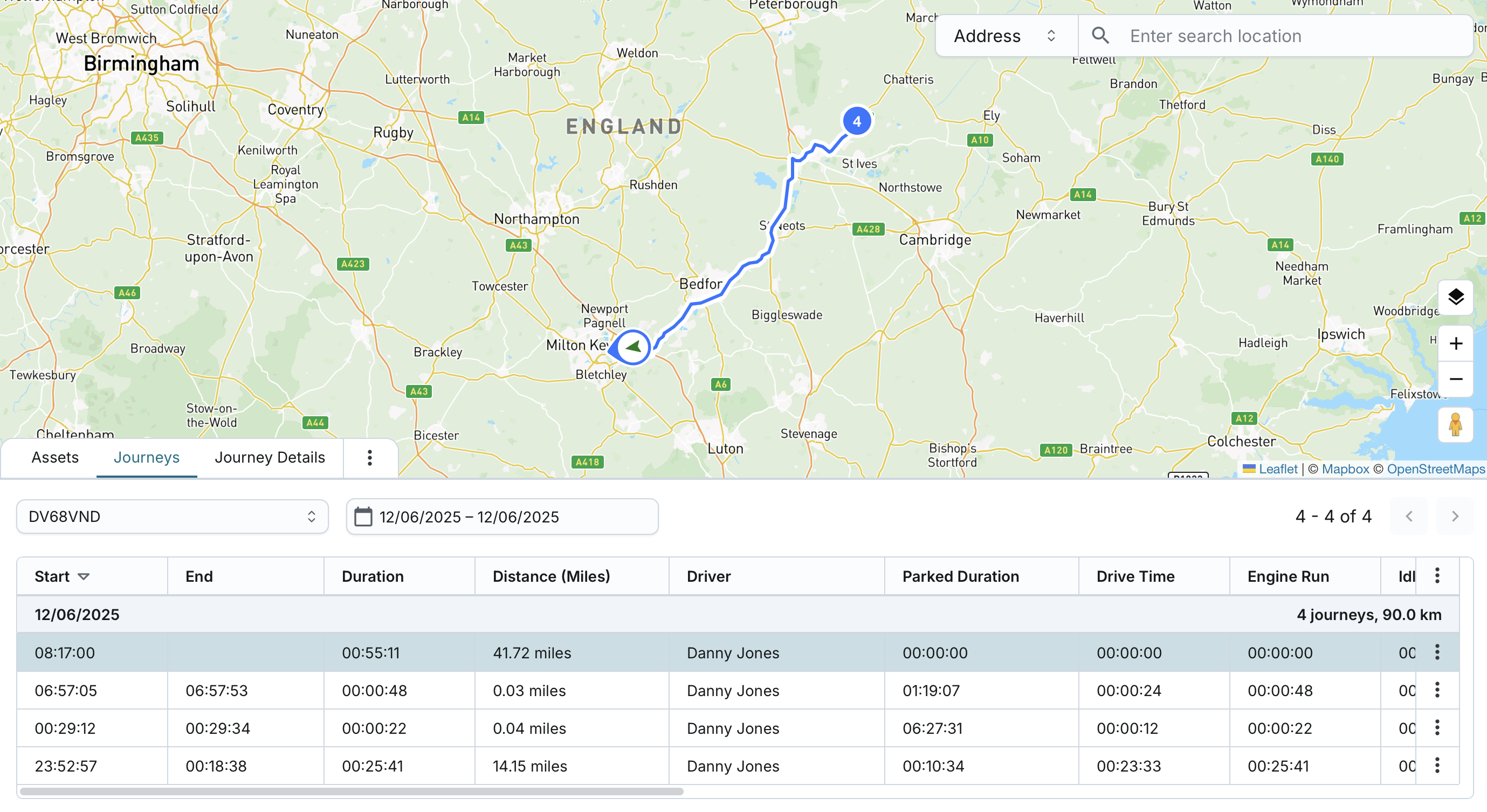
- When a journey is currently in progress, the system provides real-time visibility both in the journey list and on the map.
- When you select an individual row in the table or a day row that includes an ongoing journey, the map displays the live journey.
- The route starts from the ignition on location (the journey’s start point) and ends at the most recent tracker-reported GPS location.
- The current endpoint is shown using an arrow icon, which:
- Indicates the asset’s current moving status (e.g. Moving, Stationary, Idle).
- Is rotated to reflect the current direction of movement.
- Once the journey ends, the system will replace the arrow icon with the end point marker of the journey.
If no asset or no table row is selected:
- The map shows no journeys.
- The default map view will be zoomed out and centred over the United Kingdom.
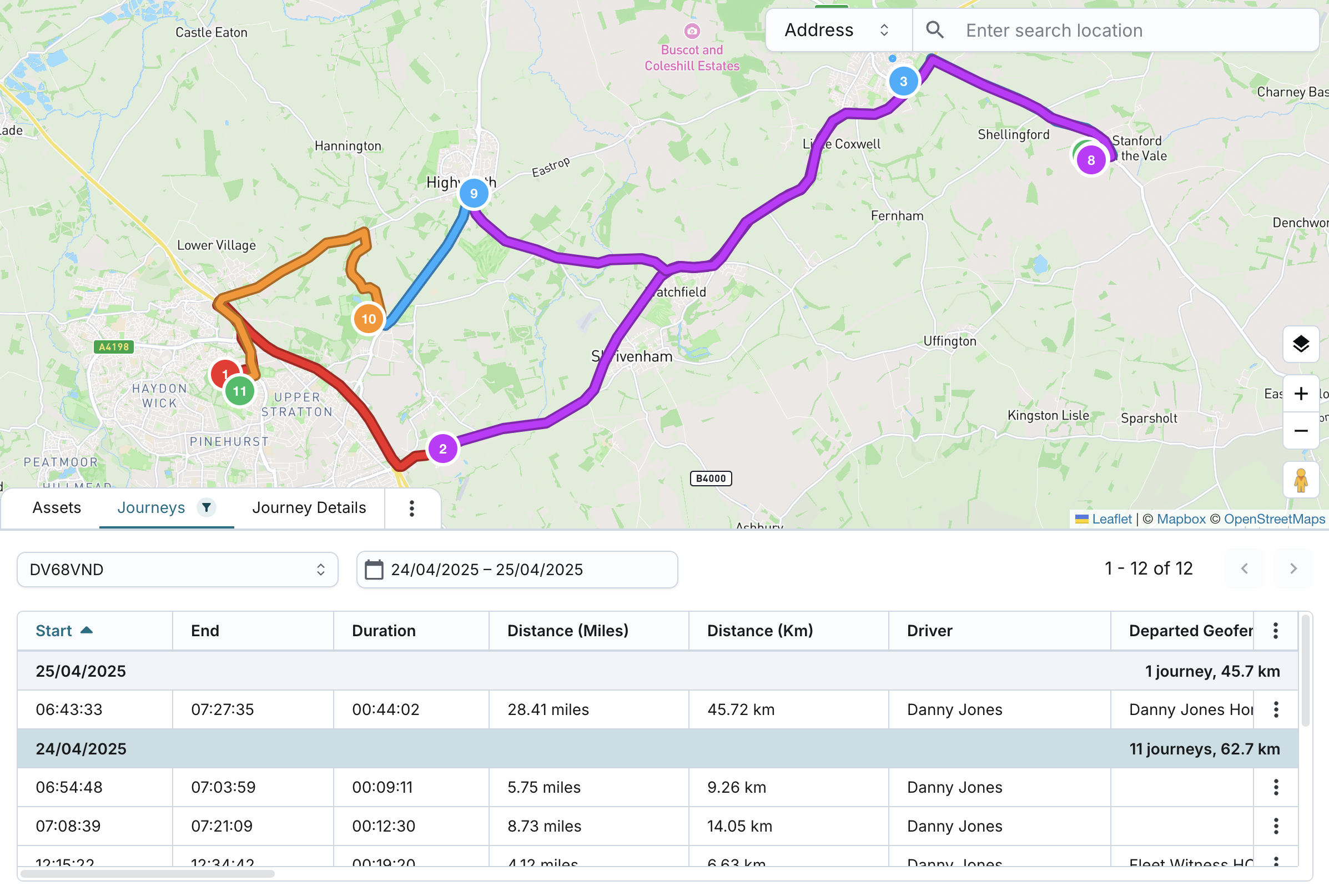
When showing day journeys:
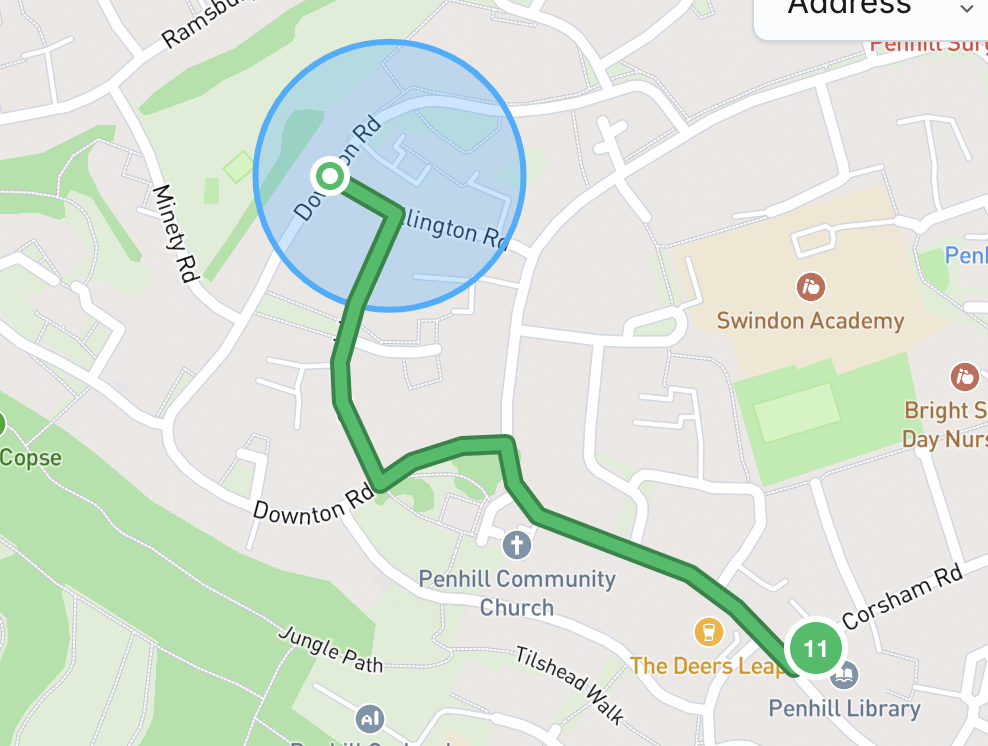
- Each route shows start and end points using ignition on/off data.
- Each journey has a unique colour, up to 6 per day. Colours are reused in sequence if more than 6.
- The entire route for the in-progress journey is displayed using a distinct colour, helping you clearly differentiate it from completed journeys. Once the journey ends, the system will recolour the route to match its assigned sequential colour on the map, consistent with completed journeys.
- Each journey's start point is numbered, starting at 1 each day.
- These numbers are persistent across map views.
- If a start point overlaps with an end point, the start point appears on top.
- Most recent journey appears on top of overlapping journeys.
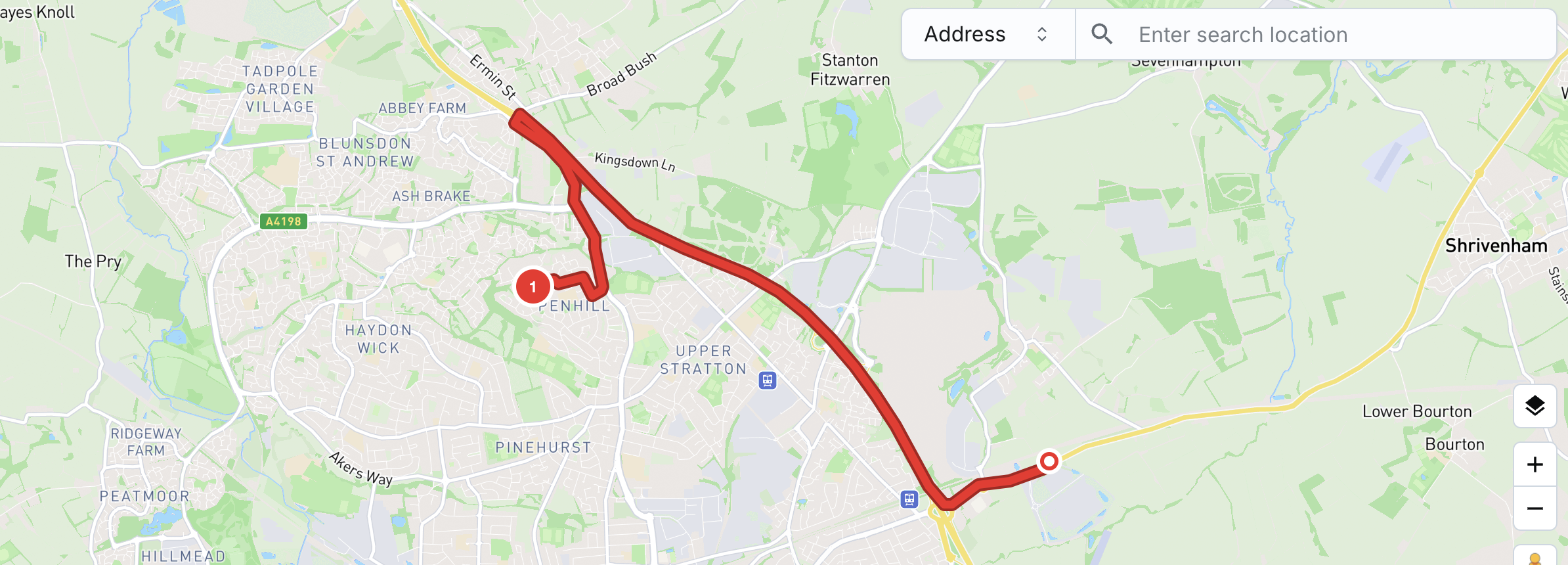
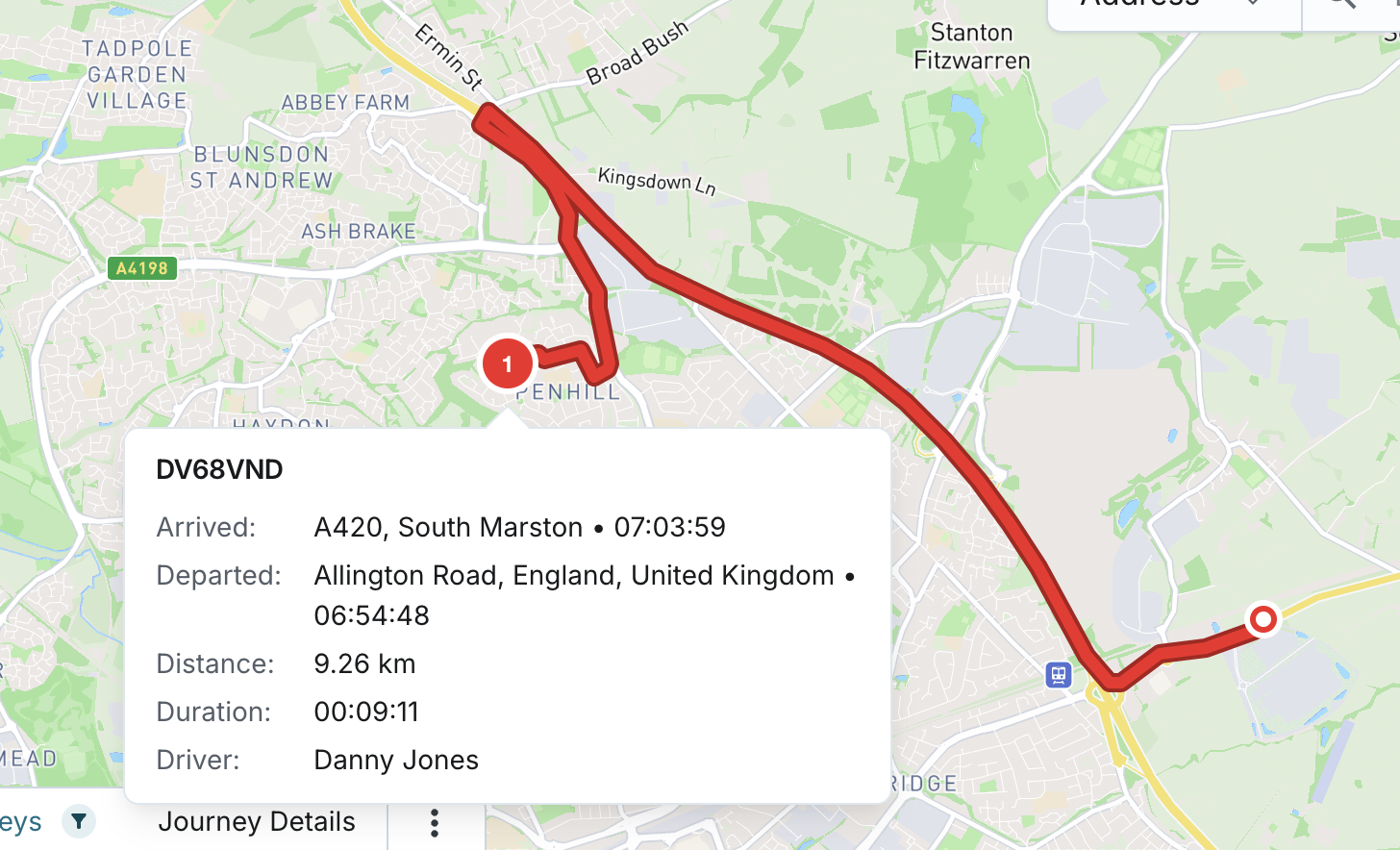
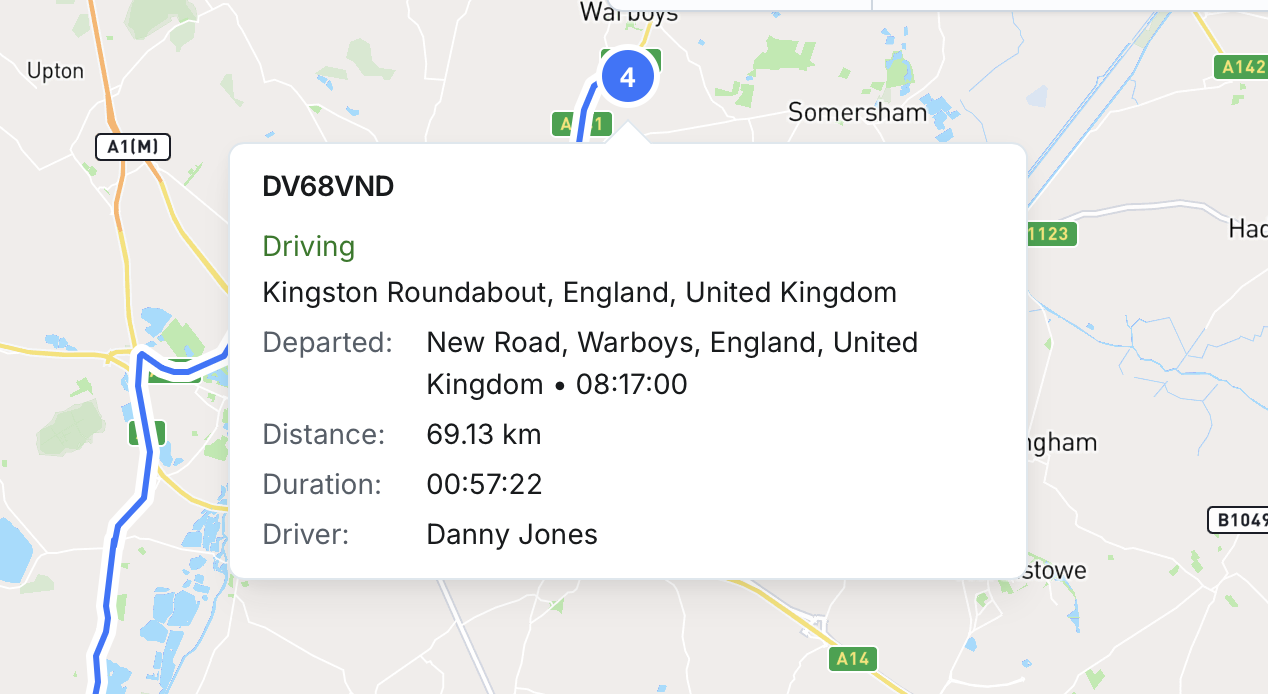
You can hover over a journey start marker to see:
- Asset name (historic)
- Arrived address and end time
- If the journey is in progress:
- It displays “Driving” instead of end time
- And shows the current address based on the latest GPS location
- If the journey is in progress:
- Departed address and start time
- Distance (miles or km per company setting)
- Duration
- Driver
Users can also "Zoom to" a:
- Specific journey
- Start point
- End point
The map will centre and zoom accordingly to focus on the selection.
