Journeys in the Mobile App
In the mobile app, you can easily track the driving activity of any asset by accessing the Journeys tab. This section gives you full visibility into past journeys, current activity, and parked durations for each asset, all grouped clearly by date.
Accessing the Journeys Tab
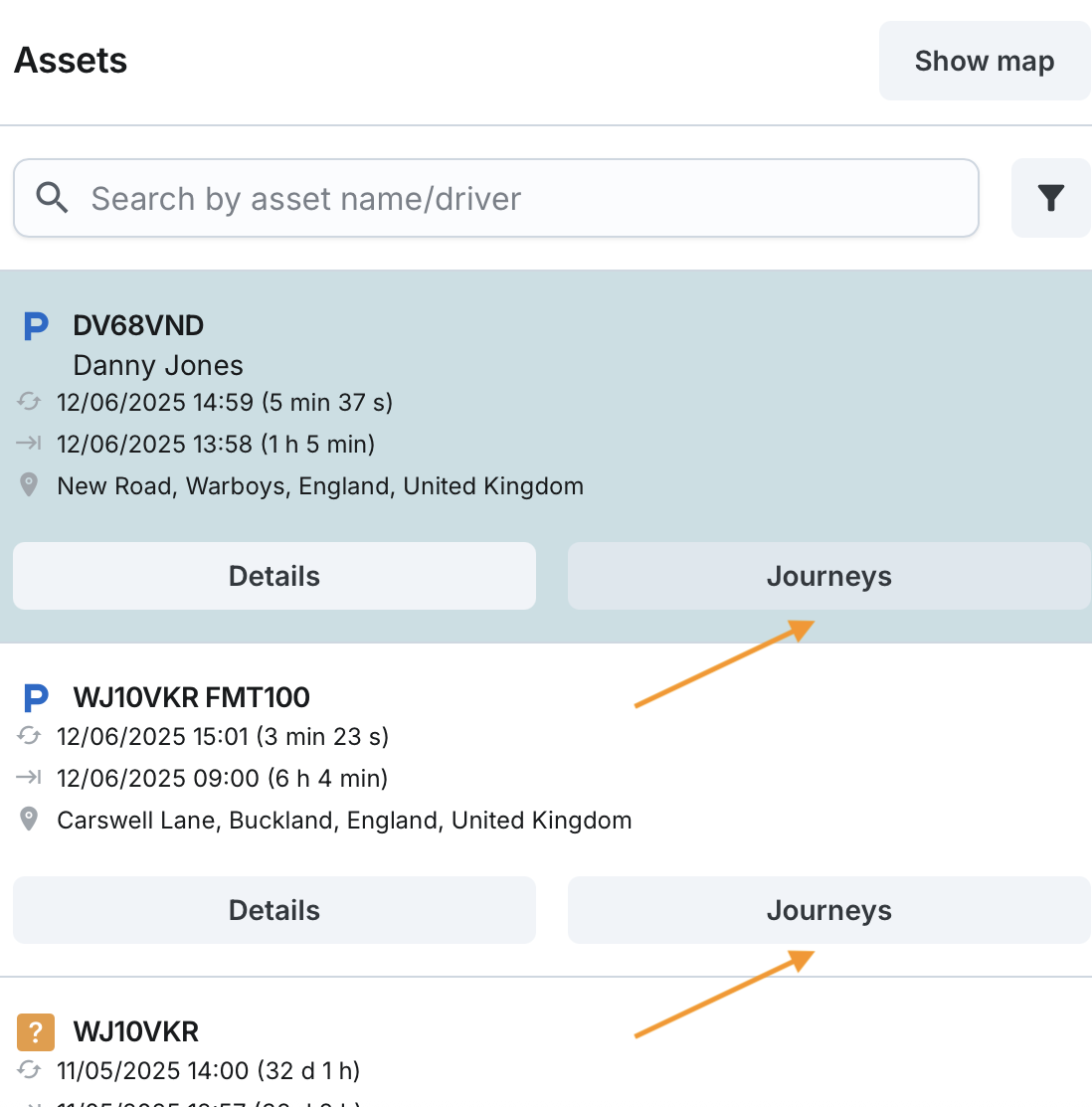
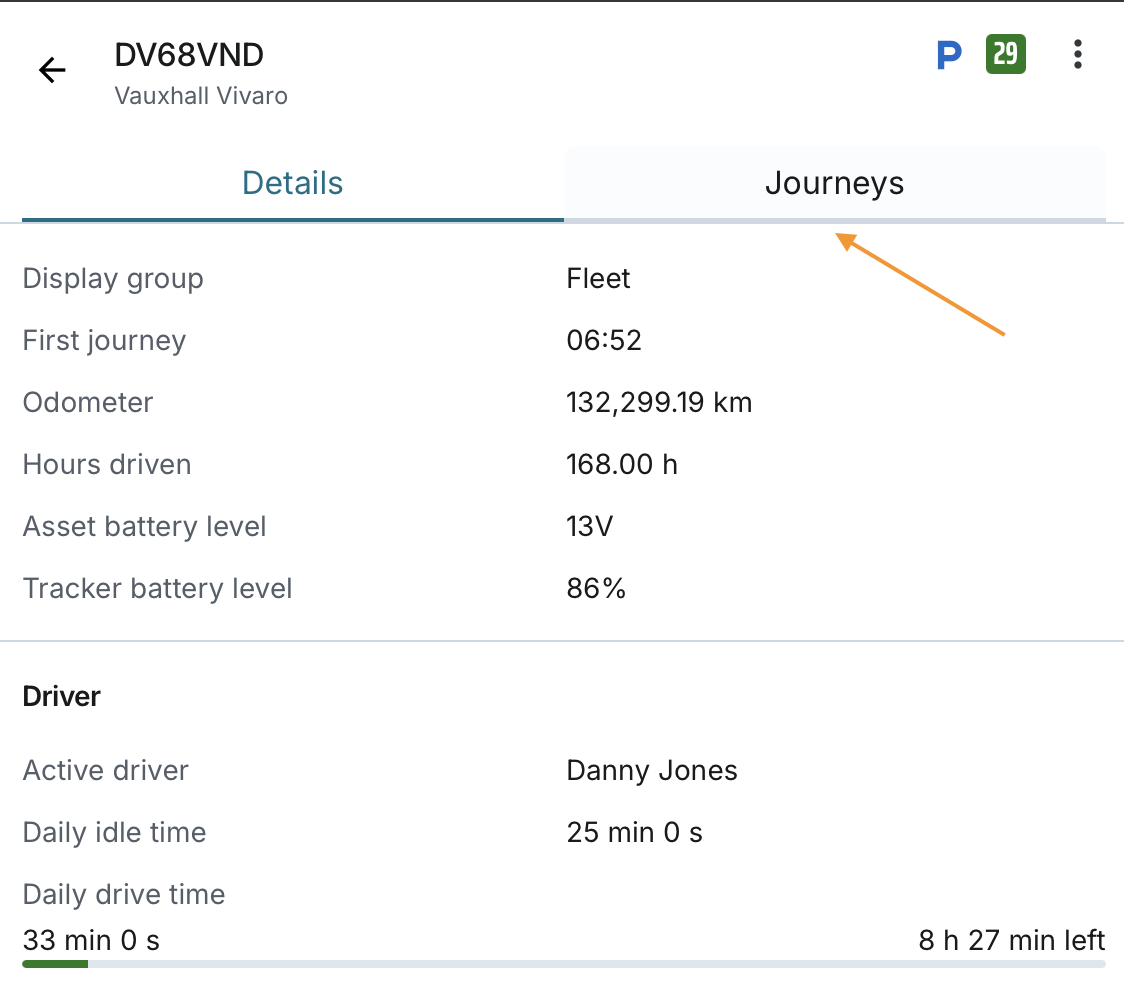
You can access the Journeys tab for a specific asset in two ways:
- From the Fleet page, by locating the asset in the list and navigating directly into the Journeys
- From the asset details view, by navigating directly into the Journeys
The system will dynamically load journey records for the selected asset and keep them updated in real time.
What You’ll See
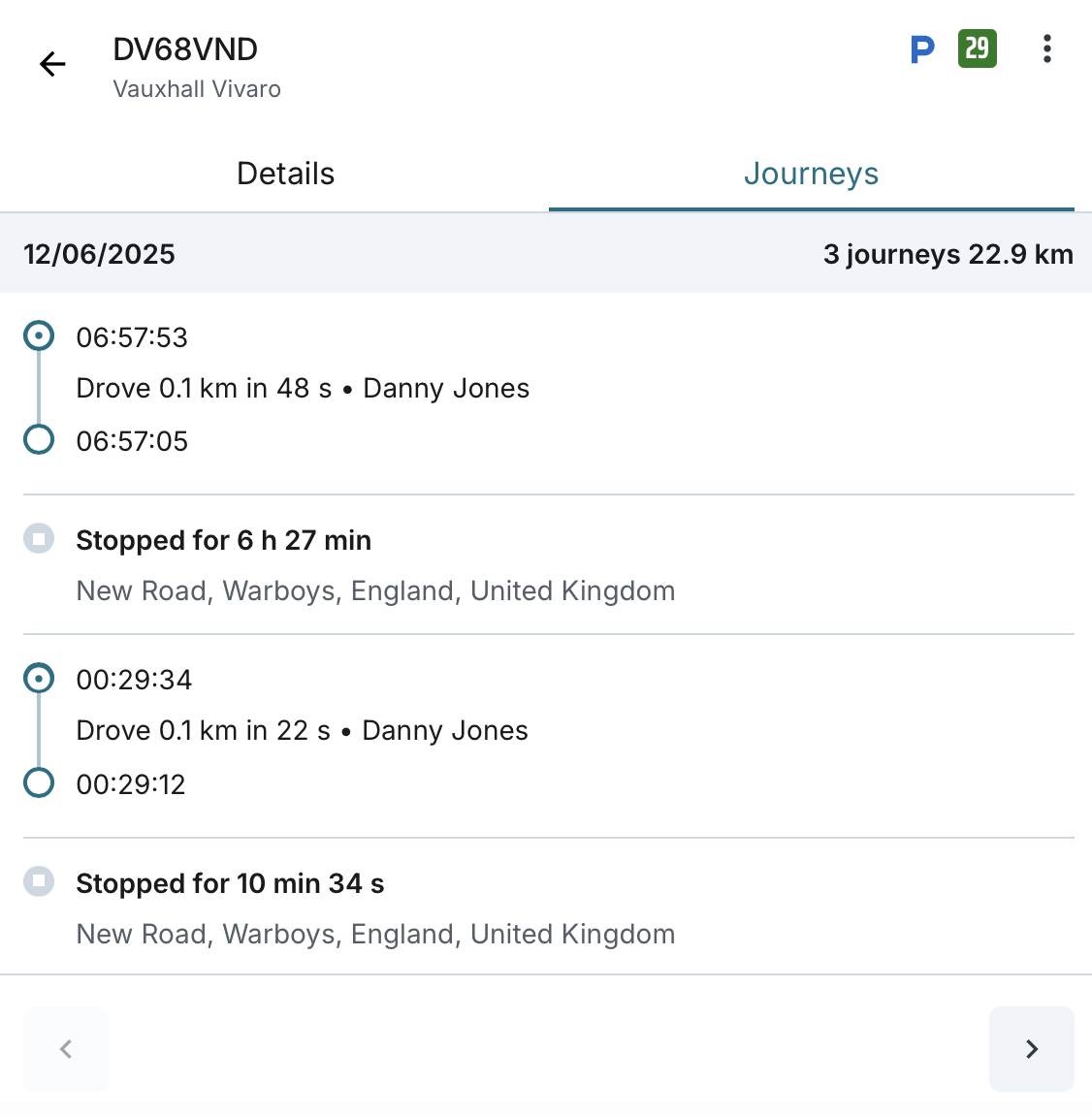
Once inside the Journeys tab, you'll find a clear breakdown of journey records for the selected asset, including:
- Any in-progress journey or current parked period
- Previously completed journeys and parked periods
How Records Are Displayed
Journey and parked period records are grouped by day.
- Days are listed from most recent to oldest
- Within each day, entries are listed from most recent to oldest by start time
- If a journey or parked period starts on one day and continues overnight, it is listed under the start date, and the end time will display the following day.
You’ll also see:
- # of journeys for each day
- Total distance travelled for each day (shown in miles or kilometres based on your company’s unit settings)
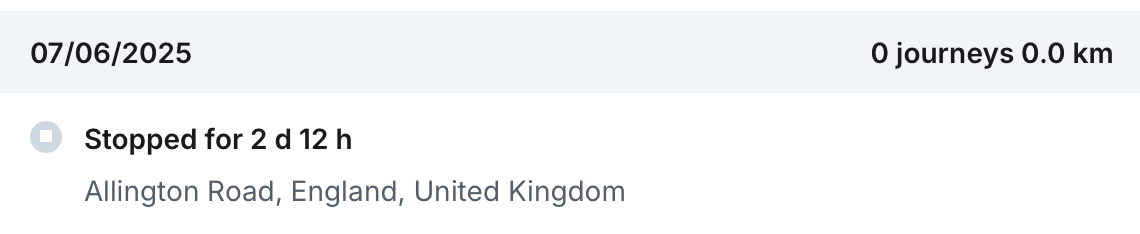
If there are no journeys, the day won’t appear in the list. However, if a day contains only a parked period, it will be displayed with:
- “0 journeys”
- “0.0” distance
Journey List Fields
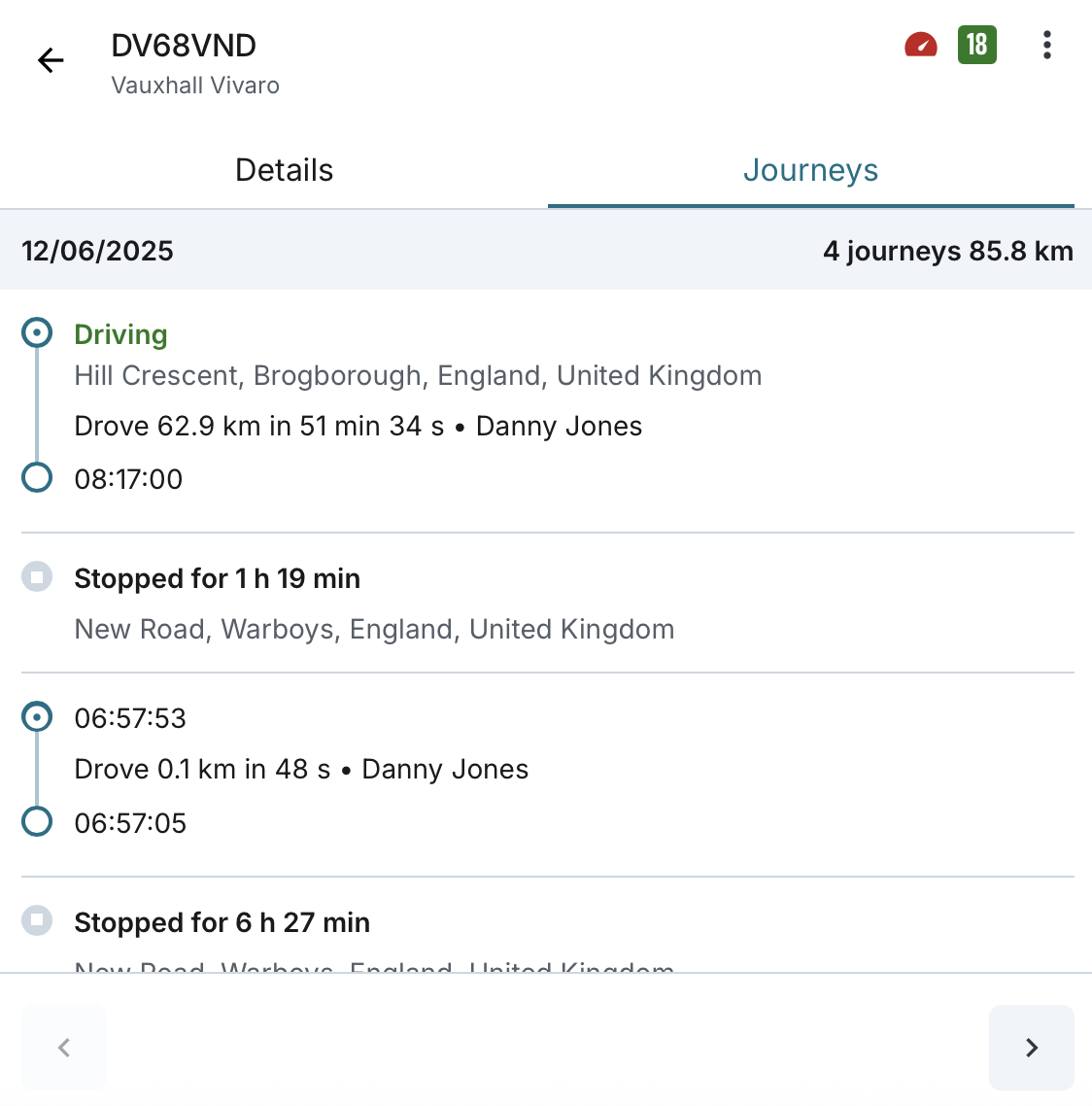
Each journey (whether in-progress or completed) includes the following:
- Start Time: Ignition turned on
- End Time: Ignition turned off. If the journey is in progress, it will display “Driving”
- Address: Only shown when the journey is in progress, this displays the current address based on live GPS.
- Drove {Distance}: Travelled since journey start, updated in real time (in your company’s chosen unit)
- In {Duration}: Journey duration (ignition on to off), finalised at journey end
- Driver: Last driver (historic name), updated in real time
Parked Period Fields
Each parked period (whether in-progress or completed) includes the following:
- Stopped for {Parked Duration}: Time between ignition off and the next ignition on
- Arrived Address: The address where the asset arrived and stopped (ignition off)
Once a new journey begins (ignition on), the parked duration of the previous period becomes final.
Pagination
- The system ensures journeys from the same day are never split across pages
- Pagination controls (left and right arrows) are always visible at the bottom of the Journeys tab, allowing you to move between pages at any time

View Journeys on the Map
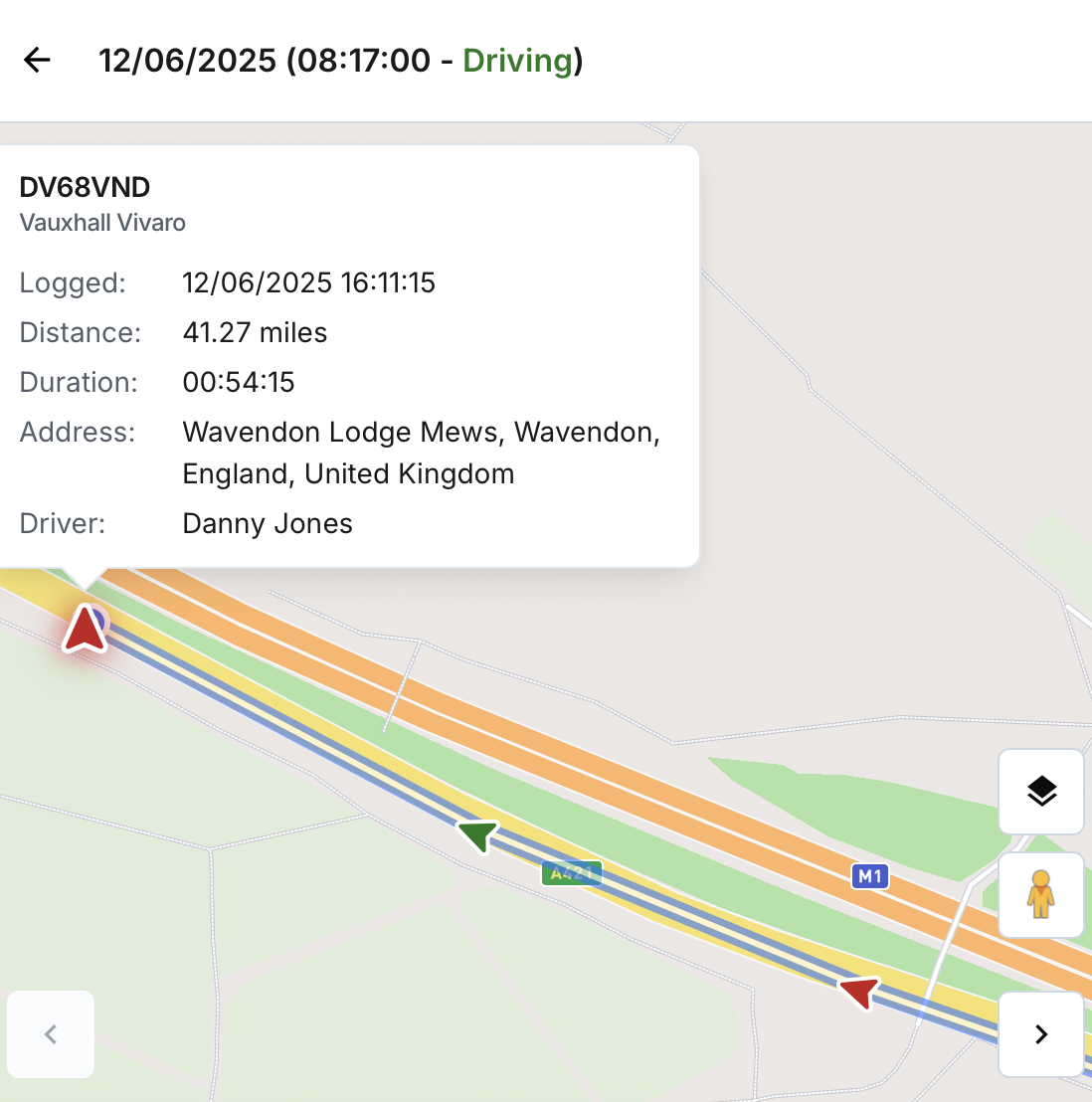
When a journey or parked period is selected in the Journeys tab, the mobile app will display the corresponding data on the map with a detailed visual route or location indicator.
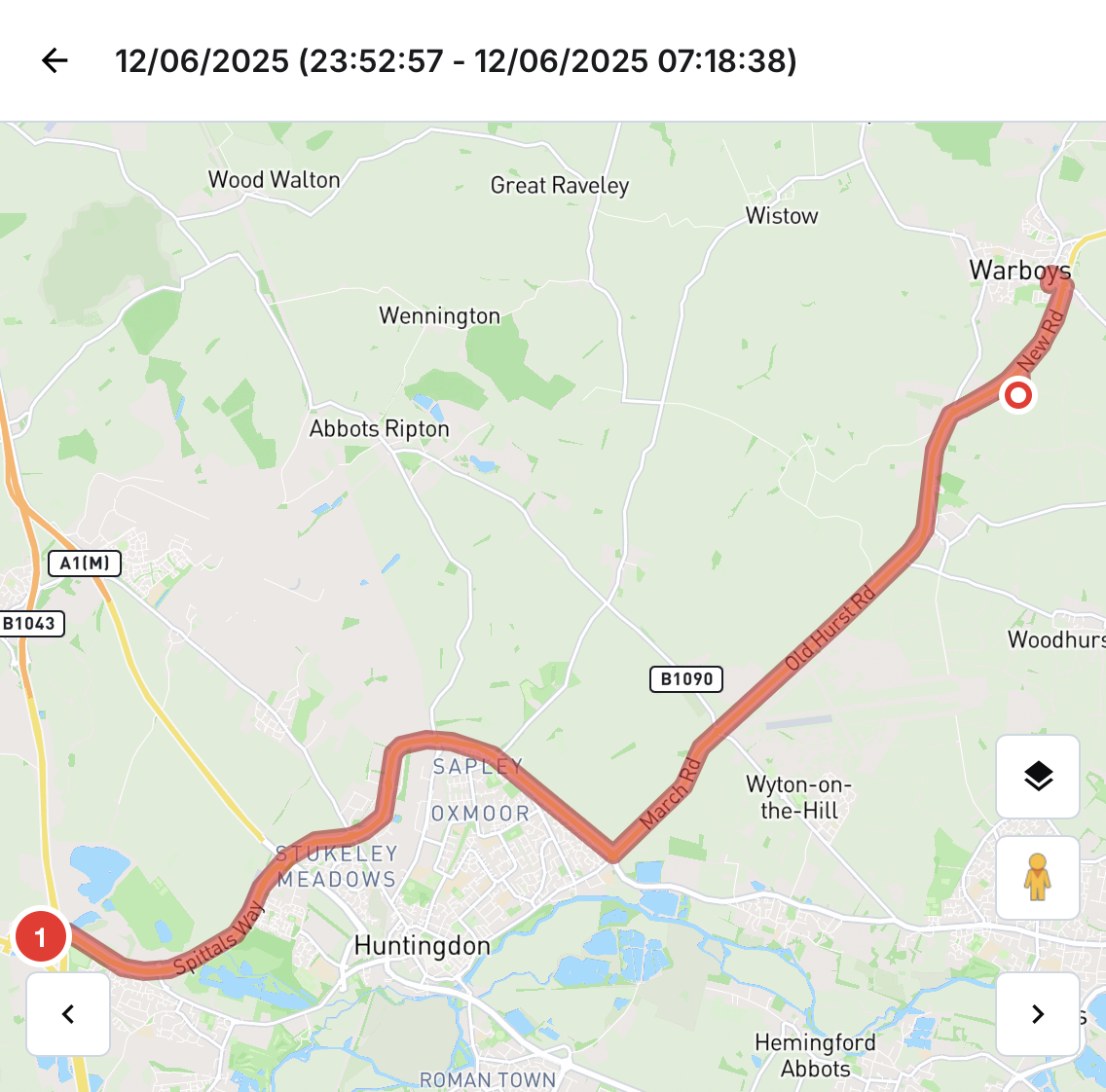
Journey Map View
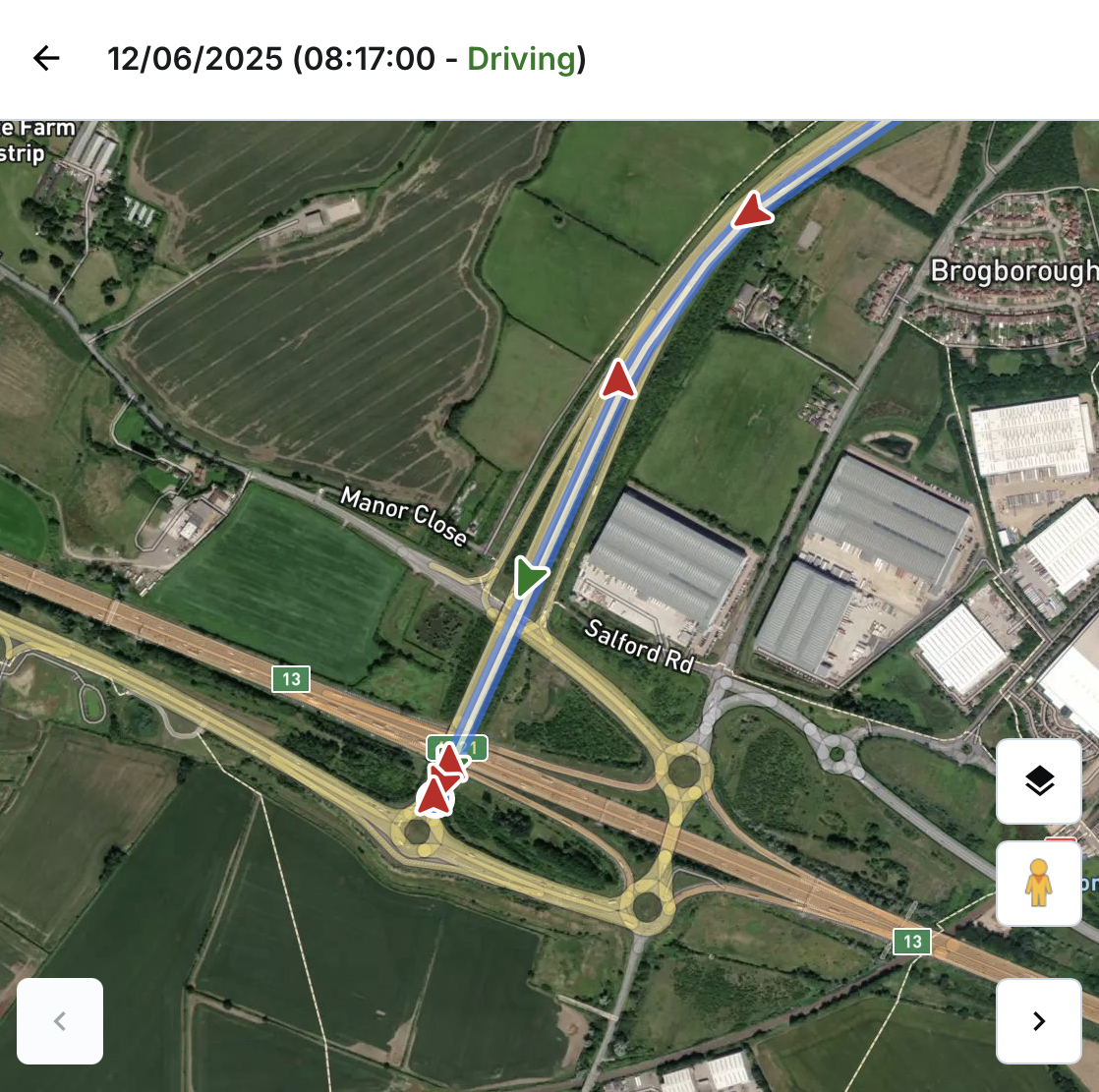
- Displays the estimated route based on GPS packets reported by the tracker
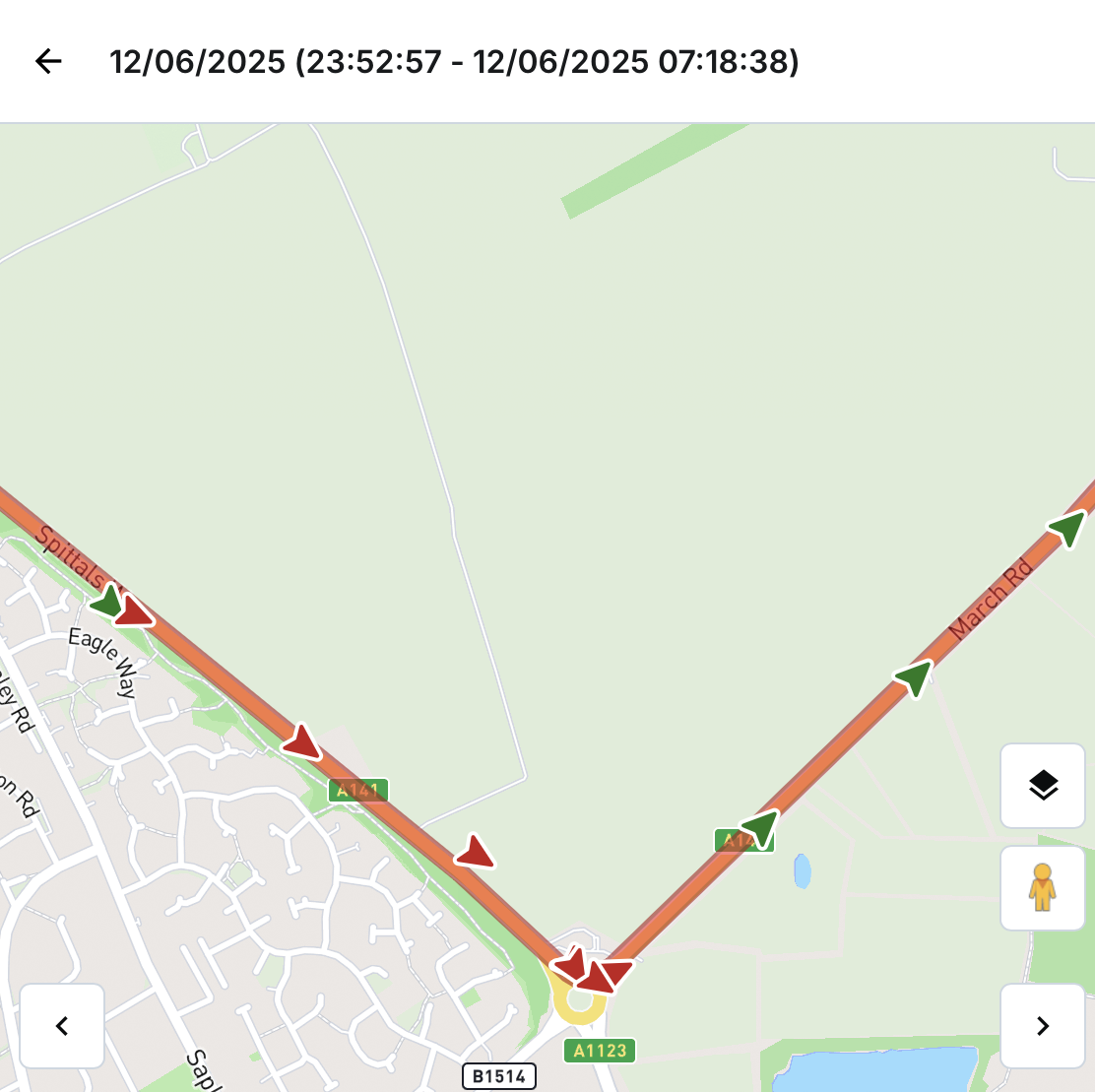
- Arrows represent each GPS coordinate, showing the exact direction of movement
- Start and end points are based on ignition on/off
- If a journey is in progress, the end point is the latest location received from the tracker, shown as an arrow icon
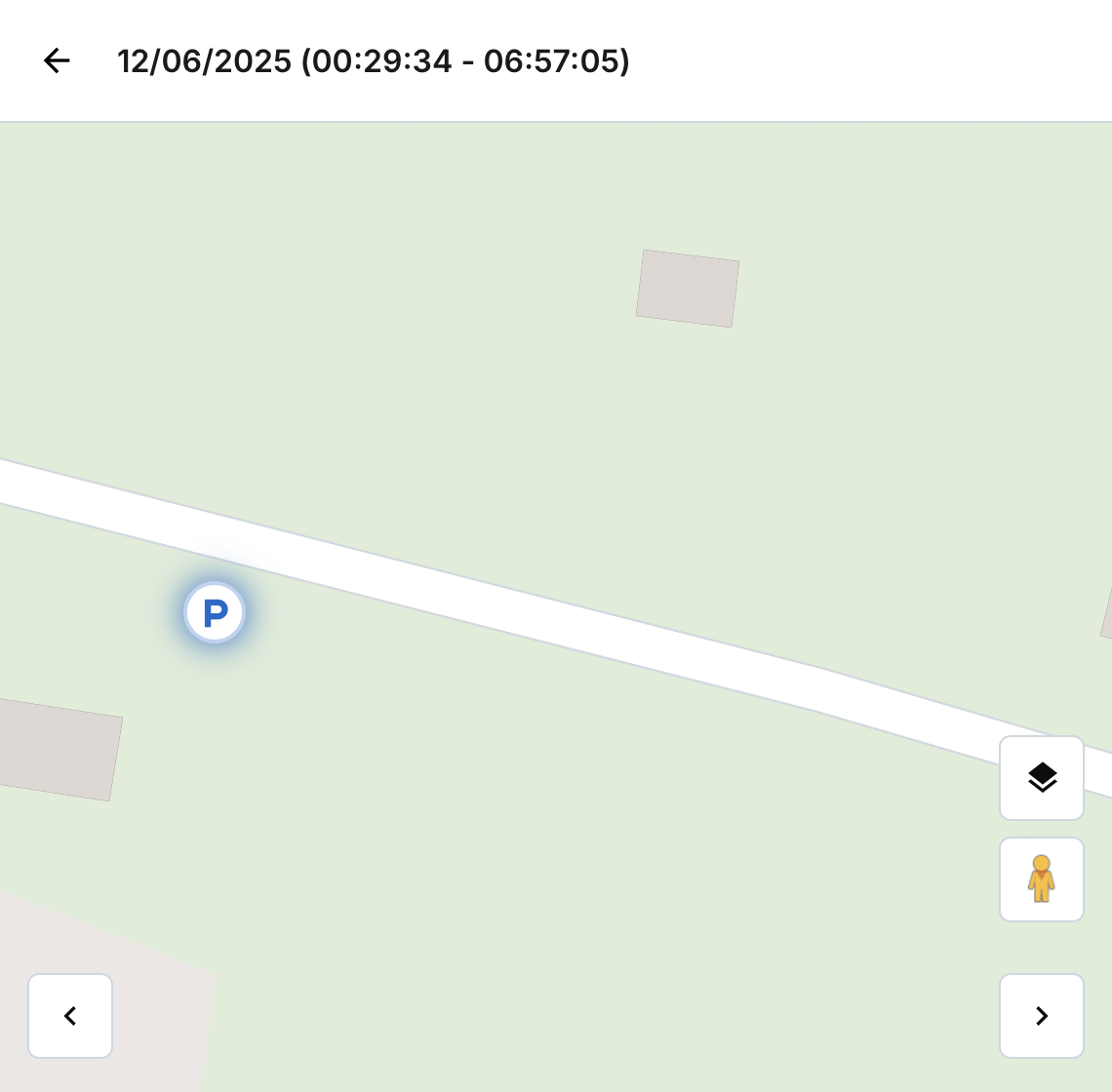
- If the journey has finished, the system will show a “P” icon at the point where ignition was turned off
- The full route remains visible and connected from ignition on to ignition off
- Route colour and the sequential start number match the web app journey view
Parked Period Map View
- Only a single “P” icon is displayed to represent the parked location
- No connecting lines are shown
- The “P” location uses the latest GPS coordinate received during the parked period
- Not linked visually to the previous journey
Time and Date Display
- While viewing the map, you will see:
- Date and start–end time
- If in progress:
- Journey: end time displays as “Driving”
- Parked period: end time displays as “Parked”
- If journey/parked period spans overnight, end time includes the next day
Colour Coding of Map Arrows
- Green: Moving
- Blue: Stationary
- Yellow: Idle or Excessive Idle
- Red: Speeding or any harsh event (braking, cornering, acceleration)
Note: Harsh events take priority over status colours. If both occur, the arrow will be red.
Interactive Map Features
- Tap on any arrow or “P” icon to see a tooltip with:
- Asset name
- Asset group
- Logged date and time
- Distance (based on your company’s units)
- Duration
- Address
- Driver
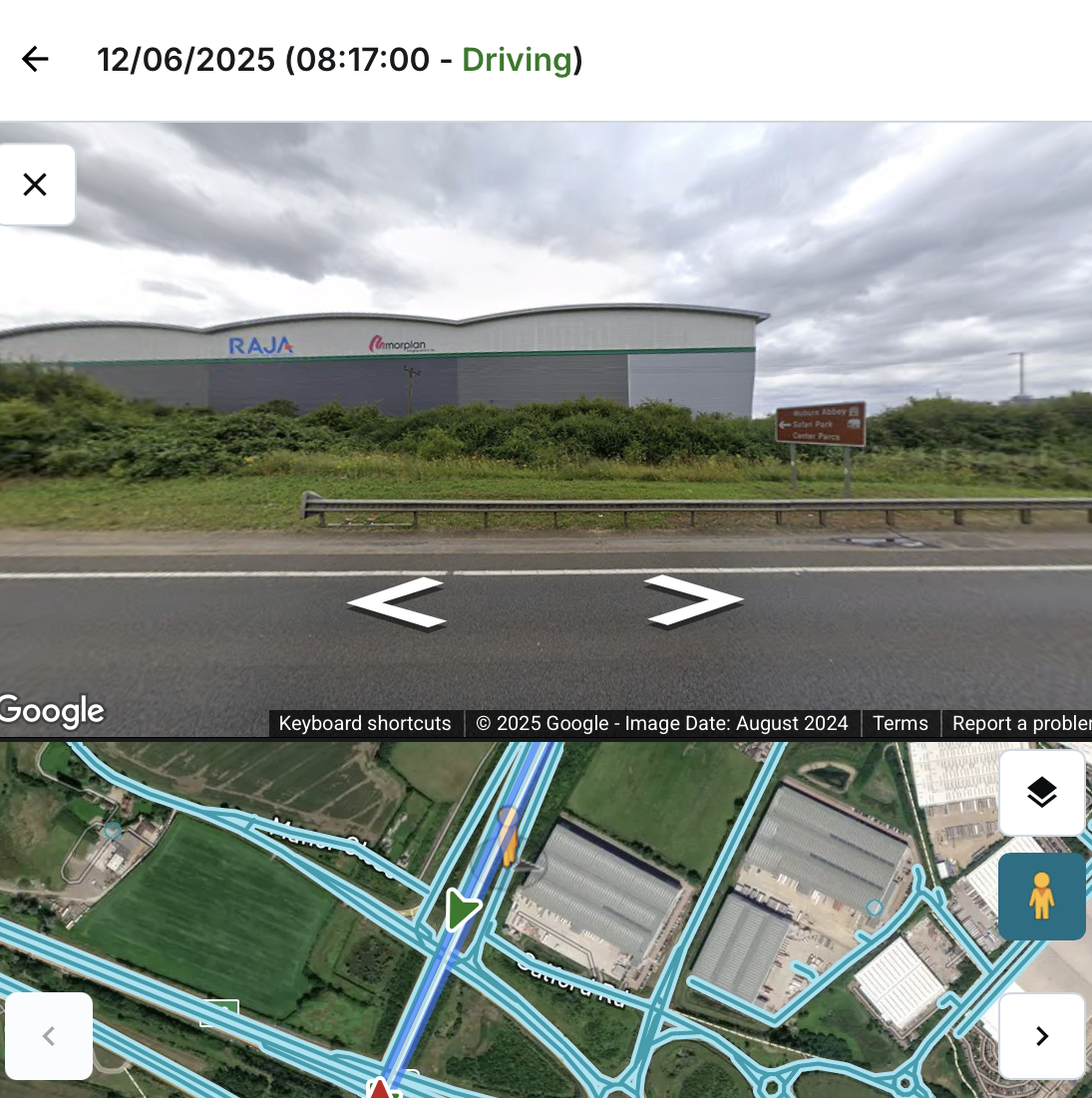
- Zoom in/out, pan across the map, and switch between:
- Map modes: Standard or Satellite
- Street view on/off
- The map opens in standard mode, zoomed in on the current journey or parked period
Navigation Options
- Tap back to return to the list of journeys
- Use previous/next buttons in the map view to switch between records as ordered in the list
- If viewing the most recent journey or parked period, the next option is disabled if no newer record exists