Viewing the List of Assets
Updated:
You cannot add new assets. Asset creation and management are handled exclusively by system administrators. If you need to add new assets to the company, please contact a system administrator to initiate the process.
You can view and access the Assets page from the main menu. This page displays a list of assets associated with your company, and you can manage them by sorting, filtering, and searching for specific assets.
Access Assets:
- Navigate to the Assets page.
Viewing the Asset List
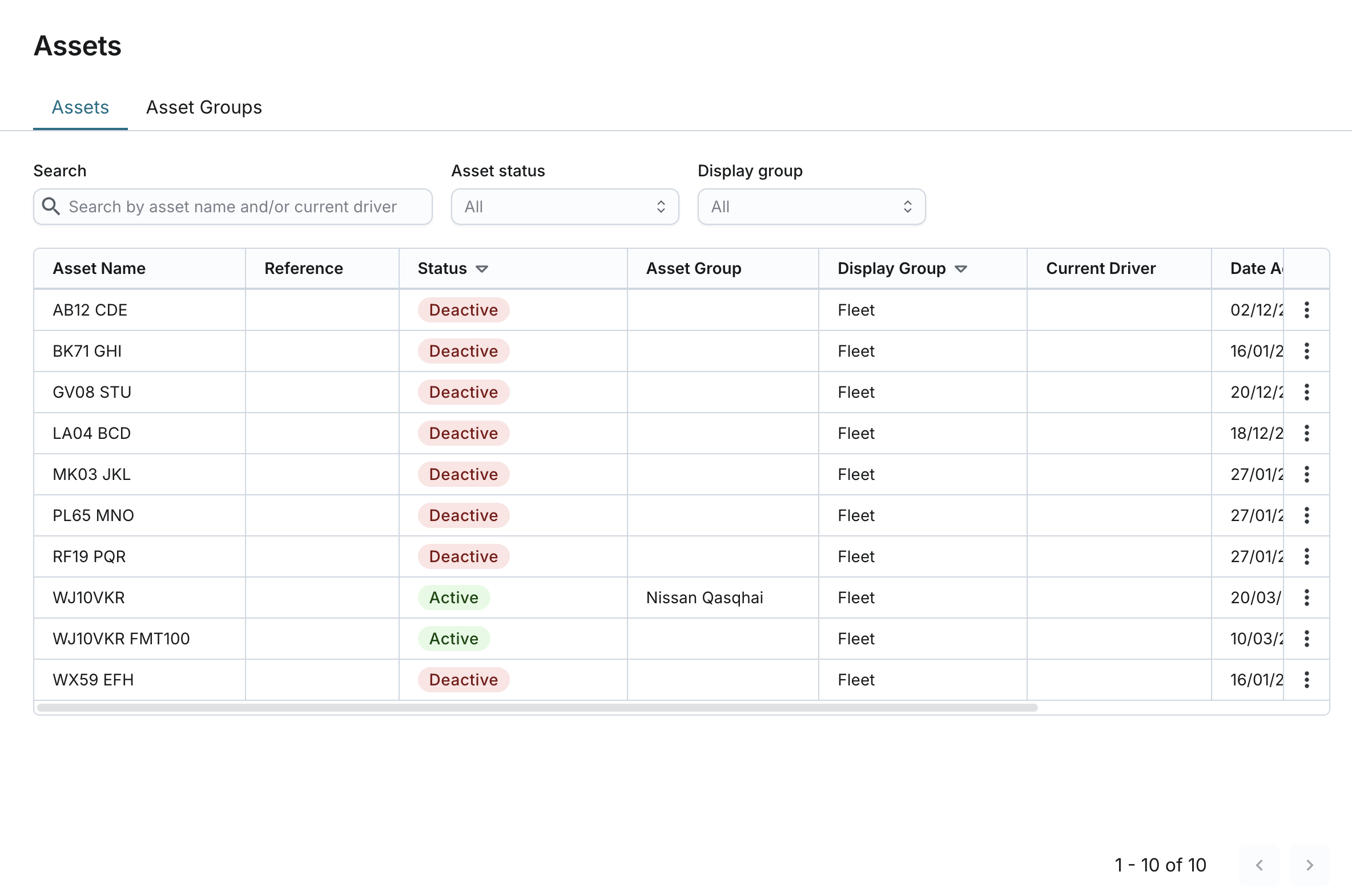
- By default, the assets are sorted alphabetically by Asset Name. The asset list will include the following information for each asset:
- Asset Name: The name of the asset.
- Reference: The reference note for the asset.
- Asset Status: The current status of the asset. Possible values are:
- NEW: Newly added to the company.
- ACTIVE: Activated and in use. You can see these assets on the Fleet page.
- DEACTIVE: Deactivated and not visible on the Fleet page.
- DEACTIVE VISIBLE: Deactivated but still visible on the fleet page.
- Asset Group: The group the asset belongs to.
- Display Group: The display group the asset is assigned to.
- Current Driver: The driver currently associated with the asset (if any) based on the driver key communicated by the tracker.
- Date Activated: The date when the asset was last activated in the system.
- Date Deactivated: The date when the asset was last deactivated in the system.
- You can view up to 30 assets per page.
Searching and Sorting Assets
- You can search the list of assets by:
- Asset Name
- Current Driver
- You can also sort the asset list by the following criteria:
- Asset Status
- Display Group
- Date Activated
- Date Deactivated
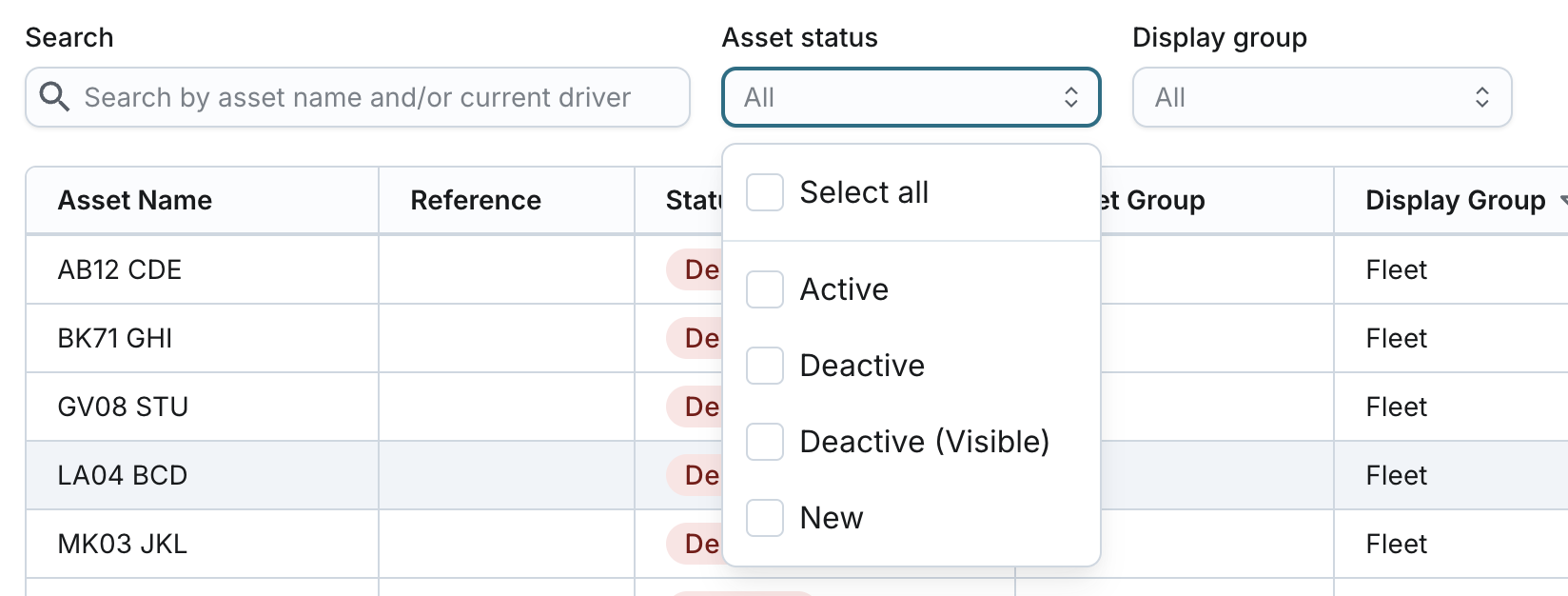
- You can filter the asset list by:
- Asset Status:
- All
- Active
- Deactive
- Deactive (Visible)
- New
- Display Group:
- All
- Alphabetically listed display groups from your company
- Exceptions:
- If a user is assigned to specific display group(s), then “All” will be presented as an option along with the list of relevant alphabetically listed display groups based on the display groups the user is assigned to.
- If a user is limited by visible assets, the filter options will be blank.
- Exceptions:
- Asset Status:
- Filters are multiselect. You can select or unselect all or specific options in the list.