Viewing Asset Details
Updated:
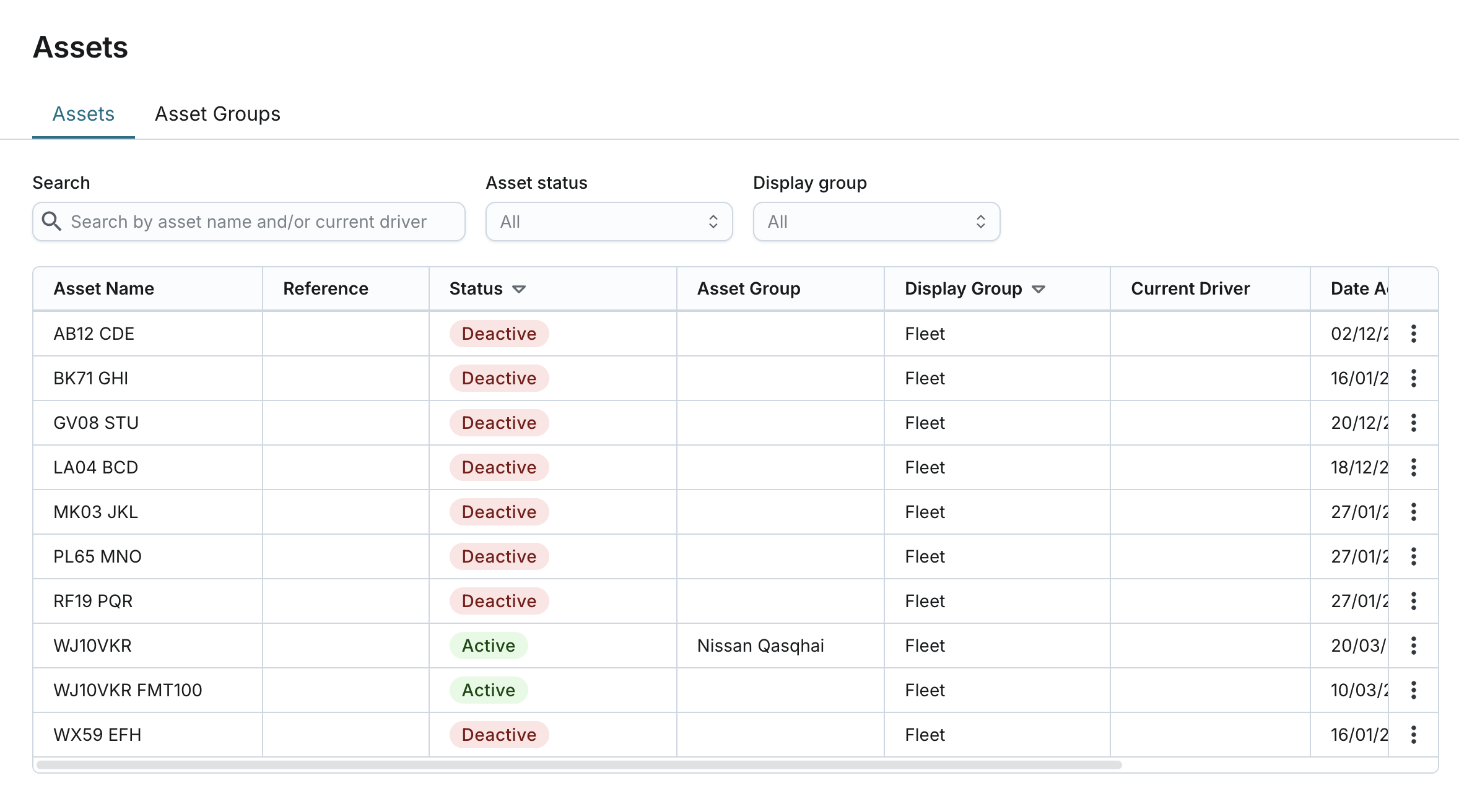
The Viewing Asset Details page allows users to view comprehensive information about an asset under the Assets tab.
Access the Assets Page:
- Navigate to the Assets page.
- From the list of assets, click the desired asset to open its details.
View Asset Information:
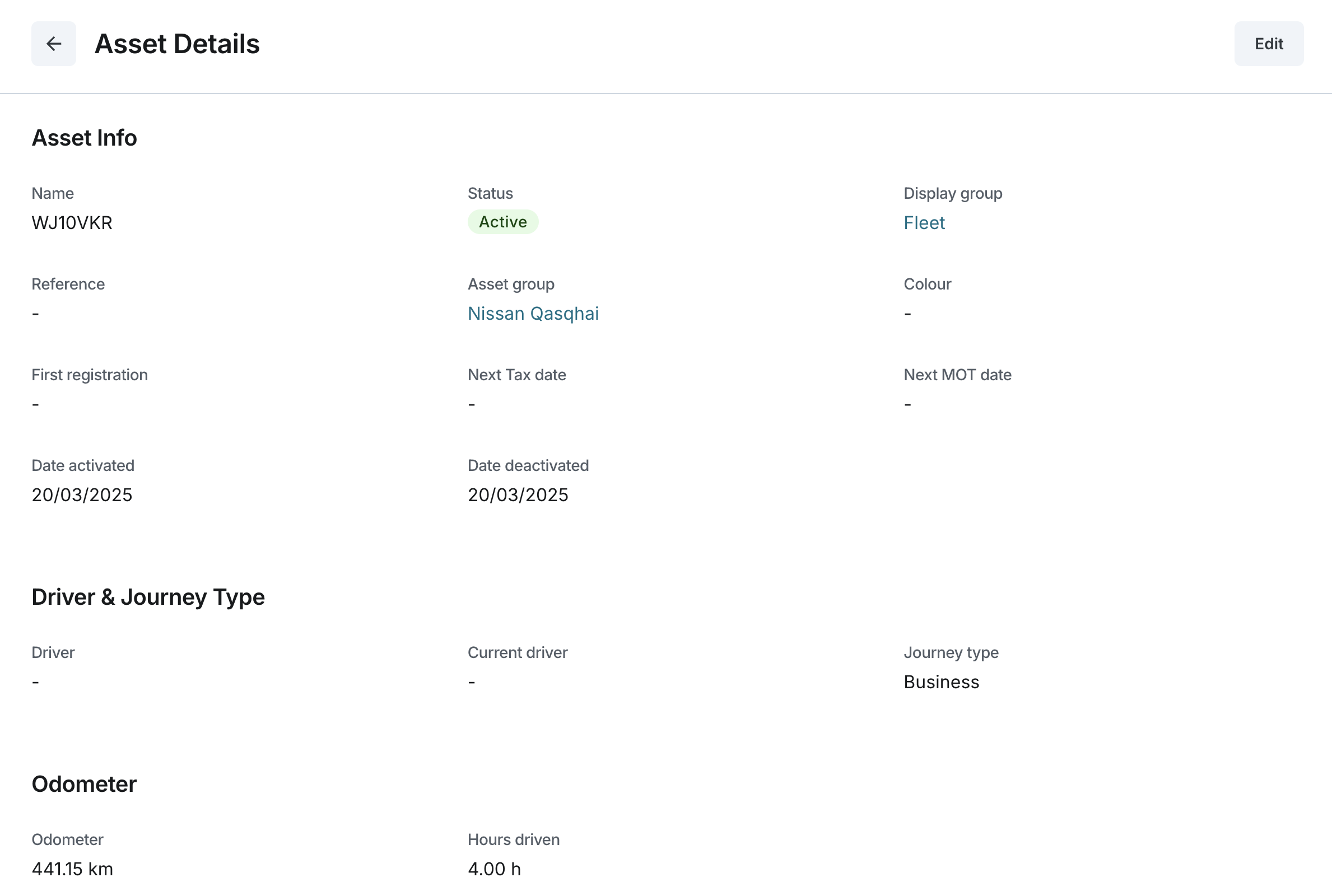
You can view the following information for each asset
- Name: The asset name.
- Status: The current status of the asset.
- Display Group: The display group assigned to the asset.
- Reference: An optional reference note.
- Asset Group: The group to which the asset belongs.
- Colour: The color assigned to the asset.
- First Registration: The date when the asset was first registered.
- Next TAX Date: The date when the next tax payment is due.
- Next MOT Date: The date when the next MOT is due.
- Date Activated: The most recent date when the asset was activated.
- Date Deactivated: The most recent date when the asset was deactivated.
Driver & Journey Type
- Driver: The system driver that may be assigned at the asset level.
- Current Driver: The driver currently associated with the asset (if any) based on the driver key communicated by the tracker.
- Journey Type: The type of journey associated with the asset (Business or Private).
Odometer & Hours Driven
- Odometer: The current odometer reading (miles or kilometers).
- Hours Driven: The total hours the asset has been driven.
Invoice
- Asset Price (£): The price of the asset.
Notes
- Notes: Additional information or comments about the asset.
Navigation
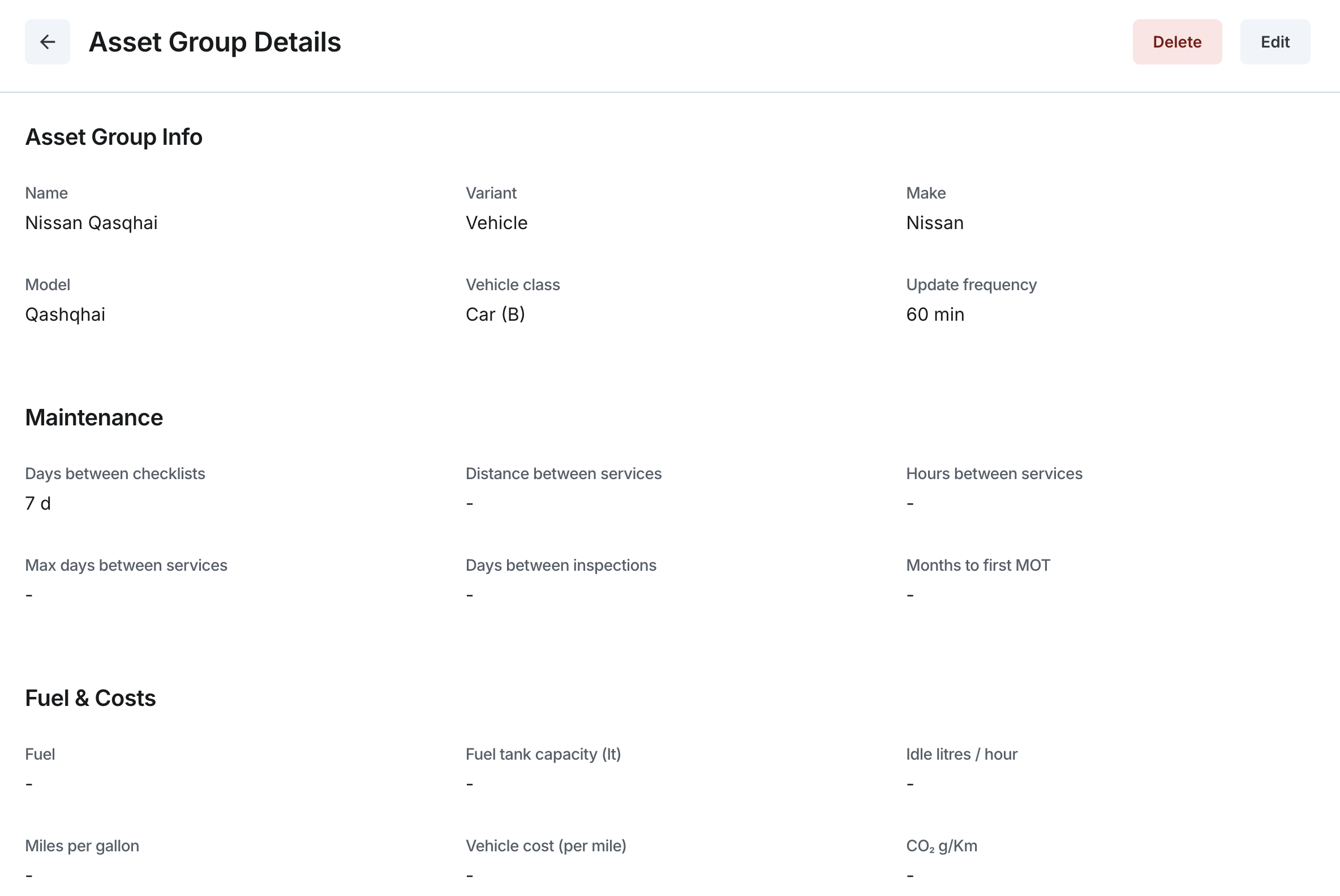
- User can navigate to the Asset Group and Display Group associated with the asset by clicking the respective links. These links will open in a separate browser tab.