Editing An Asset
Updated:
The Editing an Asset page allows you to modify the details of an existing asset.
Accessing the Asset Editing Page
- Navigate to the Assets page from the main menu.
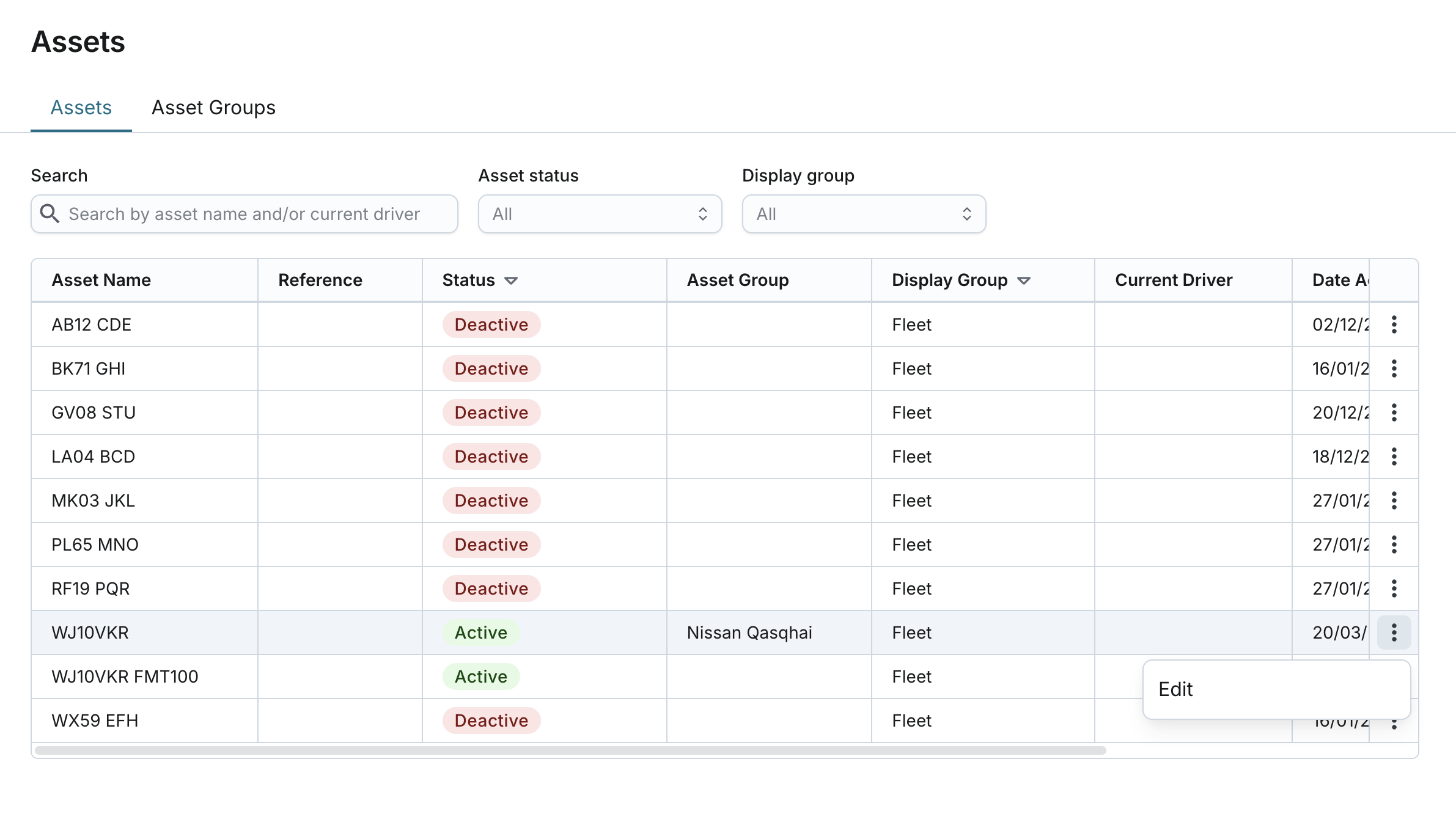
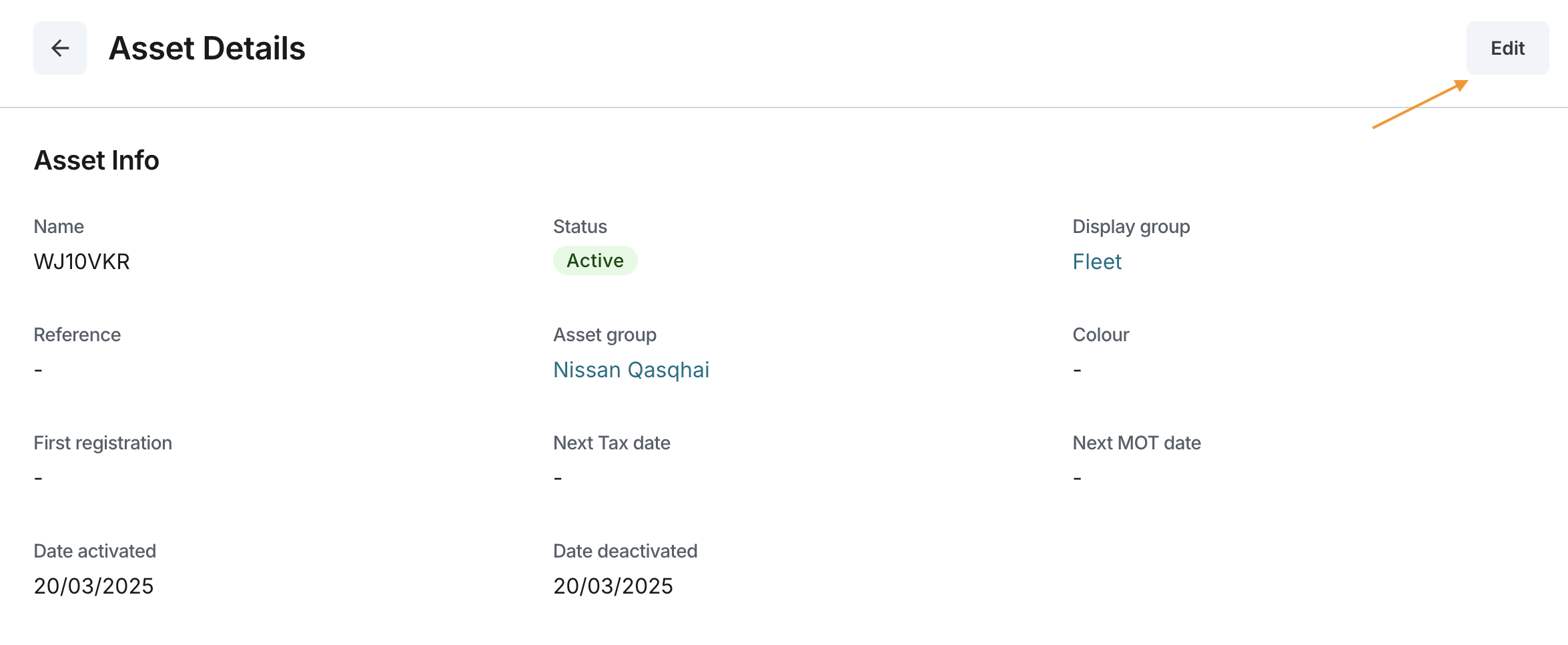
- You can edit an asset from two locations:
- From the Asset List: Locate the asset in the list and click the action button to edit.
- From Asset Details: Click on the asset name in the list to open its details page, then select the option to edit.
Editable Fields
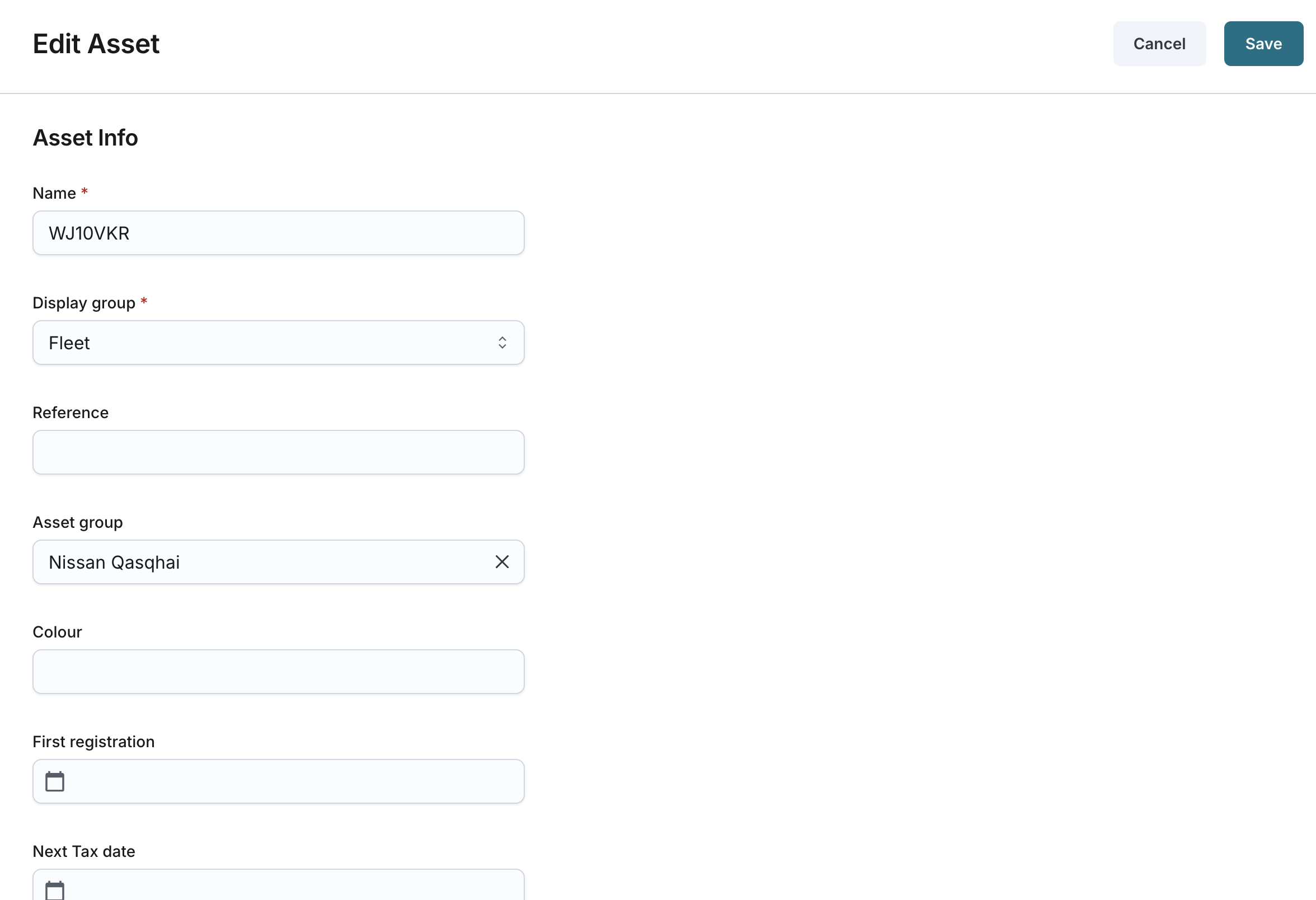
- You can edit the following fields:
- Name: You can edit the unique name of the asset (2-50 characters).
- Display Group: You can reselect a single display group if you have the SeeDisplayGroupsPage permission. If not, the selection is disabled, displaying the current group.
- Reference: You can edit the optional reference name or code (2-50 characters).
- Asset Group: You can change the group to which the asset belongs.
- Colour: You can update the color assigned to the asset (2-50 characters).
- First Registration: You can update the date when the asset was first registered.
- Next TAX Date: You can specify the date when the next tax payment is due.
- Next MOT Date: You can specify the date when the next MOT is due.
- Next MOT Date: You can specify the date when the next MOT is due.
- Driver: You can assign or update the system driver at the asset level.
- Journey Type: You can set the type of journey associated with the asset (Business or Private).
- Odometer:
- For a tracker that provides CAN data, the odometer reading is received from the tracker. If a user entry exists at the asset level, it will be overwritten by the reading from the tracker at the end of each journey. You can still manually edit the value while editing the asset.
- For a tracker that does not provide CAN data, the odometer reading is calculated by GPS. The previous value (if any) will be incremented by the distance traveled at the end of the journey.
- Hours Driven:
- For a tracker that provides CAN data, hours driven are received from the tracker. If a user entry exists, it will be overwritten by the reading from the tracker when the journey ends. You can still manually update the value while editing.
- For a tracker that does not provide CAN data, hours driven are calculated as the duration between ignition on and ignition off. The previous value will be incremented when the ignition is turned off.
- Notes: You can add or update additional comments or information about the asset (2-1000 characters).