
Creating Operating Hours
Updated:
The Creating Operating Hours page allows users to define new operating hours for use.
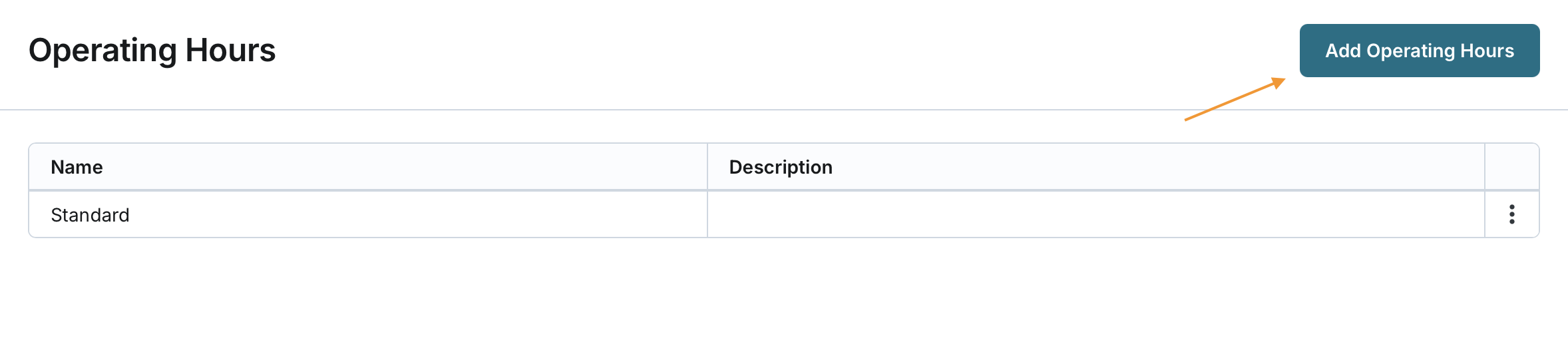
Access the Operating Hours Page:
- Navigate to the Operating Hours page from the main menu.
- Click on the Add Operating Hours button.
Enter Operating Hours Information:
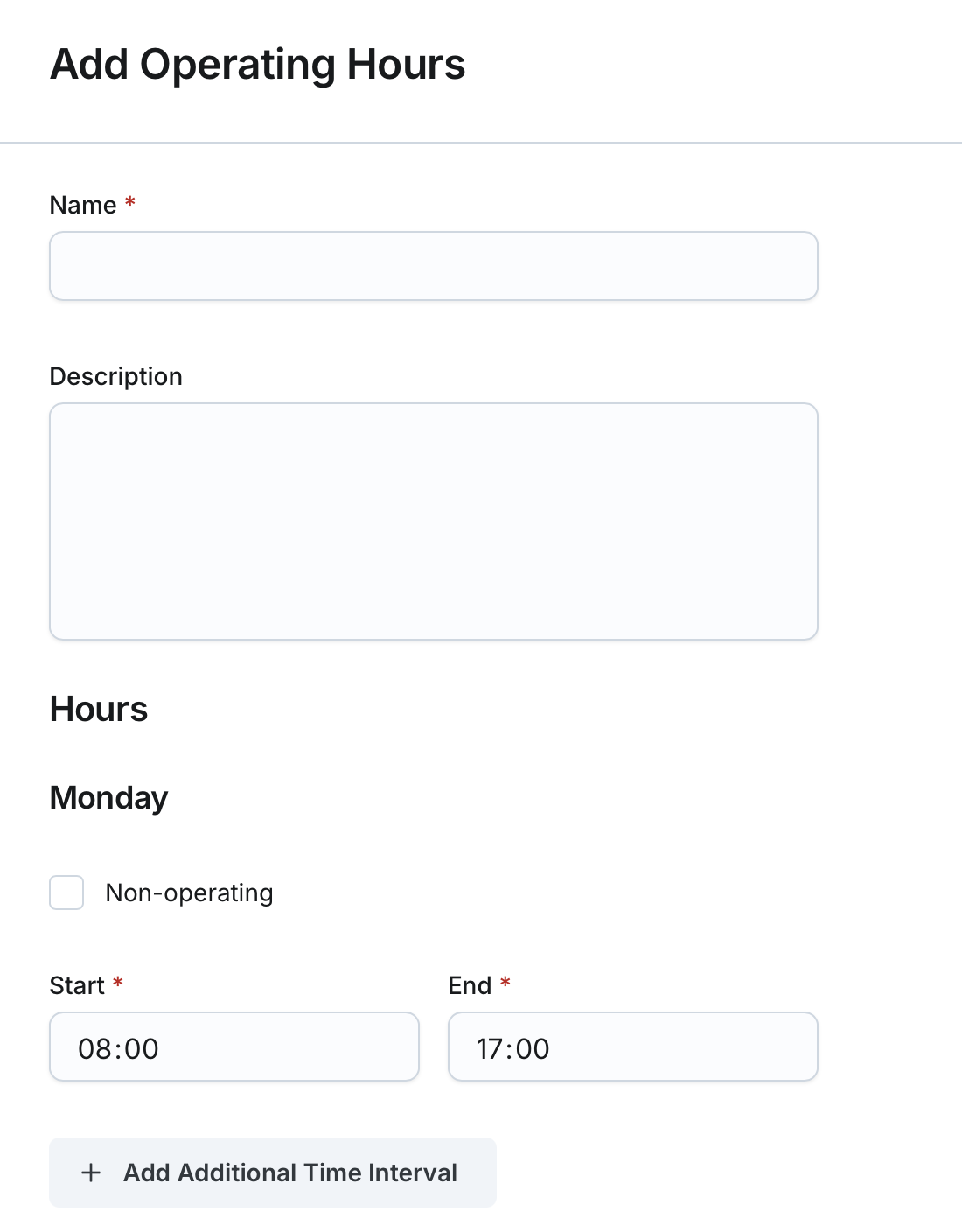
- Name (Required): Provide a unique name for the operating hours (2-50 characters).
- Description (Optional): Enter additional details describing the operating hours (2-200 characters).
Define Operating Schedule (Required):
- The system presents a list of days: Monday, Tuesday, Wednesday, Thursday, Friday, Saturday, and Sunday.
- For each day:
- A Non-operating checkbox is available.
- Start and End fields allow users to define operational time.
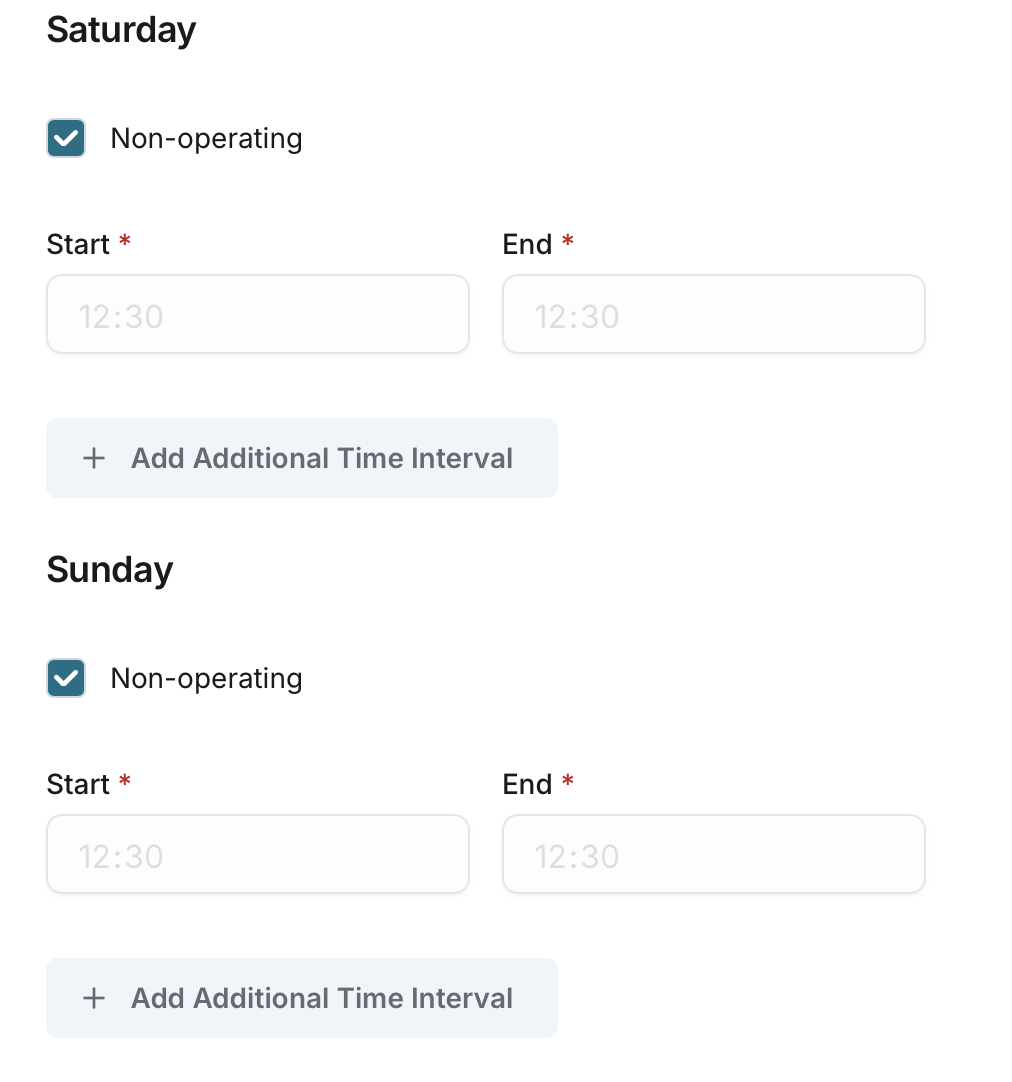
- If marked as Non-operating, start and end time fields are disabled.
- By default, Saturday and Sunday are marked as Non-operating.
- Default time for operating days is 08:00 – 17:00, but users can modify this.
- End time must be after start time
Adding Additional Time Intervals (Optional):
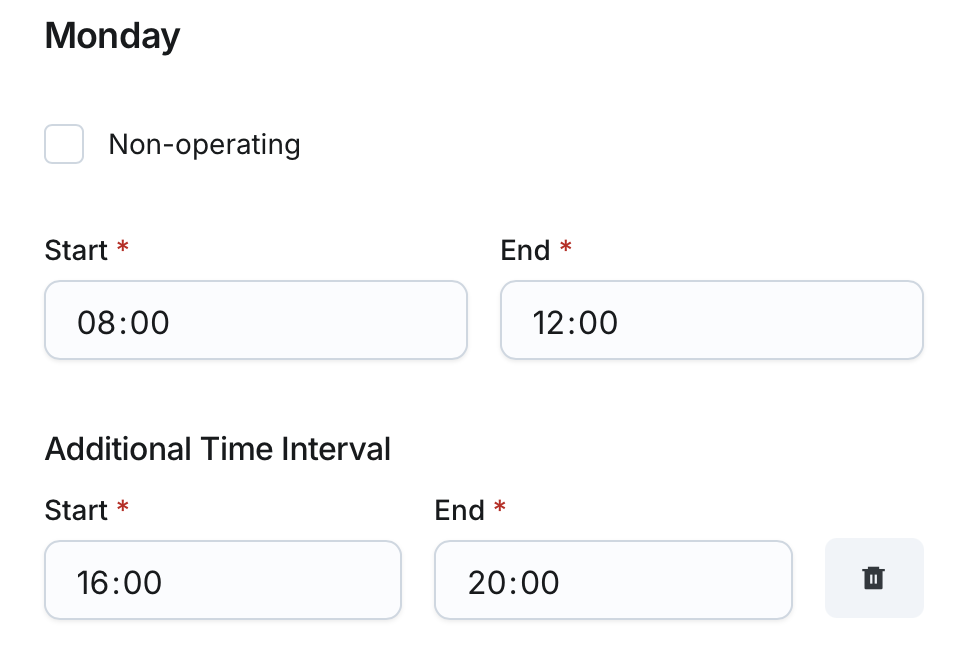
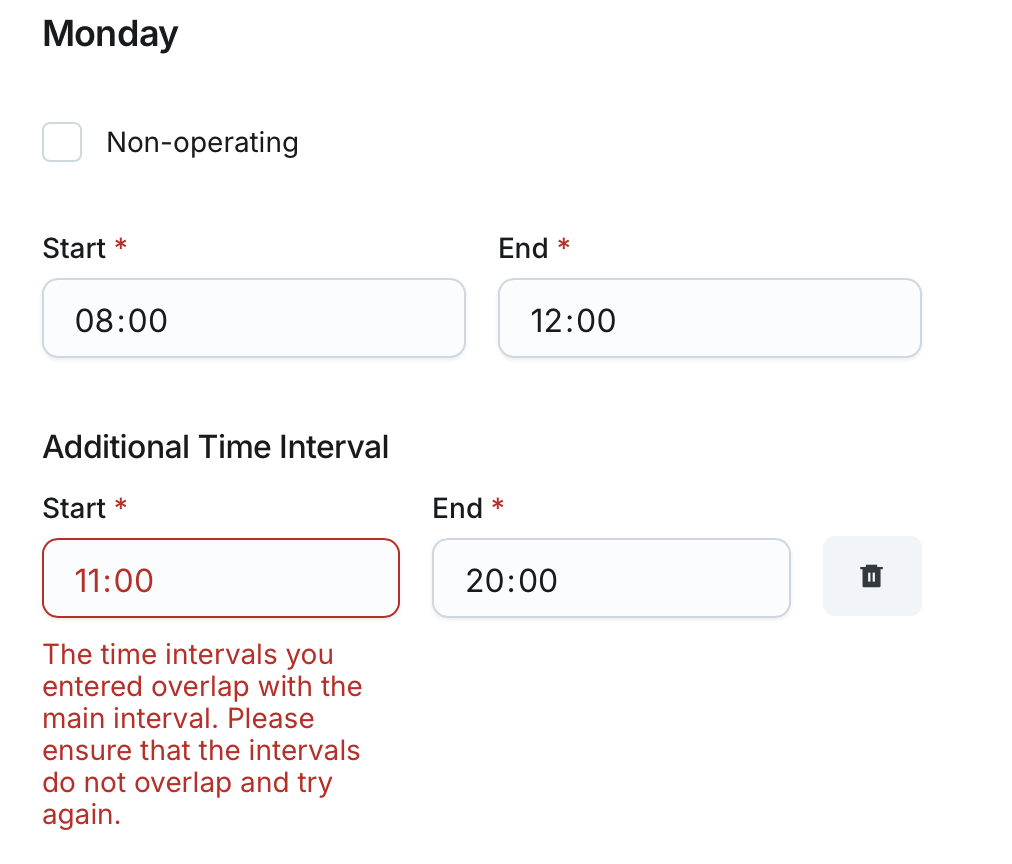
- Each day allows one additional time interval.
- To add an interval, click Add Additional Time Interval and specify a Start and End time.
- System ensures:
- The first interval must end before the second interval starts.
- The second interval must end after the first interval starts.
- Users can delete an additional time interval if needed.
Save the Operating Hours:
- Click Save to apply the new operating hours.
- Once saved, the operating hours become available for selection in display groups configurations.
