
Editing Operating Hours
Updated:
The Editing Operating Hours page allows users to modify an existing set of operating hours.
Accessing Editing Mode:
- Navigate to the Operating Hours page from the main menu.
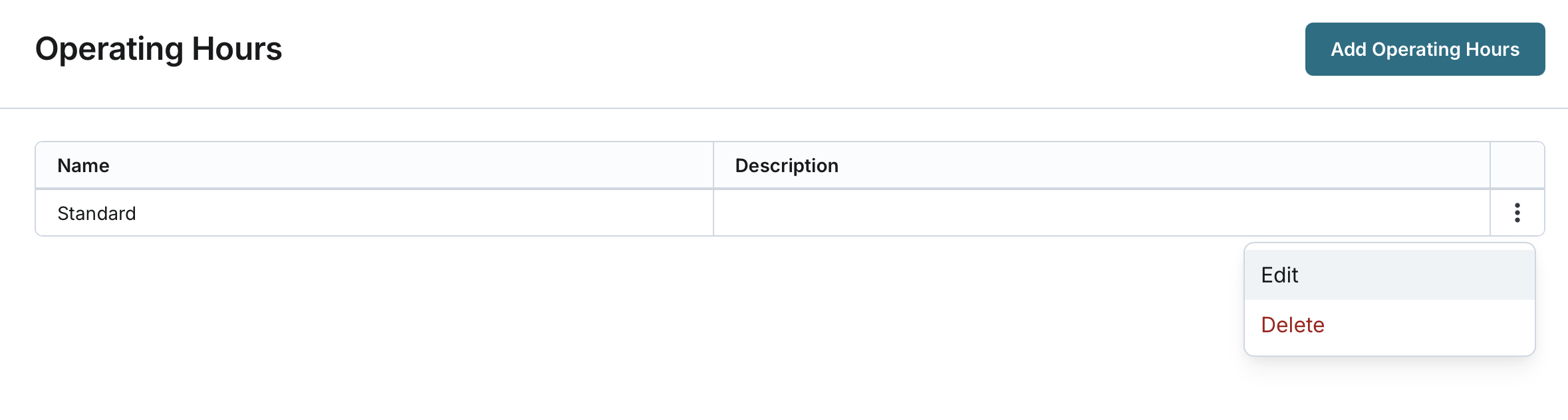
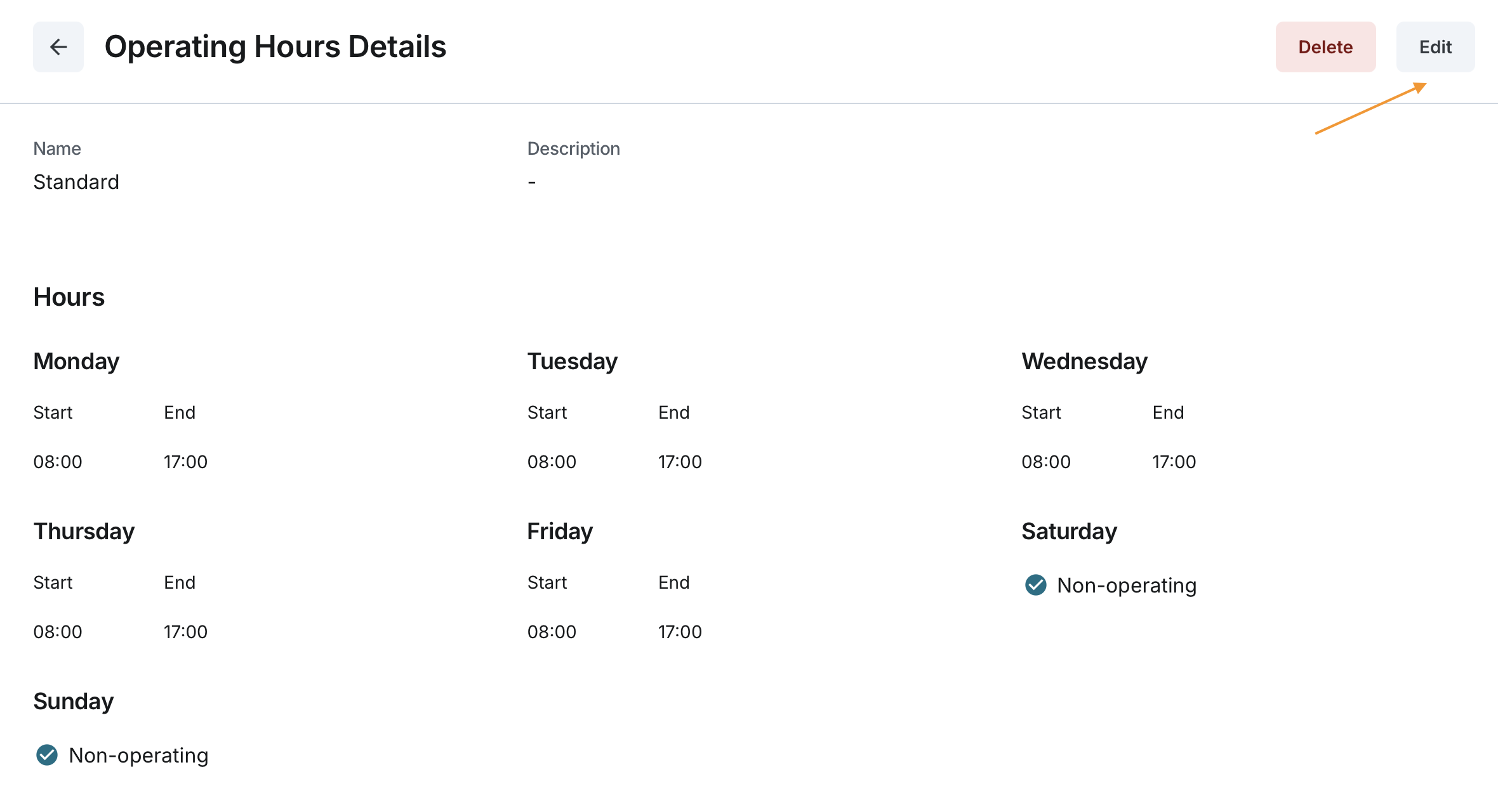
- You can edit operating hours from two locations:
- From the Operating Hours List: Locate the operating hours in the list and click the action button to edit.
- From Operating Hours Details: Click on the operating hours in the list to open its details page, then select the option to edit.
Modify Operating Hours Information:
General Information:
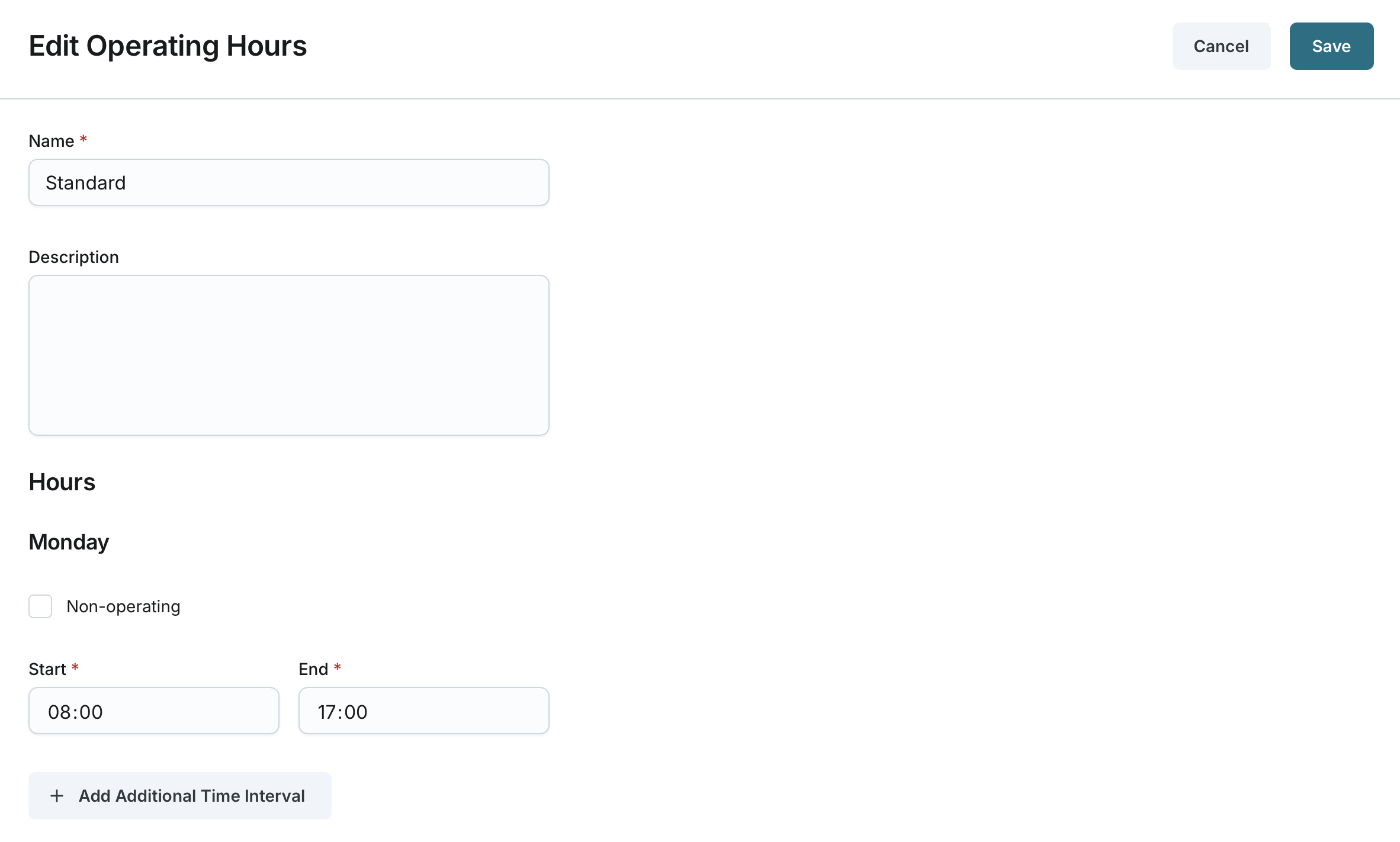
- Name: The unique name assigned to the operating hours (must remain unique, 2-50 characters).
- Description: Optional details describing the operating hours (2-200 characters).
Operating Schedule:
- A weekly schedule listing each day: Monday, Tuesday, Wednesday, Thursday, Friday, Saturday, and Sunday.
- For each day:
- The Non-operating checkbox can be toggled to mark a day as non-operating.
- Start and End fields can be modified to adjust operating times.
- If the day is marked as non-operating, start and end times are disabled.
Additional Time Intervals:
- Users can add an additional time interval for each day if needed.
- Each additional interval consists of a Start and End time.
- System ensures:
- The first interval ends before the second interval starts.
- The second interval ends before the first interval starts.
- Users can remove additional intervals if no longer needed.
Saving Changes:
- Click Save to apply the modifications.
- The system will validate the changes and update the opening hours.
- If validation fails (e.g., overlapping intervals), an error message will be displayed.
