
Editing a Geofence
Updated:
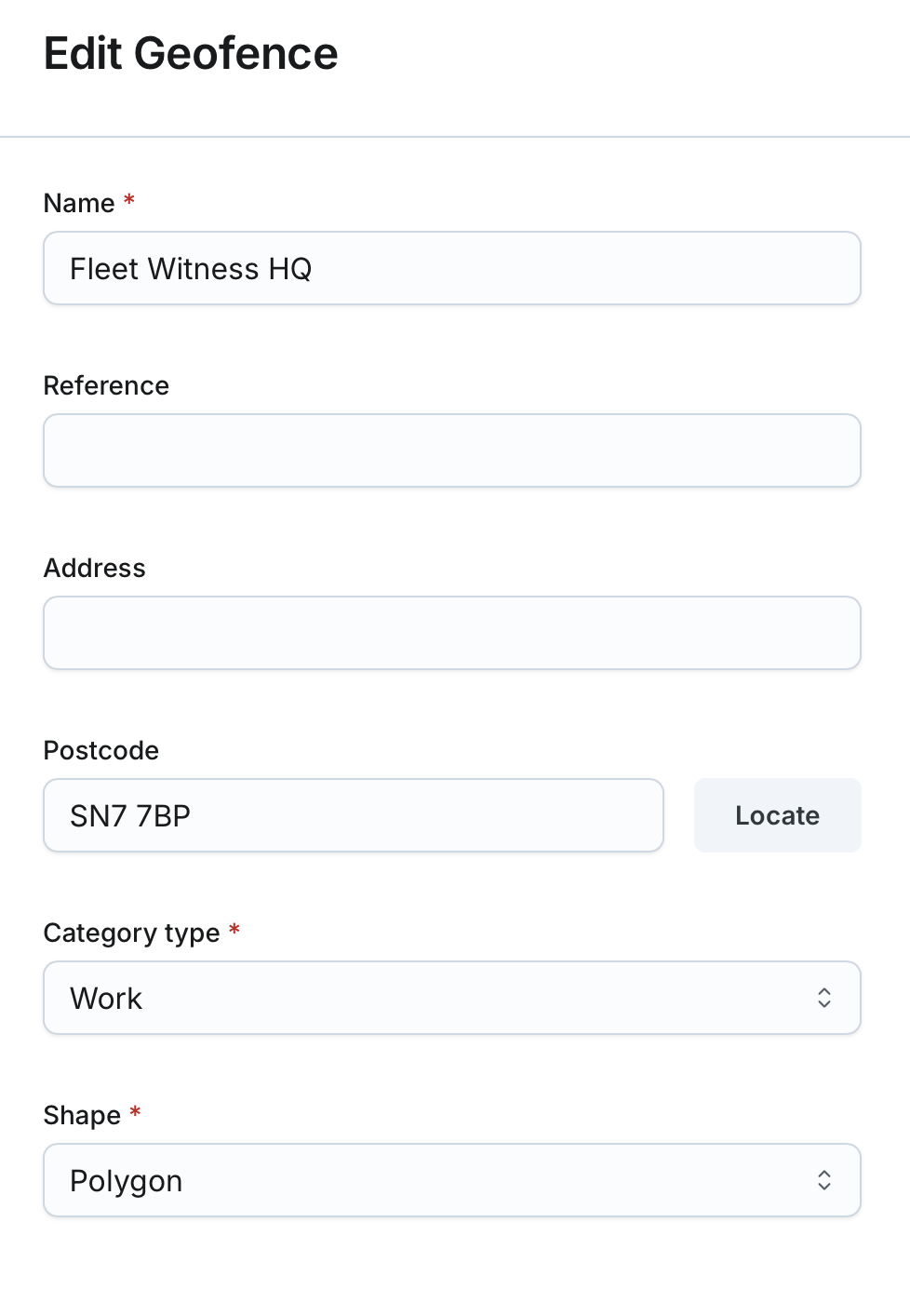
The Editing a Geofence page allows you to update the configuration of an existing geofence. You can modify geofence details, shape, location, and category type.
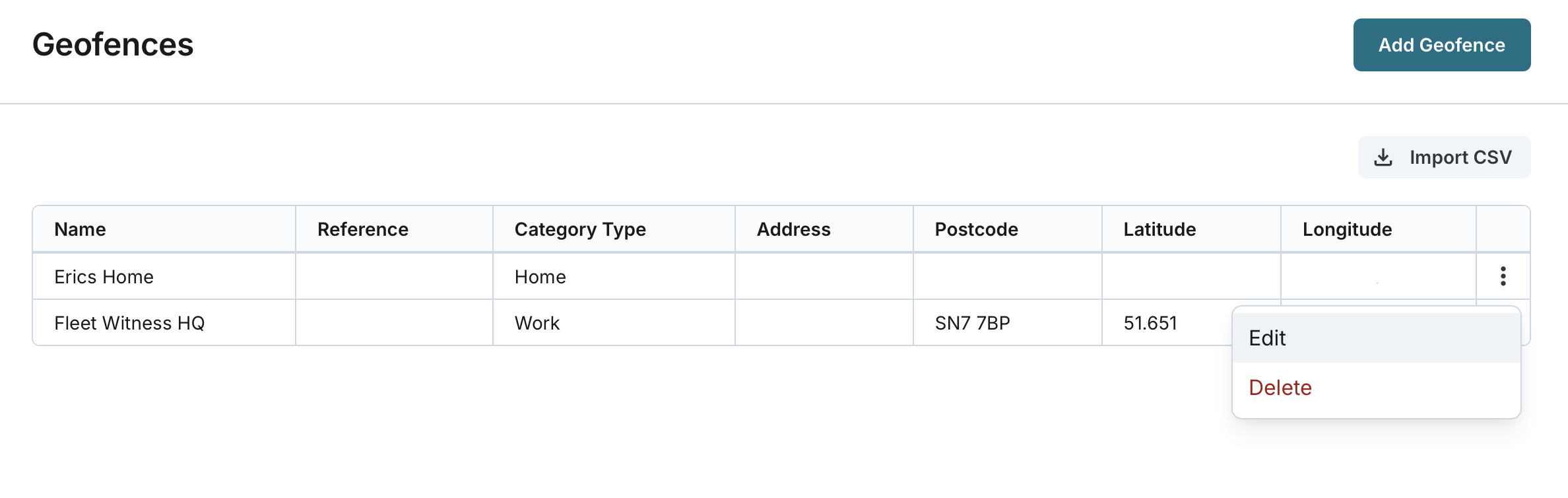
Accessing the Geofence Editing Page
- Navigate to the Geofences page from the main menu.
- Locate the geofence you want to edit from the list.
- Click the Edit button next to the geofence entry.
Viewing the Geofence on the Map
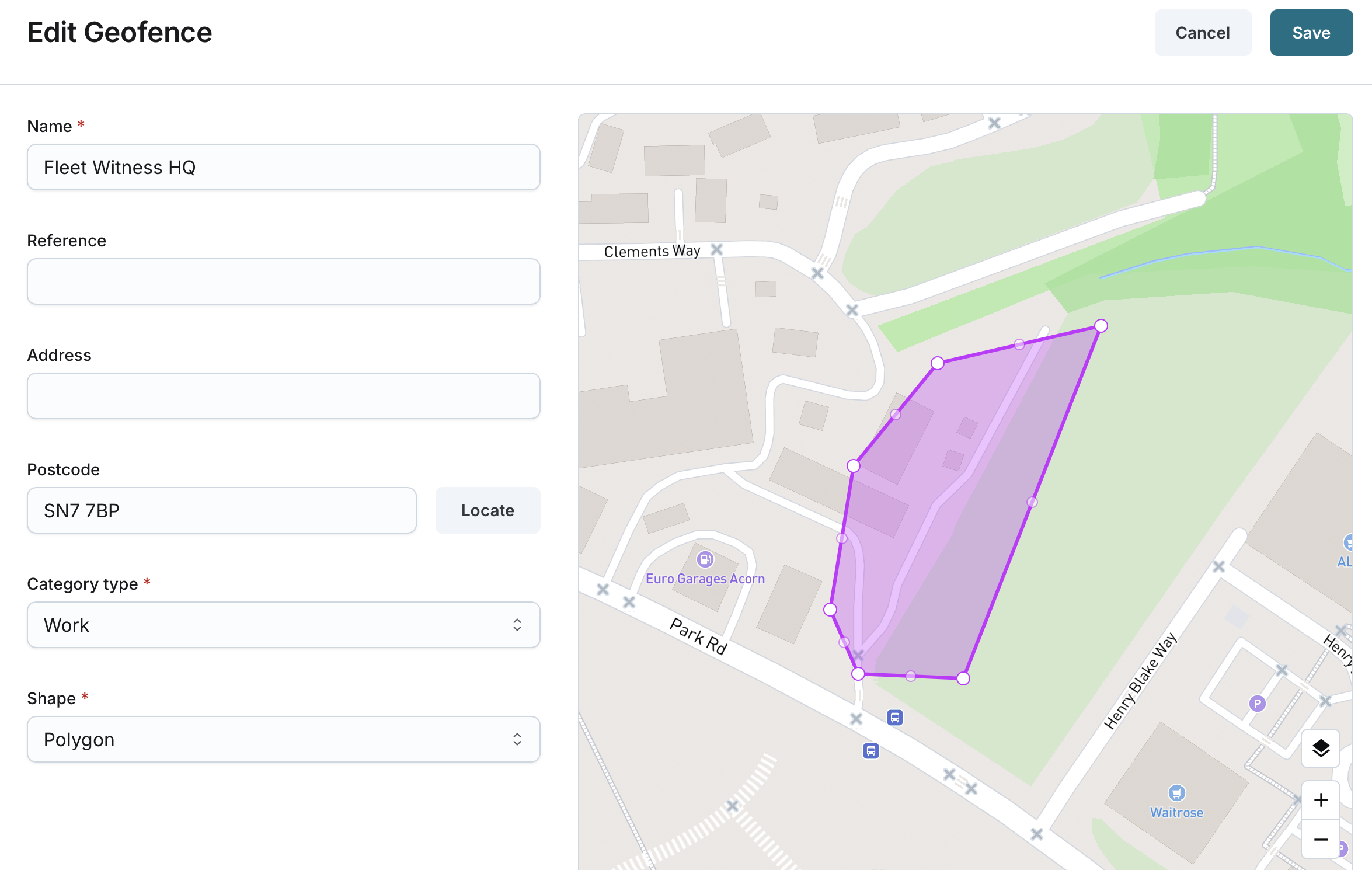
- Upon opening the editing page, the map defaults to the centre of the geofence being edited with a zoomed-in view.
- The current geofence is overlaid on the map.
- You can move and adjust the geofence as needed.
- The geofence colour is adjusted based on the selected category type.
Adjusting Geofence Shape and Location
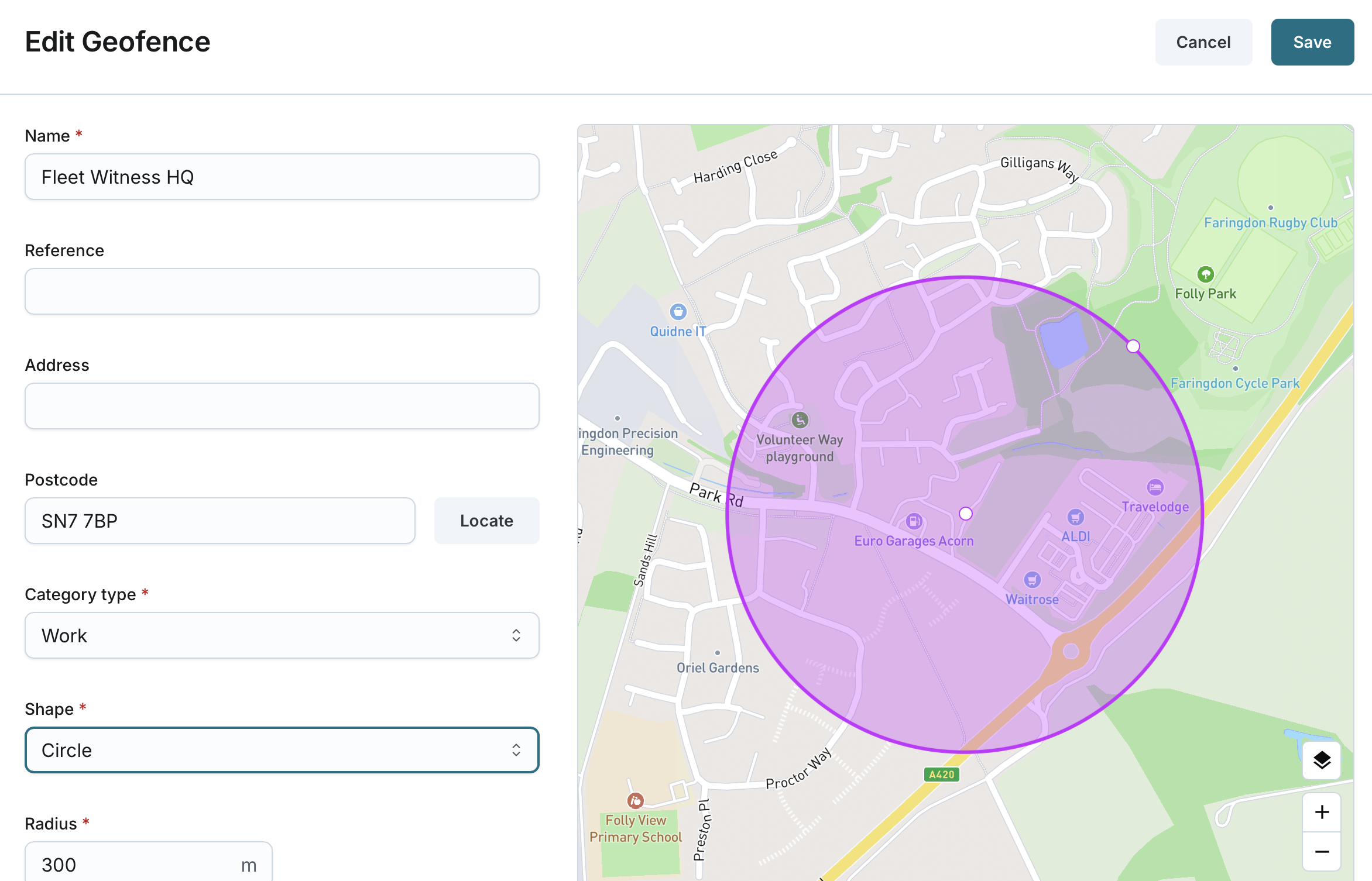
- Circle Shape
- Adjust the geofence radius and location by interacting directly with the map.
- Alternatively, manually update the Radius, Latitude, and Longitude fields to reflect changes on the map.
- Ensure the Radius field is populated for circle-shaped geofences.
- Polygon Shape
- You can add or remove vertices as needed to redefine the shape.
- The polygon must have at least 4 vertices and there is no maximum limit.
- Adjust the polygon perimeter and location directly on the map.
Navigating the Map
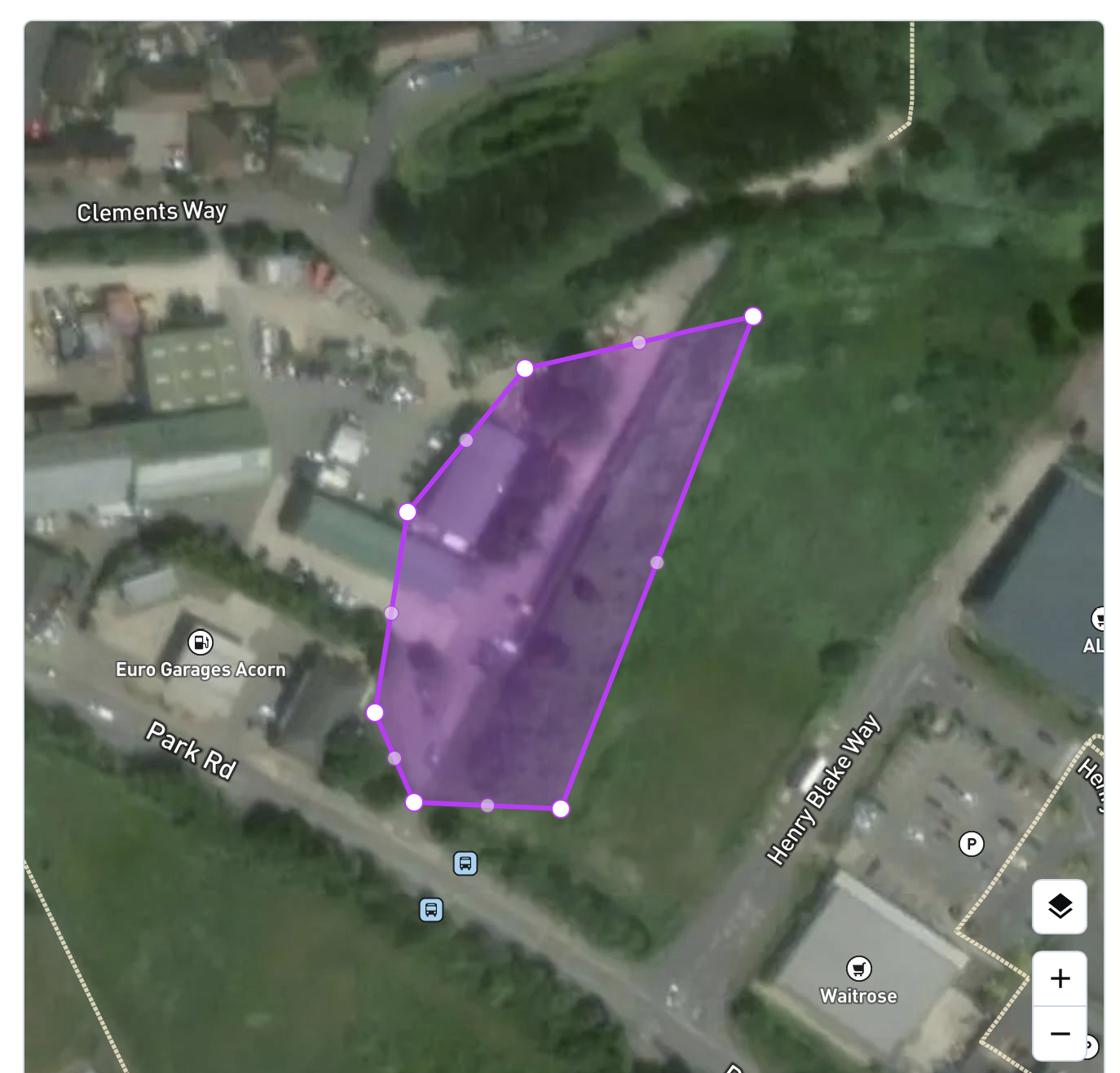
- Use zoom in/out controls to get a better view of the area.
- Switch between standard and satellite mad modes.
- If you update the postcode, the map will automatically pan and centre on the new location, provided the postcode is valid.
- If the postcode is invalid, the map will remain unchanged.
Updating Geofence Details
- Name: Update the unique name for the geofence (2-50 characters).
- Reference: Modify the reference note (2-50 characters).
- Address: Change the address associated with the geofence (5-200 characters).
- Postcode: Update the postcode to reflect the new location (3-10 characters).
- Category Type: Select one of the following options:
- Site
- Work
- Home
- Customer
- Region
- Payzone
- Shape: Change the shape if needed (either Circle or Polygon).
- Radius: Modify the radius of the circle.
- Latitude: Update the latitude coordinate.
- Longitude: Update the longitude coordinate.
Saving the Updated Geofence
- Click Save to apply changes to the geofence configuration.
- The updated geofence will be saved under the company and displayed on the Geofences list page.
- By editing a geofence, it will be updated on the Fleet page, including both the Live Assets Map and Historic Journeys Map.
