Deleting a Geofence
Updated:
The Deleting a Geofence page allows you to remove an existing geofence from the system. Once deleted, the geofence will no longer appear in any part of the application, including the Fleet page (both Live Assets Map and Historic Journeys Map).
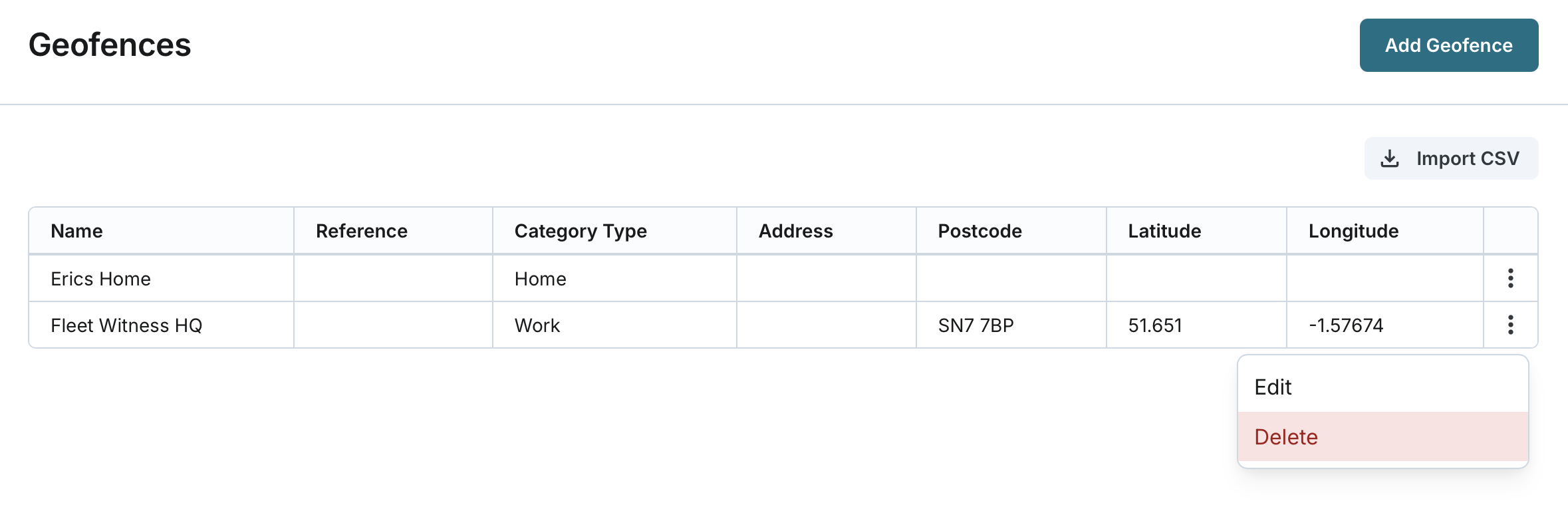
Deleting a Geofence from the List
- Navigate to the Geofences page from the main menu.
- Locate the geofence you want to delete from the list.
- Click the Delete button next to the geofence entry.
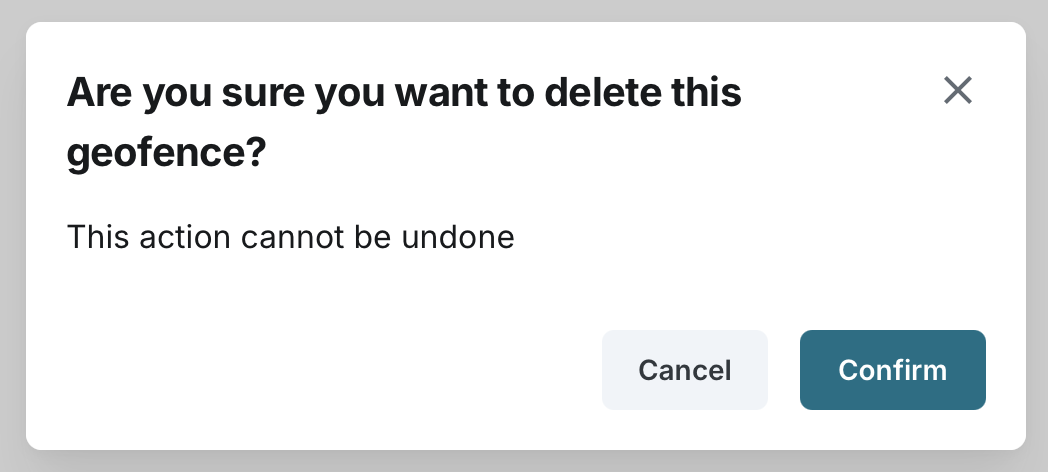
- A confirmation dialog will appear, asking you to confirm the deletion.
Confirming the Deletion
- Click Confirm to proceed with the deletion.
- The system will remove the geofence from the list and all related interfaces across the application.
- The Fleet page (both Live Assets Map and Historic Journeys Map) will no longer display the deleted geofence.