Viewing the List of Configured Alerts
Updated:
Alerts are used to monitor important events related to your assets and notify users when specific conditions are met, Configuring alerts helps ensure that users are promptly informed about critical situations.
Access Alerts
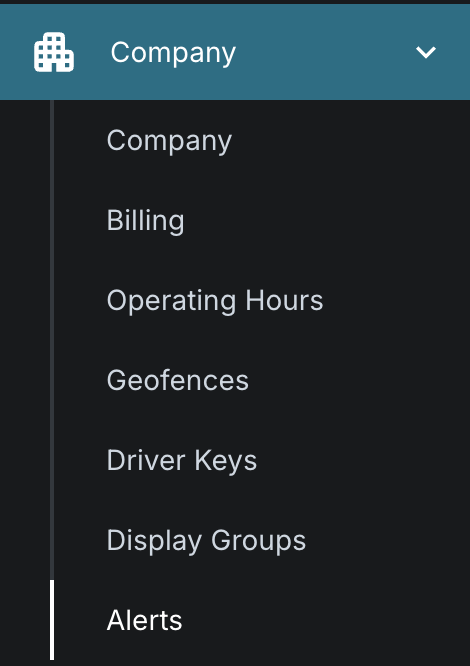
- Open the Alerts page from the application menu.
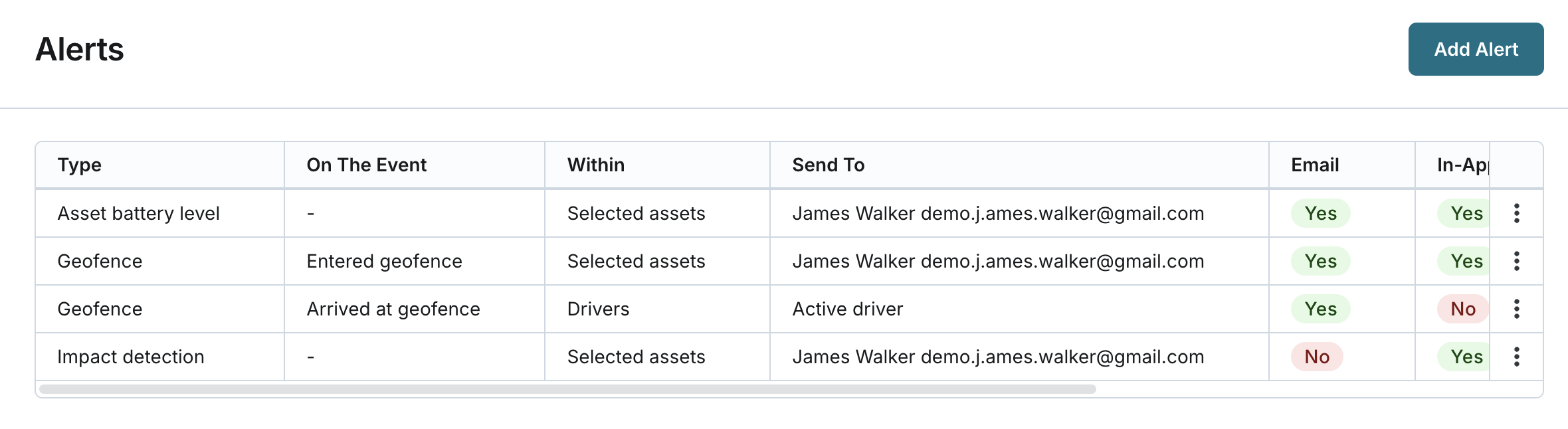
View the List of Configured Alerts
The list of alerts is sorted by the alert type name by default.
You will see the following information for each alert:
- Type
- On The Event (applies to geofence alert type only)
- Within
- If the Display group option is selected:
- The system displays the selected Display Group name if there is one.
- The system displays the number of Display Groups (if multiple), and when hovering over, shows group names.
- If the Selected assets option is selected:
- The system displays “Selected assets” (you can view specific assets selected by reviewing the alert details page).
- If the Display group option is selected:
- Send To
- If the User option is selected:
- The system displays the selected user’s full name and email.
- The system displays the number of users (if multiple), and when hovering over, shows their full names and emails.
- If the Active driver option is selected:
- The system displays “Active driver”.
- If the User option is selected:
- Email: Yes or No
- In-app Notification: Yes or No
- Created By: Full name of the user (current name) who was the first to create the alert.
- Date Created: Date and time when the alert was created.