
Creating a New Alert
Updated:
Access Alerts
- Open the Alerts page from the application menu.
- Click Add Alert to open the alert configuration form.
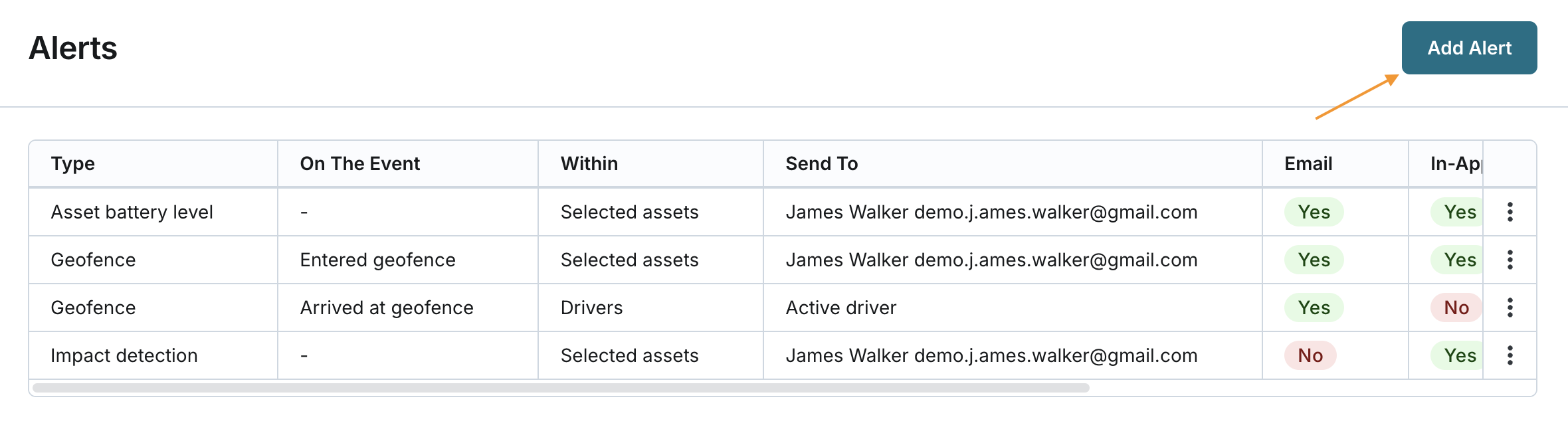
Create a New Alert
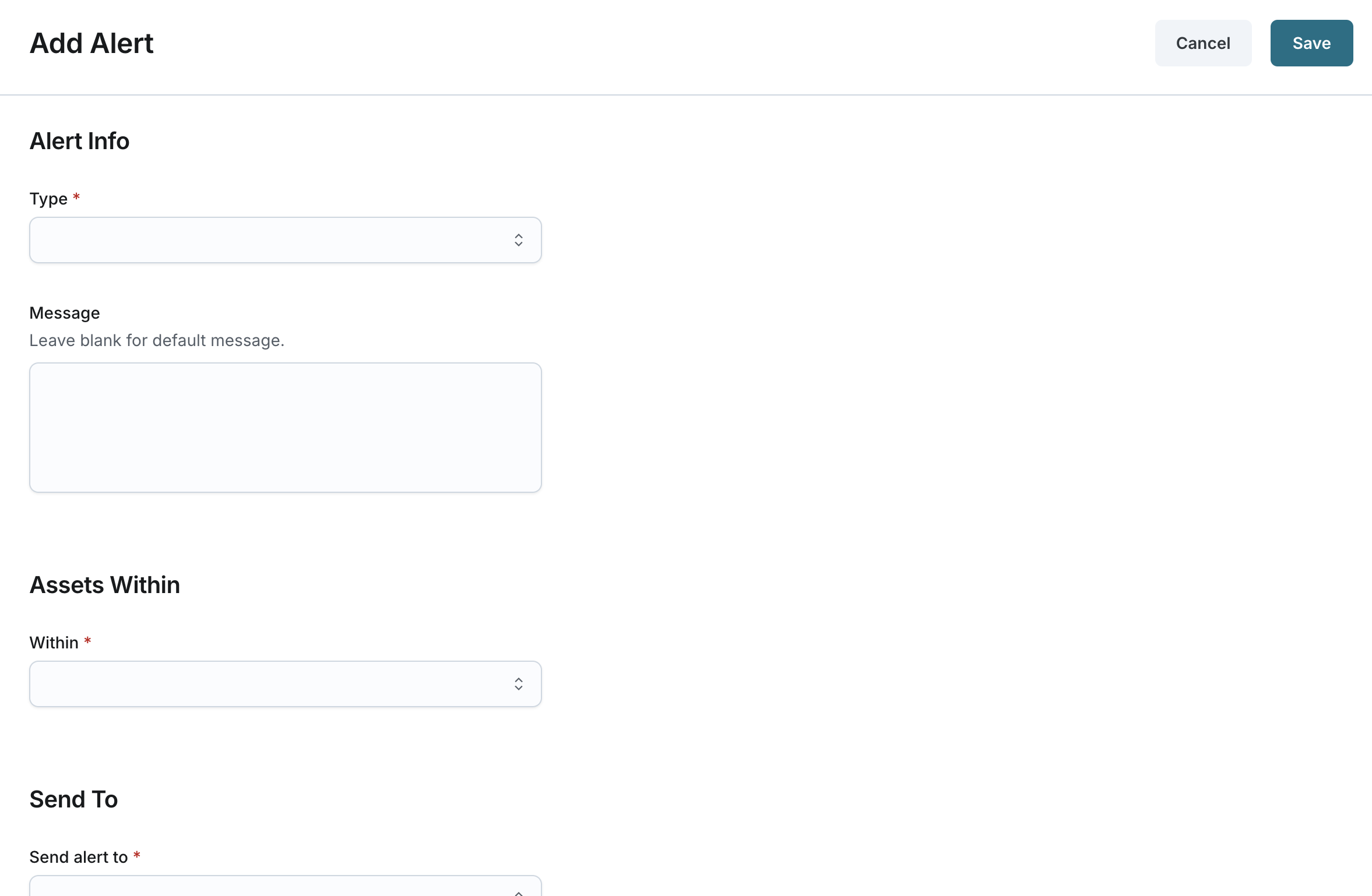
The alert configuration form consists of the following sections:
- Alert Info
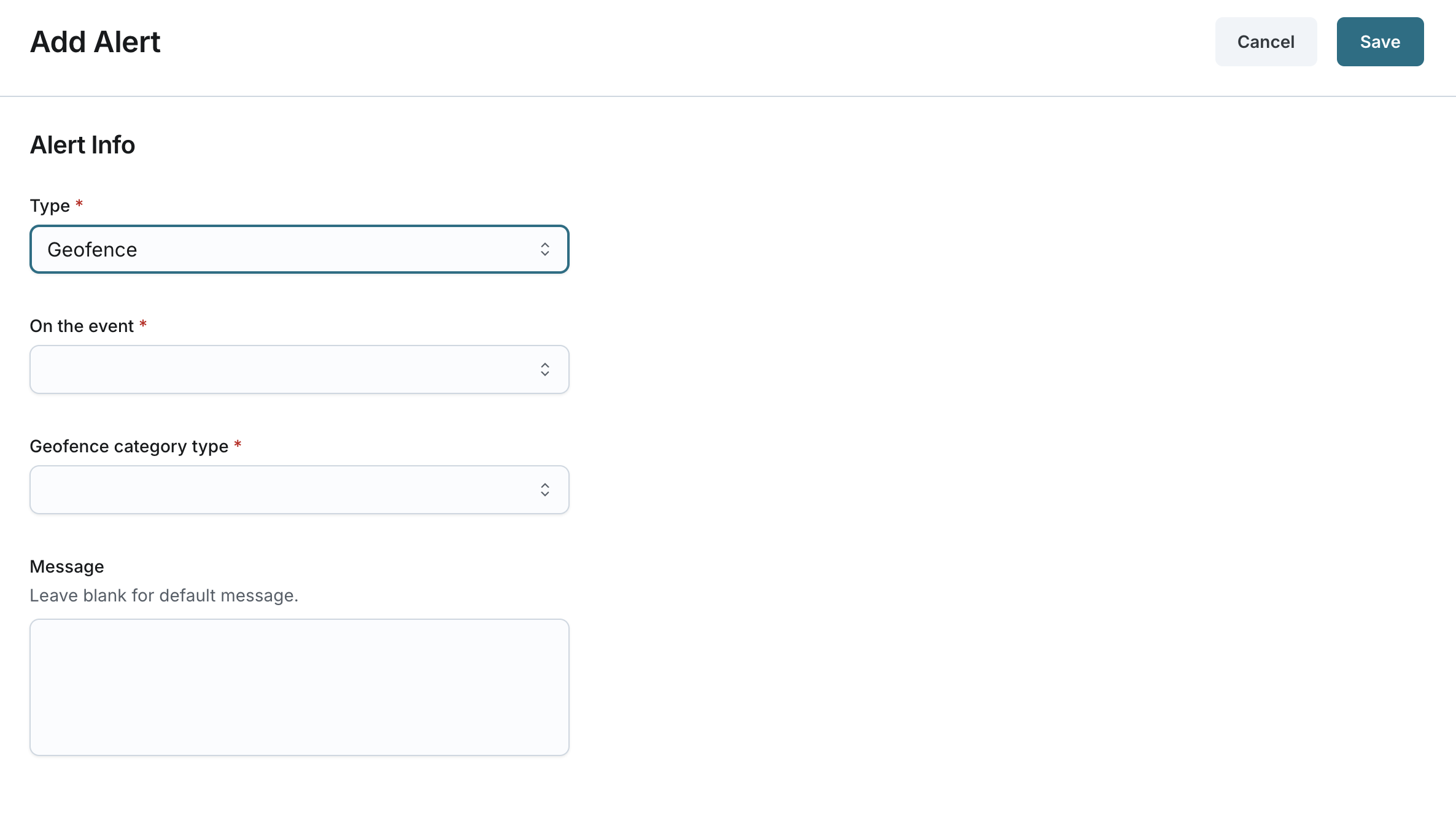
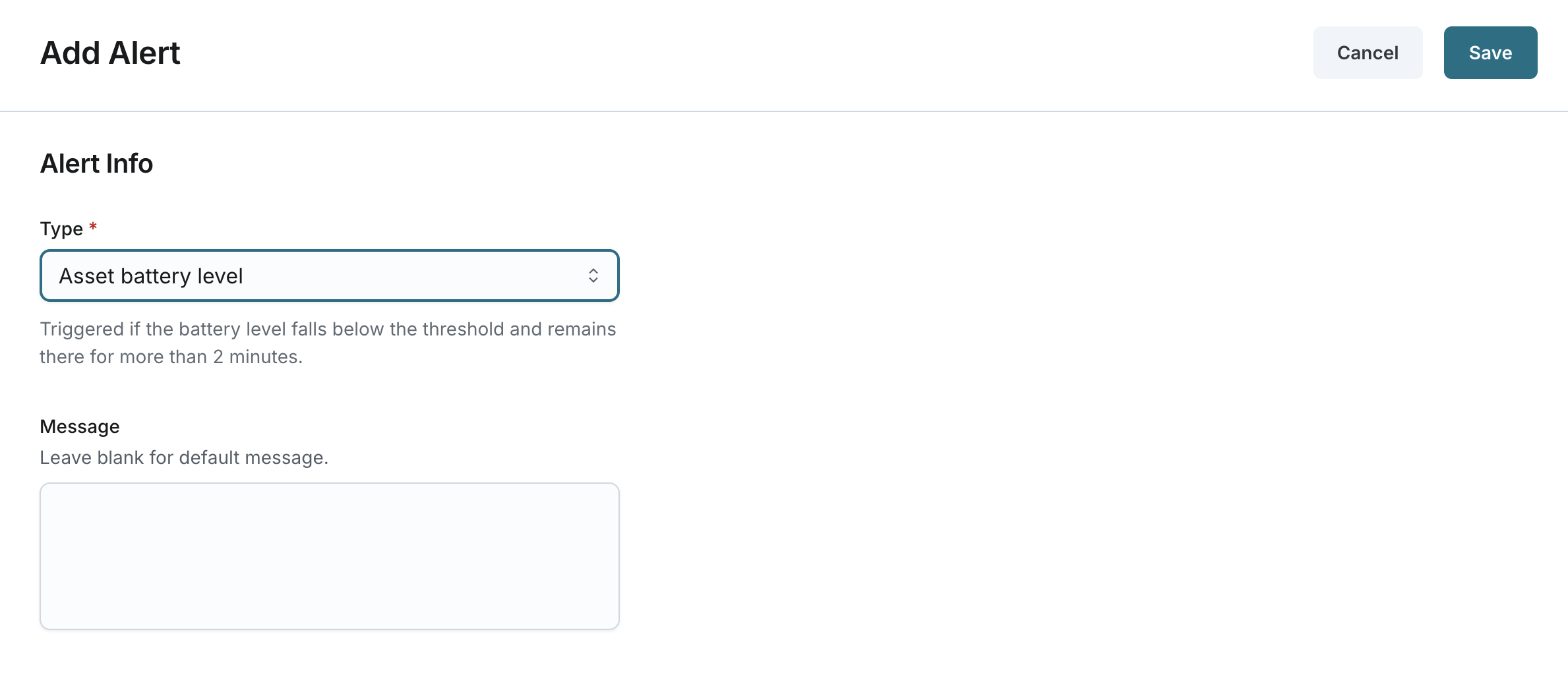
- Type (Required): Select one of the following alert types:
- Geofence
- Asset battery level
- Impact detection
- On The Event (Required if “Geofence” type is selected): Choose one of the following:
- Entered geofence
- Exited geofence
- Arrived at geofence
- Departed geofence
- Geofence Category Type (Required if “Geofence” type is selected): Choose one of the following:
- Site
- Work
- Home
- Customer
- Region
- Payzone
- Message (Optional): Add a message that will be included in the notification (2-200 characters).
- Type (Required): Select one of the following alert types:
- Assets Within
- Within (Required): Select one of the following options:
- Display group
- Selected assets
- If Display group option is selected:
- The system displays a list of available display groups. Assign one or more display groups of assets to apply this alert to. If you do not have the SeeDisplayGroupsPage permission, the list will be blank.
- If Selected assets option is selected:
- The system displays a list of all assets within the company, provided that you have the SeeDisplayGroupsPage permission.
- The list shows Name, Reference, and Display Group of each asset, sorted alphabetically by asset name.
- No assets are selected by default. You can select/unselect all assets or select specific ones. At least one asset must be selected.
- Send To
- Send alert to (Required): Choose one of the following options:
- User
- Active Driver
- If User option is selected:
- The system displays a searchable list of ACTIVE users from the specific company level, showing their full names and emails.
- You can select all users if needed.
- Send alert to (Required): Choose one of the following options:
- Send Via
- Email: Check this box to send notifications via email.
- In-app Notification: Check this box to send notifications through the application.
- Either Email or In-app notification must be selected (or both).
- Within (Required): Select one of the following options:

Save the Alert
Click Save to complete the alert configuration. The new alert will be added to the list of configured alerts.
