
Editing a Configured Alert
Updated:
You can edit a configured alert to update its settings or notification preferences.
Access Alerts
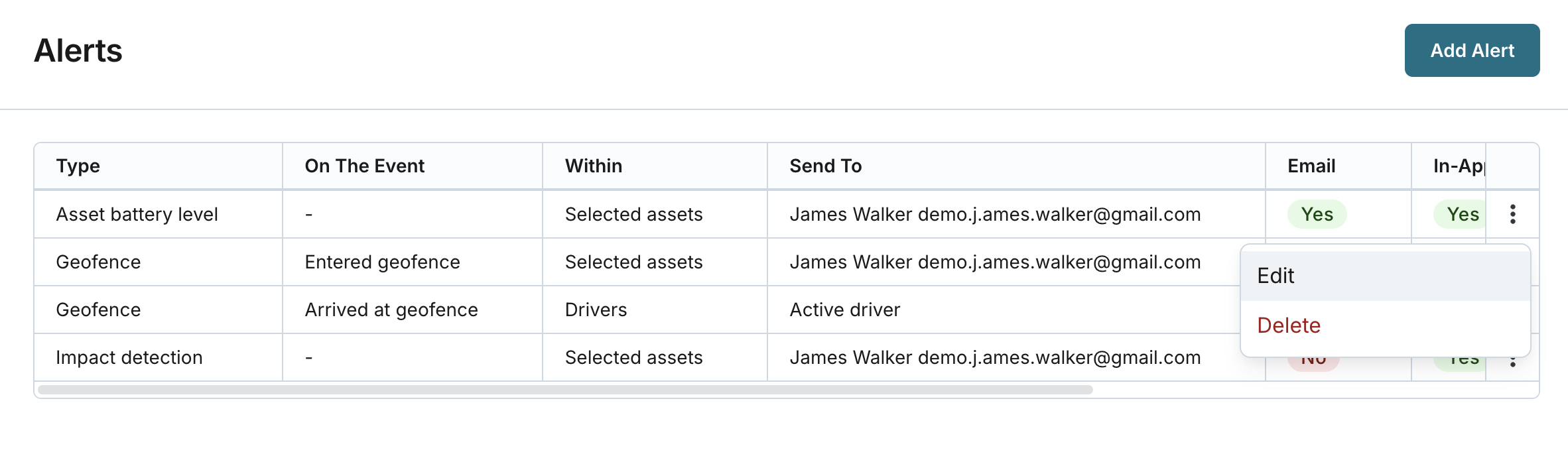
- Open the Alerts page from the application menu.
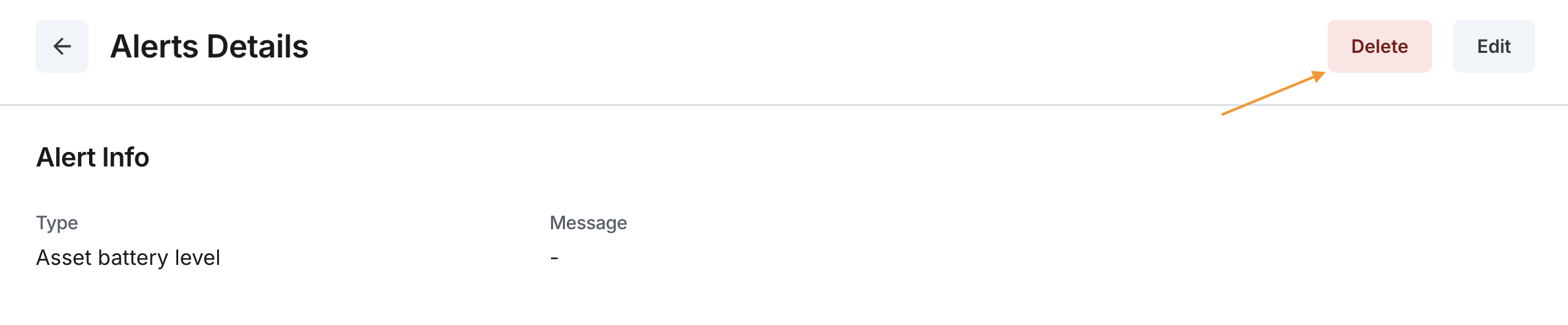
- Locate the alert you want to edit from the list of configured alerts or open the alert details page.
- Click the Edit button to enter edit mode.
Edit the Alert Configuration
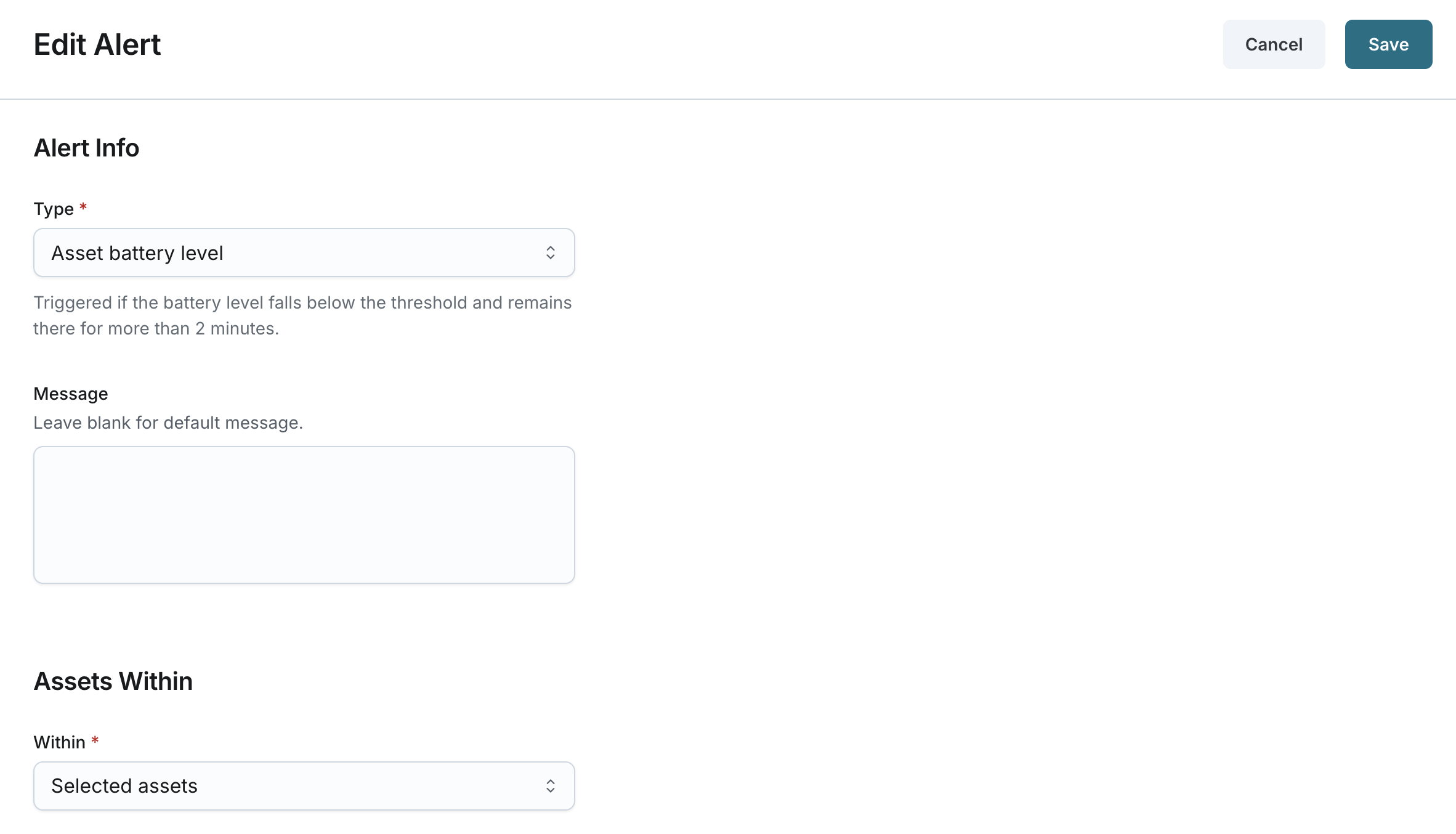
While editing an alert, you can update the following sections:
- Alert Info
- Type: Change the type of alert (Geofence, Asset battery level, Impact detection).
- Message: Modify the optional message text included in the alert configuration.
- Event Trigger (applies to geofence alert type only)
- On The Event: Update the event that triggers the alert.
- Geofence Category Type: Change the geofence category associated with the alert (e.g., Site, Work, Home).
- Assets Within
- Within: Change the method used to select assets (Display group or Selected assets).
- Display Group: Update the selected display group(s) for the alert.
- Selected Assets: Modify the list of selected assets to include or exclude specific assets.
- Within: Change the method used to select assets (Display group or Selected assets).
- Send To
- Send Alert To: Update the recipient of the alert notification (User or Active driver).
- Send via:
- Toggle the email notification on or off.
- Toggle the in-app notification on or off.
Save Changes
- After making the necessary changes, click Save to update the alert.
- The system will update the alert information and display a confirmation message.
