Live Tracking on the Web App
Updated:
Accessing the Live Tracking Page
To open the Live Tracking page:
- Select the Fleet page from the main menu.
- The system will load the Assets tab by default.
- This tab opens with the Live Tracking view enabled, displaying both the map and the asset list.
Layout Options
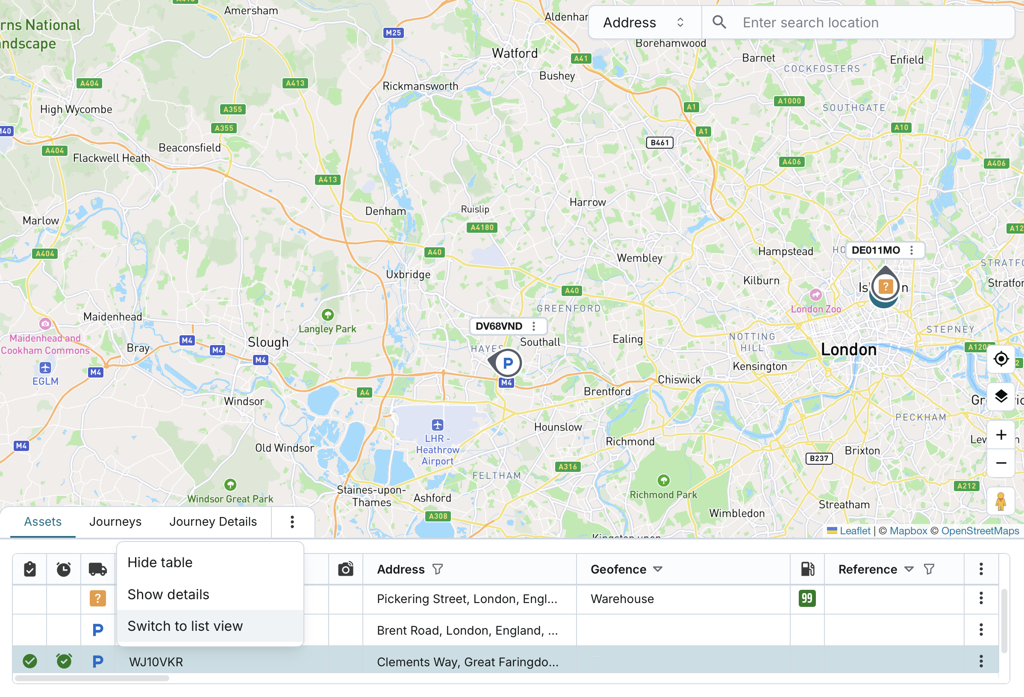
The Live Tracking page allows you to view assets in a configurable table format alongside the map.
- By default, the asset list appears as a horizontal table view.
- You can switch between horizontal and vertical layouts:
- Click "Switch to list view" to display a vertical list.
- Click "Switch to table view" to return to the horizontal layout.
- Users can also hide the table to expand the map view to fullscreen.
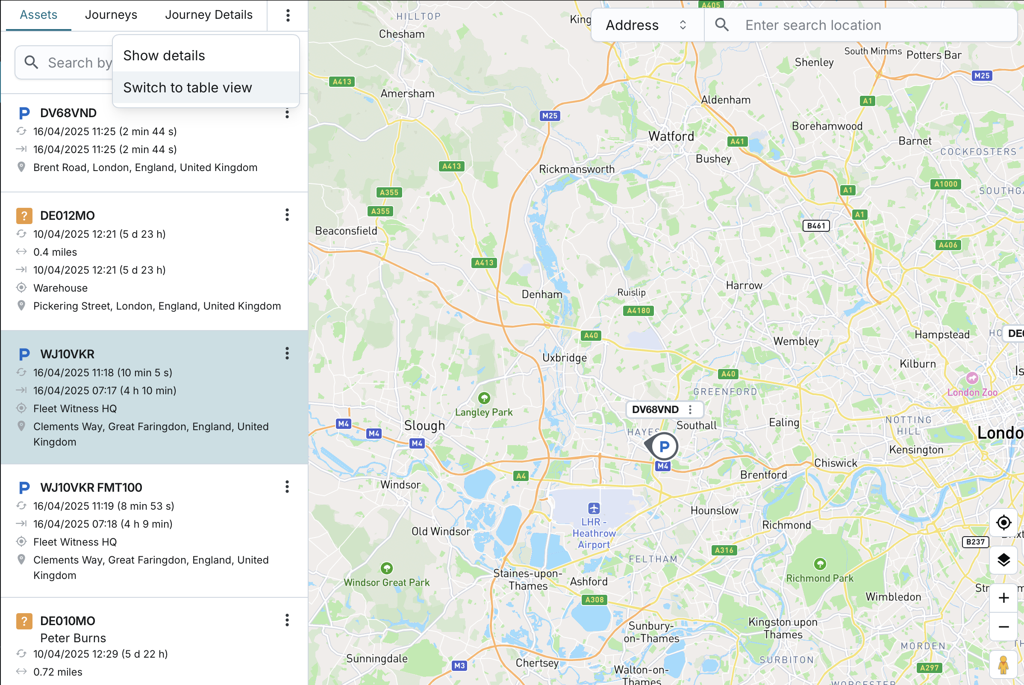
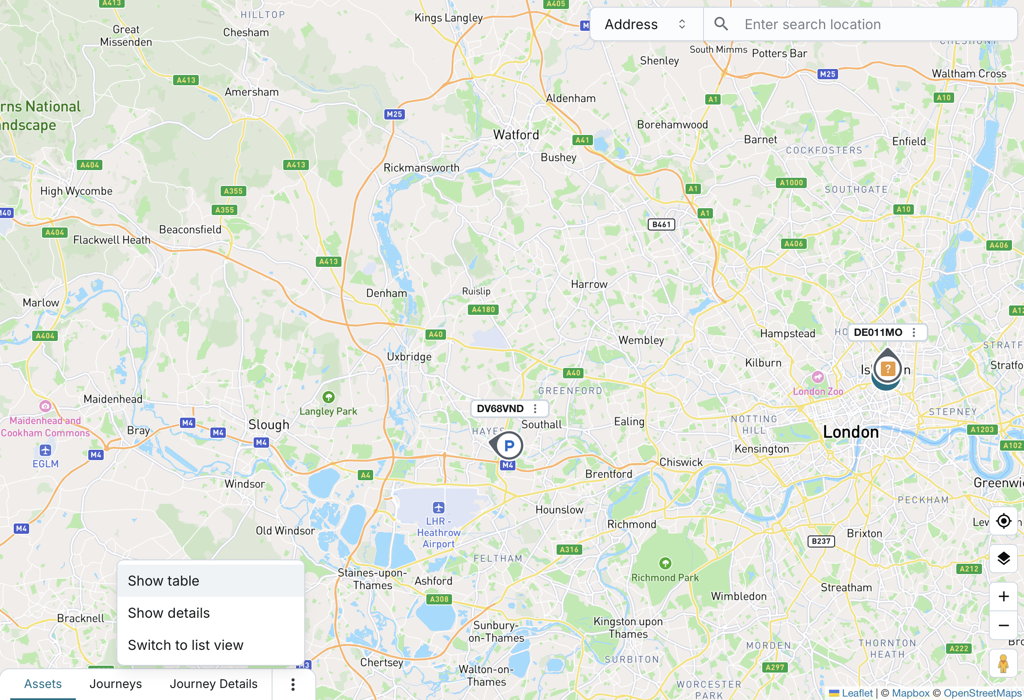
The system preserves the user's layout preference (horizontal or vertical view, and visible or hidden table).
You can resize the table height when in horizontal view. The table supports increasing or decreasing the height. As the table is adjusted, the content within the able automatically adapts.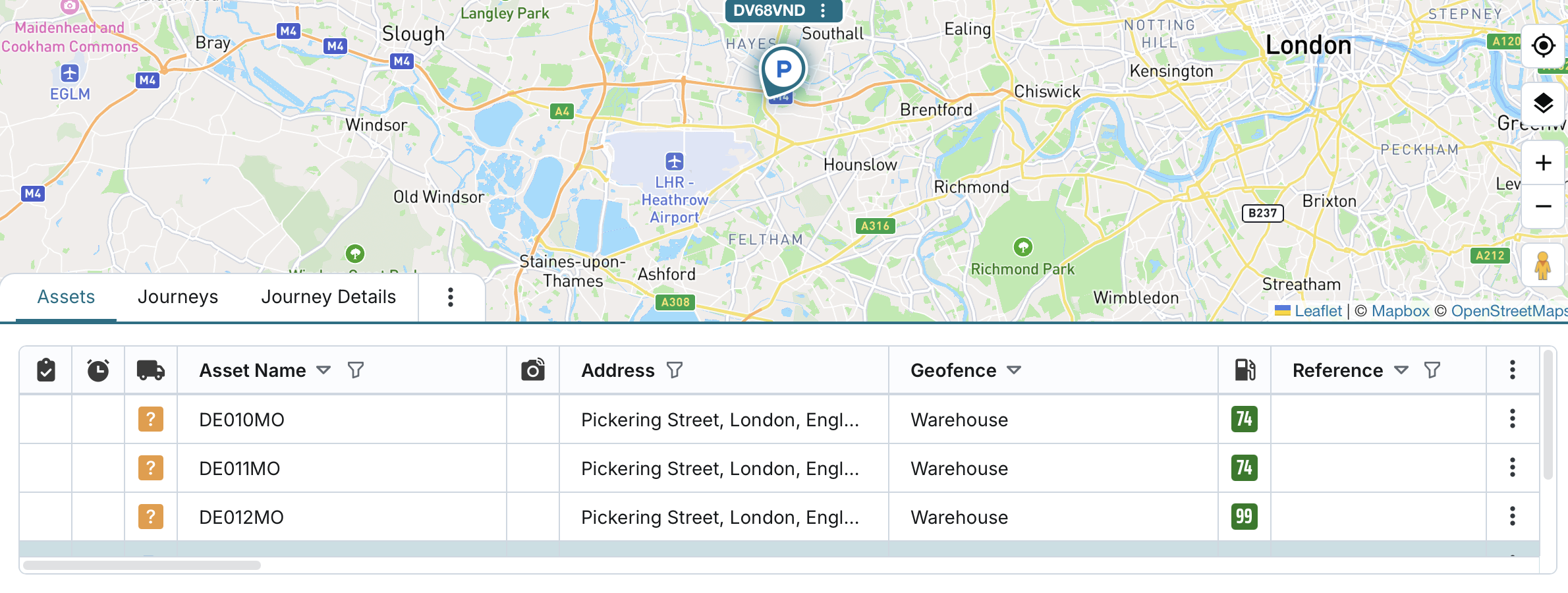

Column Configurator
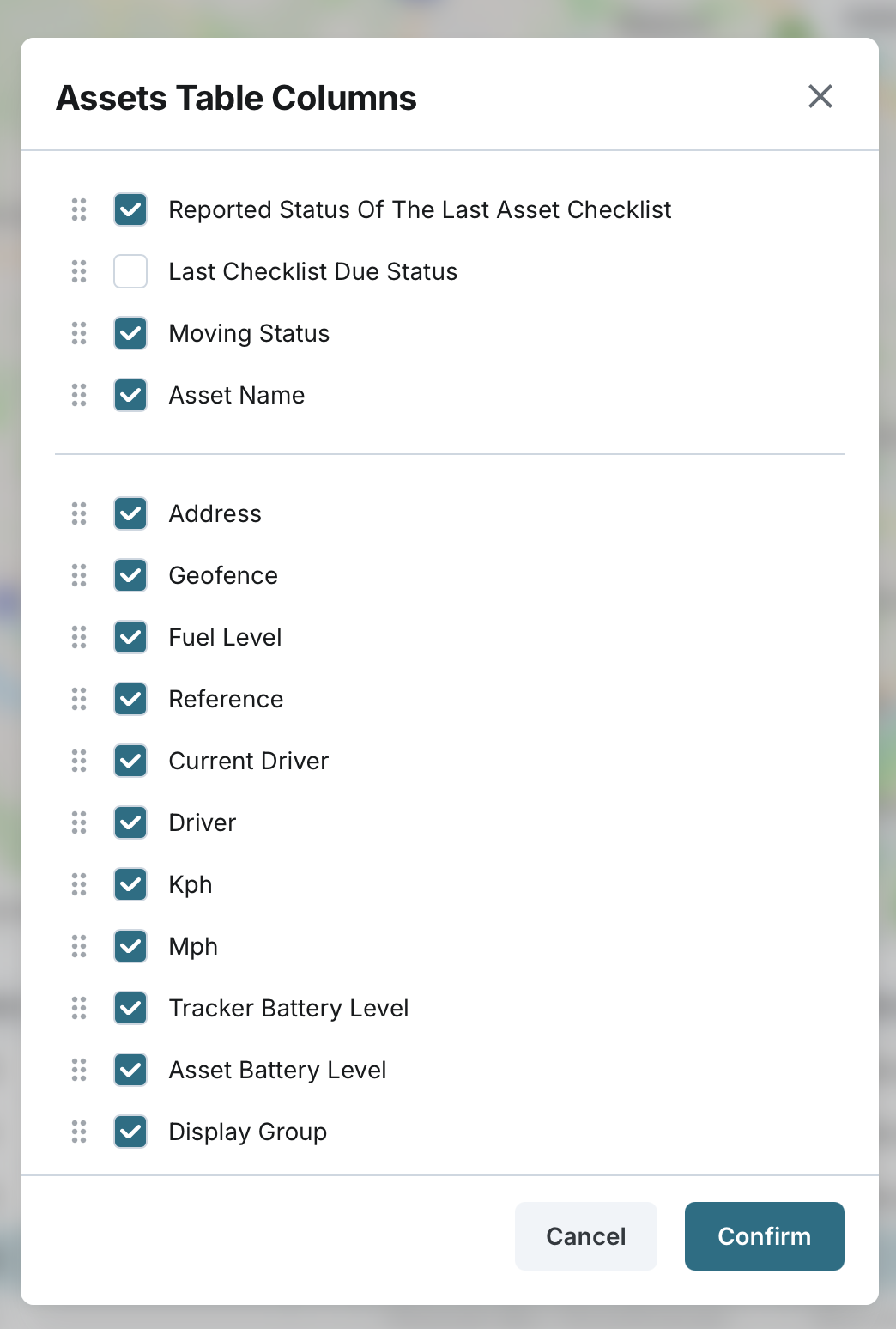
You can configure the table settings when in horizontal view by using the Column Configurator.
- The configurator displays currently visible columns as selected.
- You can deselect existing columns to hide them from the table.
- You can add new columns to display them with appropriate headers and data.
- Columns can be rearranged by dragging and dropping to set a custom order.
- You can also pin or unpin columns to define a fixed section of key data.